iPads are Back Up and Running! iPads are Back Up and Running!

The JAMF Server for configuring iPads has been updated and is now working.  We will be working on updates for Lexia Core 5, Istation,...

Reporting Chromebooks & iPads to Technology Services Reporting Chromebooks & iPads to Technology Services

Whether you are receiving new Chromebooks and/or iPads, sending them off for repair, reporting them as lost/stolen, or discarding them...

Resetting of iPads Resetting of iPads

From the desk of April Richardson... Great news!  We are back in business with resetting iPads.  Click here for instructions on reset...

VOIP, iPads, & Swap....oh my! VOIP, iPads, & Swap....oh my!

When SchoolDude tickets are being entered for VOIP issues, be sure to include the extension of the affected phone.  This will help exped...

Could you use 5 ipads?  Check this out! Could you use 5 ipads? Check this out!

Loading...

IMPORTANT MCLASS iPAD UPDATE for Elementary Media and Tech! IMPORTANT MCLASS iPAD UPDATE for Elementary Media and Tech!

Attention Elementary Media/Tech: After much discussion the MClass ipads are in need of an update prior to going home for the summer (y...

Wednesday Web Tool: QuickKey Wednesday Web Tool: QuickKey

QuickKey Use your iPhone or iPad to scan and grade your paper quizzes or test digitally! Download the QuickKey app, print out the s...

iPad Guided Access iPad Guided Access

Use this to give students access to an iPad and ensure that they stay in the app desired. This is good to use with students using teacher i...

Apple Care Apple Care

There have been a few changes to the procedures for Apple Care please look in the "Tech Folder" in the "Procedures Folder...

AppleCare AppleCare

As your school makes decisions to purchase iPads, please encourage school administration to also purchase AppleCare with each device.  While...

AppleCare Instructions AppleCare Instructions

Please call Apple directly for any iPad repairs and/or broken glass.  Apple will provide you with the steps you need to take for the repairs...

Showing posts with label iPad. Show all posts

Tuesday, September 24, 2019

iPads are Back Up and Running!


The JAMF Server for configuring iPads has been updated and is now working.  We will be working on updates for Lexia Core 5, Istation, and any other app requests.  If iPads need to be reset, you may do so now.  Be sure your iPads are connected to "JCS-Wireless" in order to communicate with the JAMF Server properly.  

Wednesday, April 10, 2019

Reporting Chromebooks & iPads to Technology Services


Whether you are receiving new Chromebooks and/or iPads, sending them off for repair, reporting them as lost/stolen, or discarding them, Technology Services must get information regarding each device so we can take the appropriate action in our system.  With that in mind, a new form has been created and should be used from here on out.  This form will replace the old form and should be used instead of emailing the information. 


It is very important to maintain accurate records in Destiny, especially regarding serial numbers.  Sometimes when scanning the box the device came in, a letter may be added to the beginning or end of the number making it very difficult to determine the actual number.  Always double check the serial number on the device when entering information in Destiny. 

Please be aware that this process in no way updates their record(s) in Destiny.  You will still be responsible to complete necessary disposition forms as applicable (Title I, CTE, etc.) and add/update the record(s) in Destiny.  Also, when you are certain you have a lost/stolen device, you will report it on this form as well as contact Technology Services so we can begin immediate tracking of the device(s).

Feel free to contact Technology Services if you have any questions regarding this form. 

Tuesday, October 2, 2018

Resetting of iPads


From the desk of April Richardson...

Great news!  We are back in business with resetting iPads.  Click here for instructions on resetting iPads.  Thank you for your patience. 


Thursday, September 27, 2018

VOIP, iPads, & Swap....oh my!


When SchoolDude tickets are being entered for VOIP issues, be sure to include the extension of the affected phone.  This will help expedite your ticket.  Please share this information as needed.  Thank you!


From the Desk of April Richardson....
Please do not reset any iPads at this time.  We are having issues with our service and working to get it resolved.  We will let you know when all is well again.  
                                                                                                                       Thank you!


Do you need technology?  Do you no longer need technology but it is still in good working condition?  Share it on our JCPS Swap Meet Sheet!   

Friday, June 3, 2016

IMPORTANT MCLASS iPAD UPDATE for Elementary Media and Tech!


Attention Elementary Media/Tech: After much discussion the MClass ipads are in need of an update prior to going home for the summer (you can begin Monday and have until the last workday to complete the update).  I'm sorry for the late notice but this new procedure has just become active in our management system and with Apple. 

This update will need to be completed by one of you (Media/Tech) or each individual K-3 teacher who has a device from the county for Mclass,  the directions are outlined here and you need to be sure you only do these steps on MCLASS devices.  Please let your MClass manager know about this information as well.
If you have questions contact April Richardson or myself.  Thank you for helping us keep this technology working for your teachers.  
Amy

Wednesday, October 29, 2014

Wednesday Web Tool: QuickKey

QuickKey


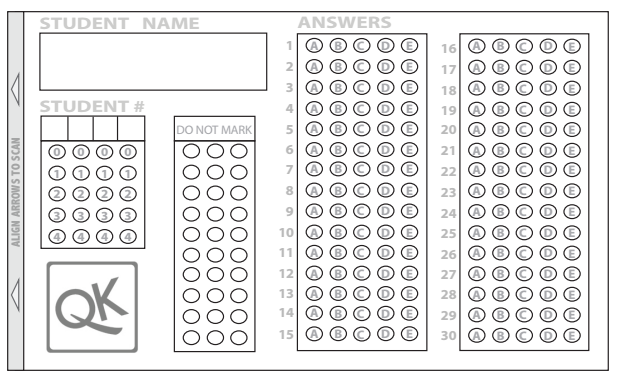
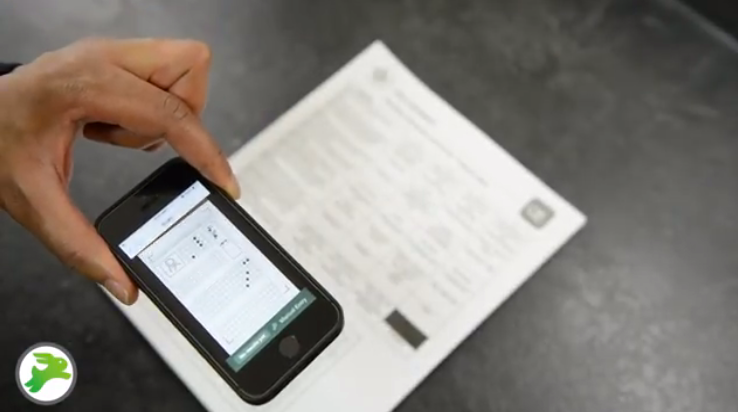
Use your iPhone or iPad to scan and grade your paper quizzes or test digitally! Download the QuickKey app, print out the scannable answer sheet, input your answer key and get ready to test.

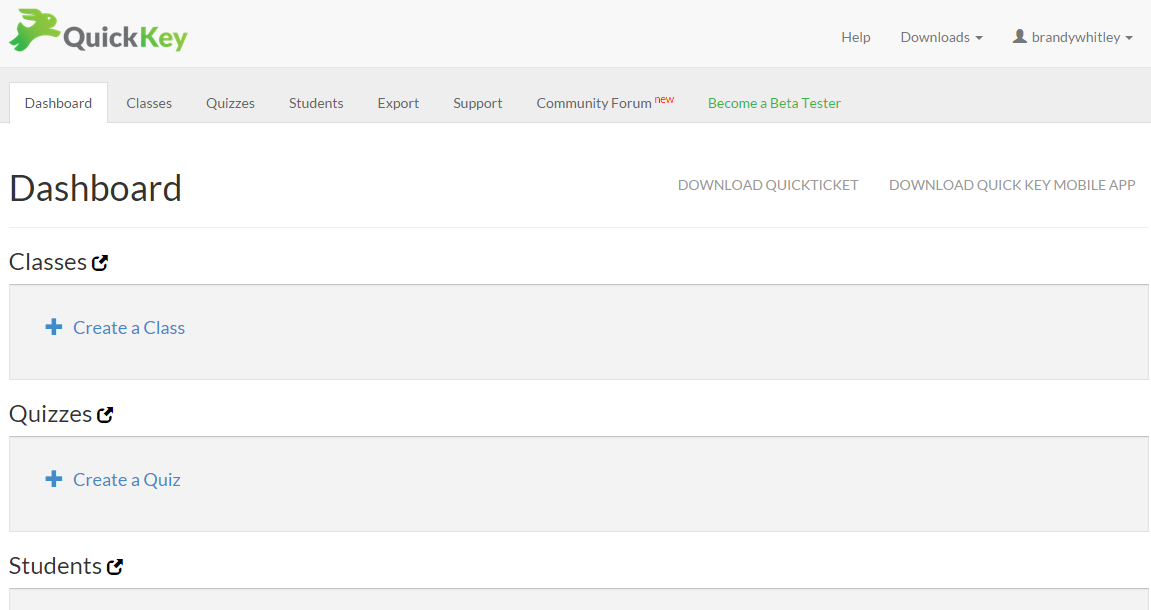
To get started, go to get.quickkeyapp.com and register for a free account. This can be done at a computer, Chromebook, or using your browser on your iPhone or iPad. Once logged in, you will see your Dashboard.


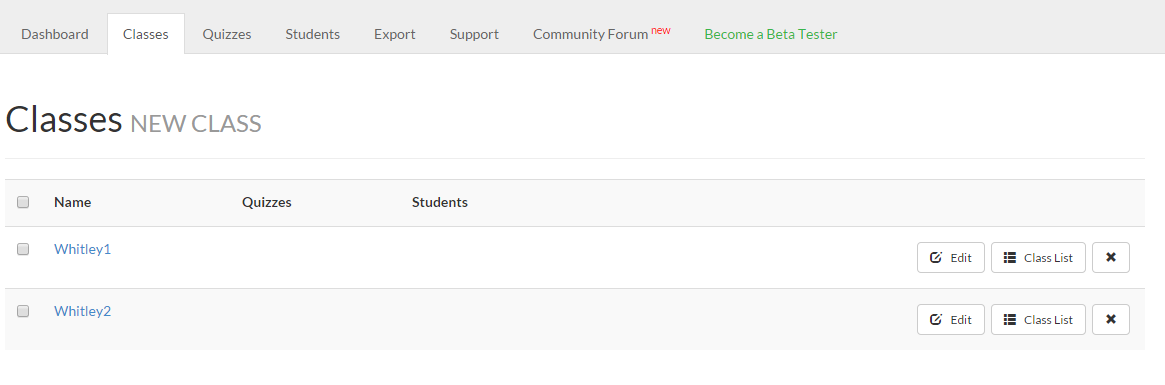
Click on + Create a Class or click on the Classes tab to add your class(es). Your list of classes will show up under the “Classes” tab after you have created them.


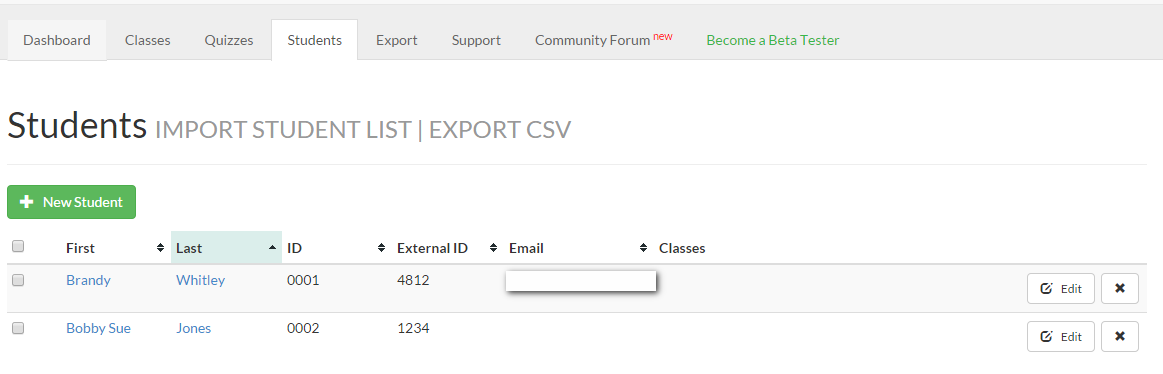
To add your students, click on the “Students” tab, and click on the + New Student button. There is also a spreadsheet template that can be downloaded and completed to import student lists into QuickKey. To access the template, click on the words “Import student list.”

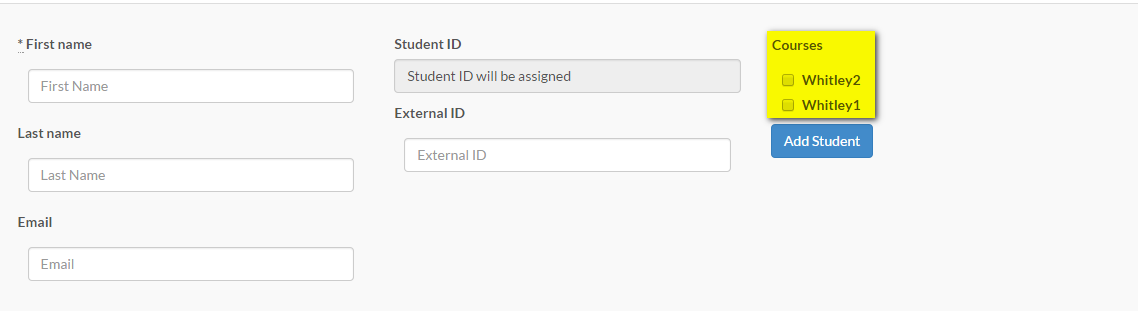
As you add students, you have to option to add them to the desired class(es).


When done, make note of the ID numbers assigned to the students. They will need this when filling out their answer sheet.

To administer and score an assessment, click on “Downloads” then “QuickTicket” in the top right corner of the screen. print the answer sheet and create copies as needed. There are 2 answer sheets on a page.


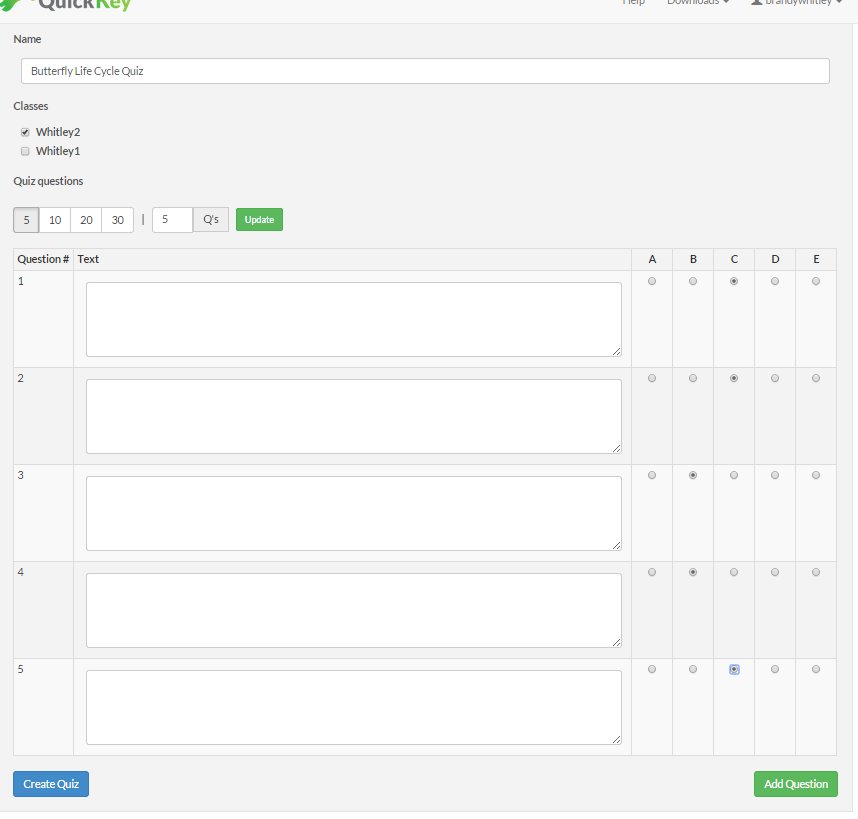
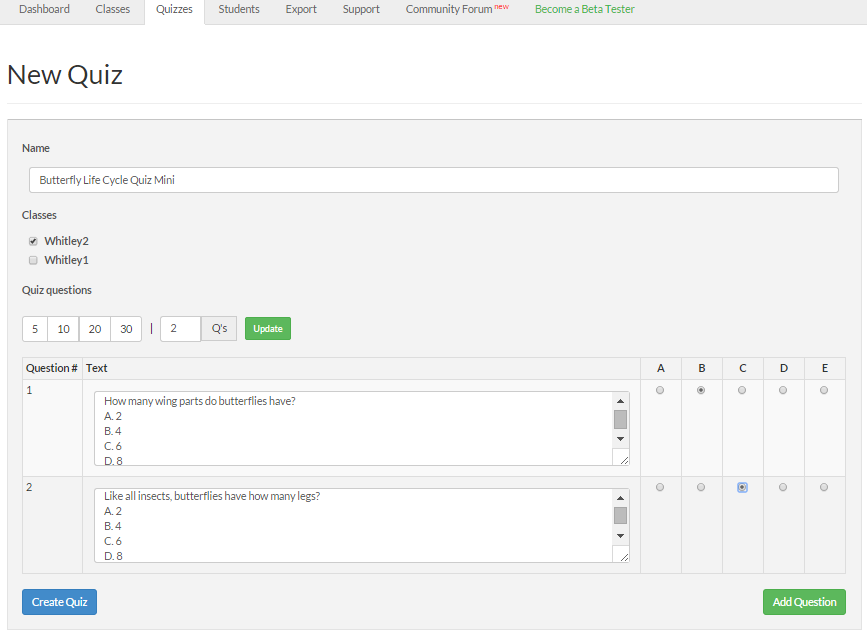
Next, click on the “Quizzes” tab then “New Quiz.” Give the quiz a name, choose the number of questions, select the desired class(es), then start inputting the assessment information.

There are two options for entering your assessment information. The quick version is to create an answer key only. That would look something like this:


The other option would be to add the questions AND the answers to the quiz. That would look something like this:


Click “Create Quiz” to finalize your assessment.

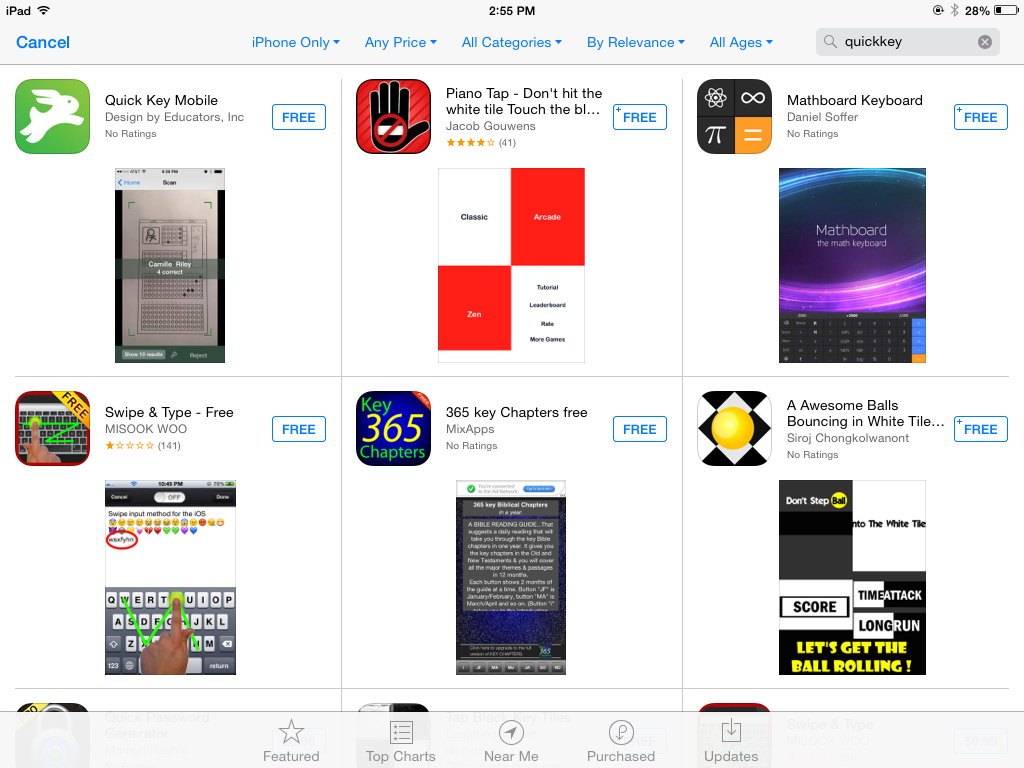
Download the app to your iPhone or iPad. This is what you will use to scan and grade their finished assessments.


Provide students with their QuickKey ID number, an answer sheet and their assessment. When student complete the assessment, simply use the QuickKey app to “Scan An Existing Quiz”. Scan the student’s answer sheet and get instant feedback on grade.


Now student data and grades can be reviewed and sorted from the app or the website.


Questions or comments?
Email me at brandywhitley@johnston.k12.nc.us

Wednesday, April 2, 2014

iPad Guided Access

Use this to give students access to an iPad and ensure that they stay in the app desired. This is good to use with students using teacher iPads as they contain teacher email accounts, etc. This is also good for that student who doesn’t always stay in the desired app when the teacher is not looking.


To set this up:

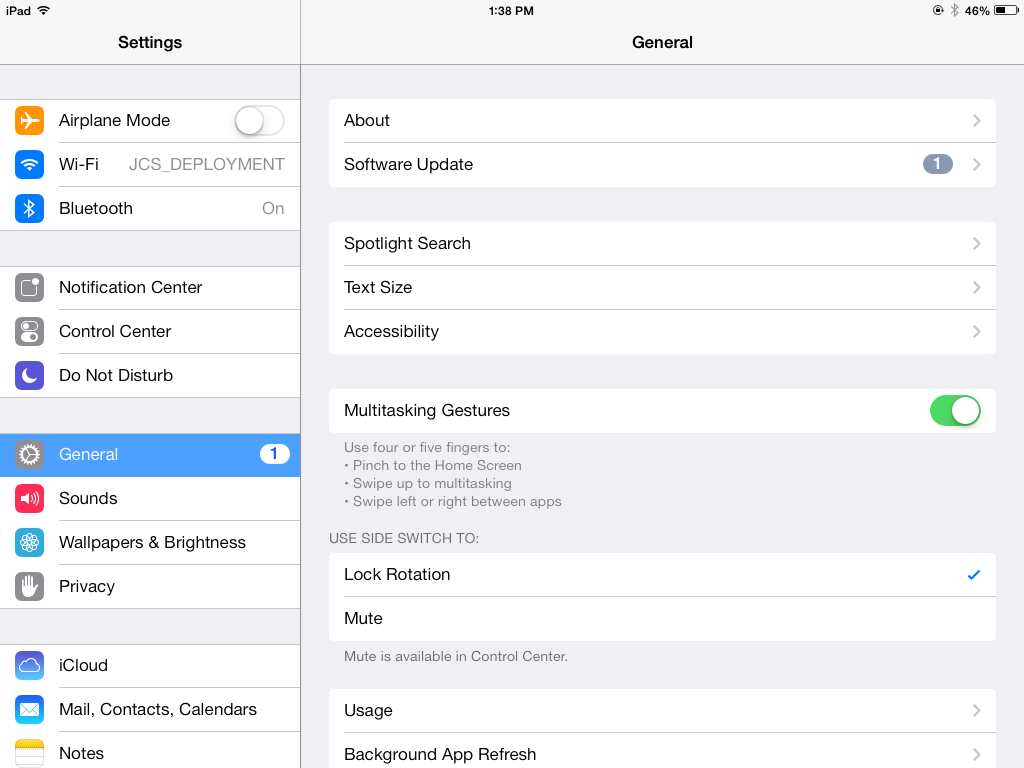
1. Go to the settings of the iPad.

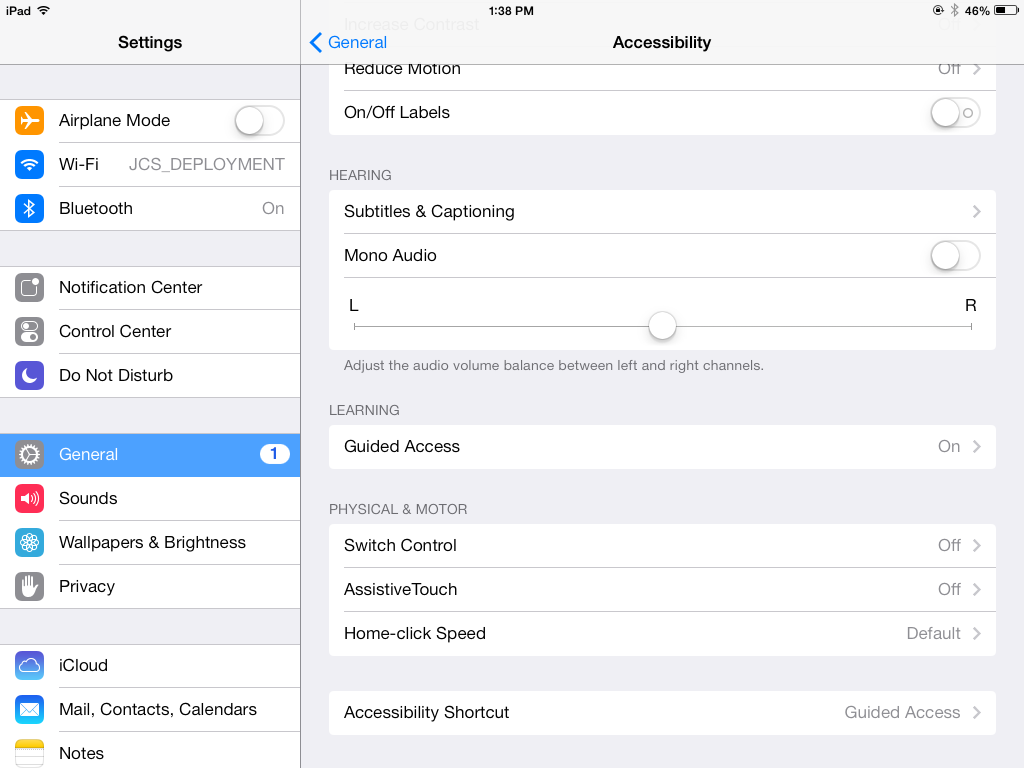
2. Under the General settings, click on Accessibility.


3. Scroll down and click on Guided Access under the Learning heading.

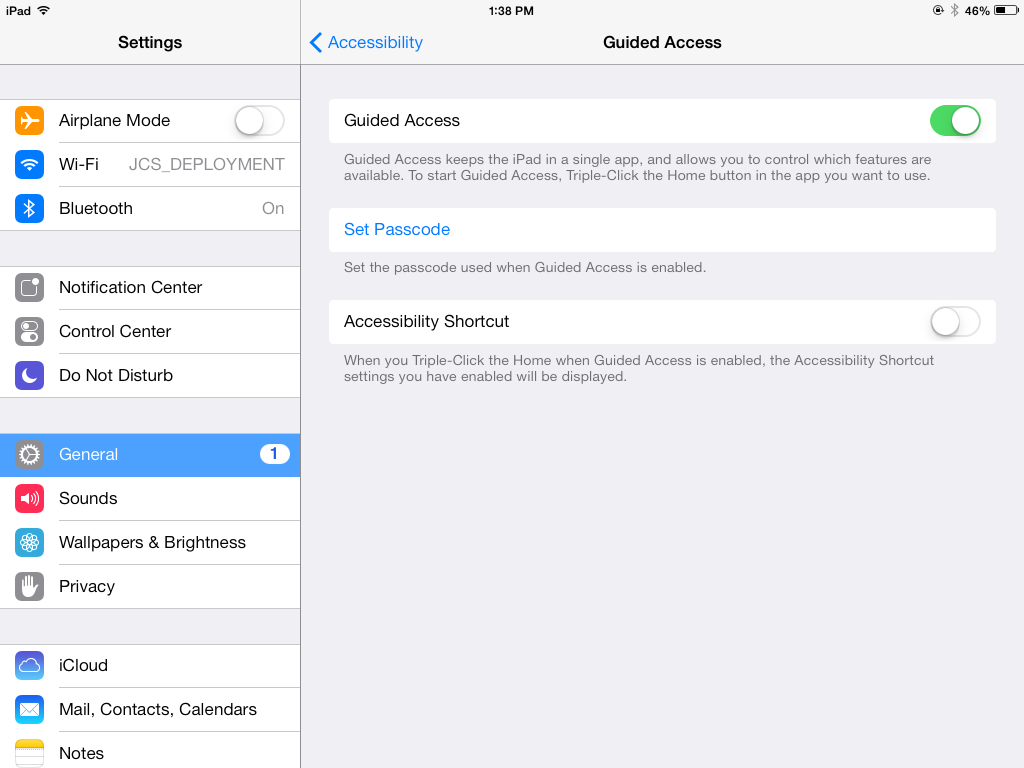
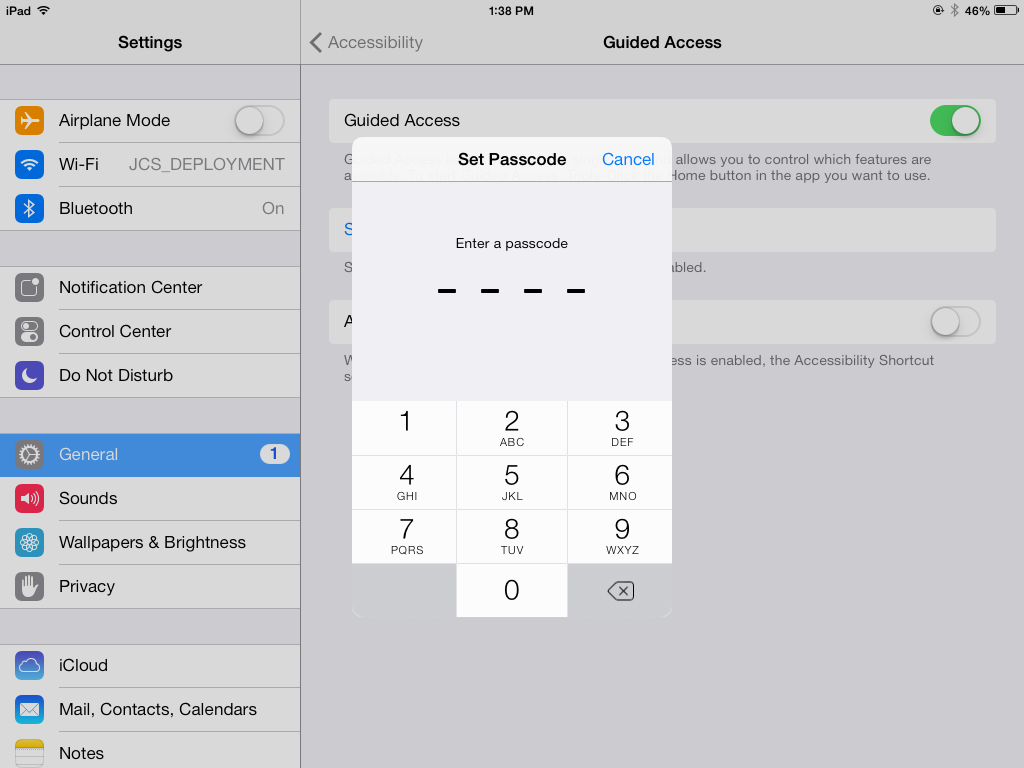
4. Turn on the Guided Access


5. Click on Set Password and set the password. This needs to be a password that the students DO NOT know. This CAN be the same as the password to gain access to the iPad. You will need this password at a later point to exit the iPad out of guided access. 
6. You are now ready to put an app into Guided Access mode. Open an app.

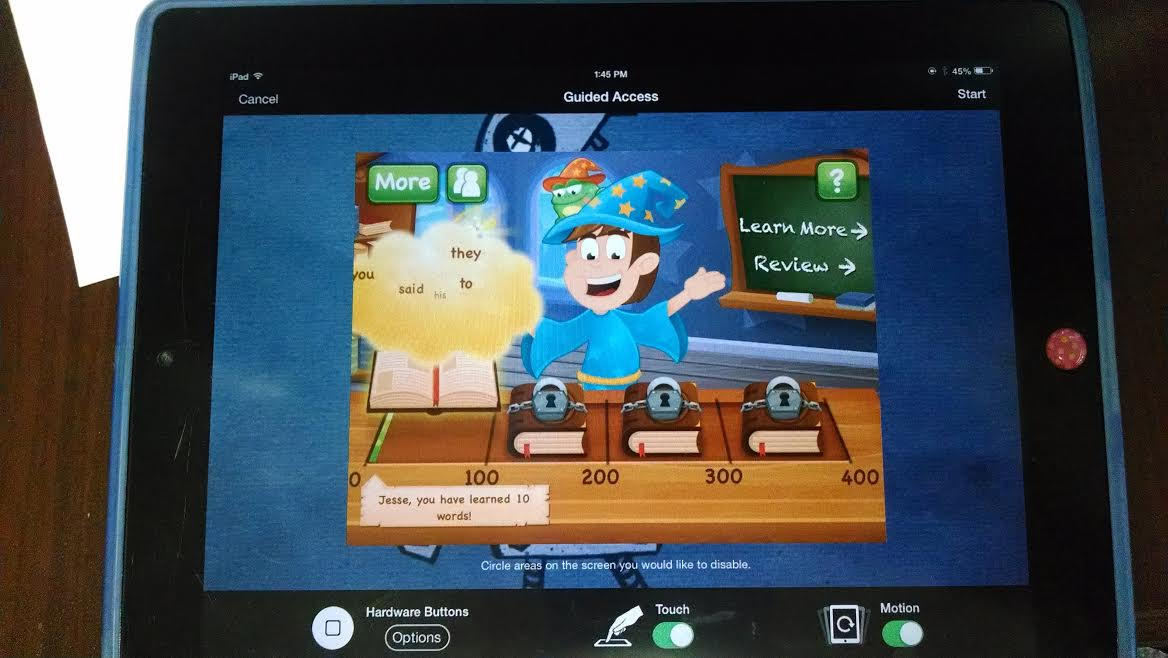
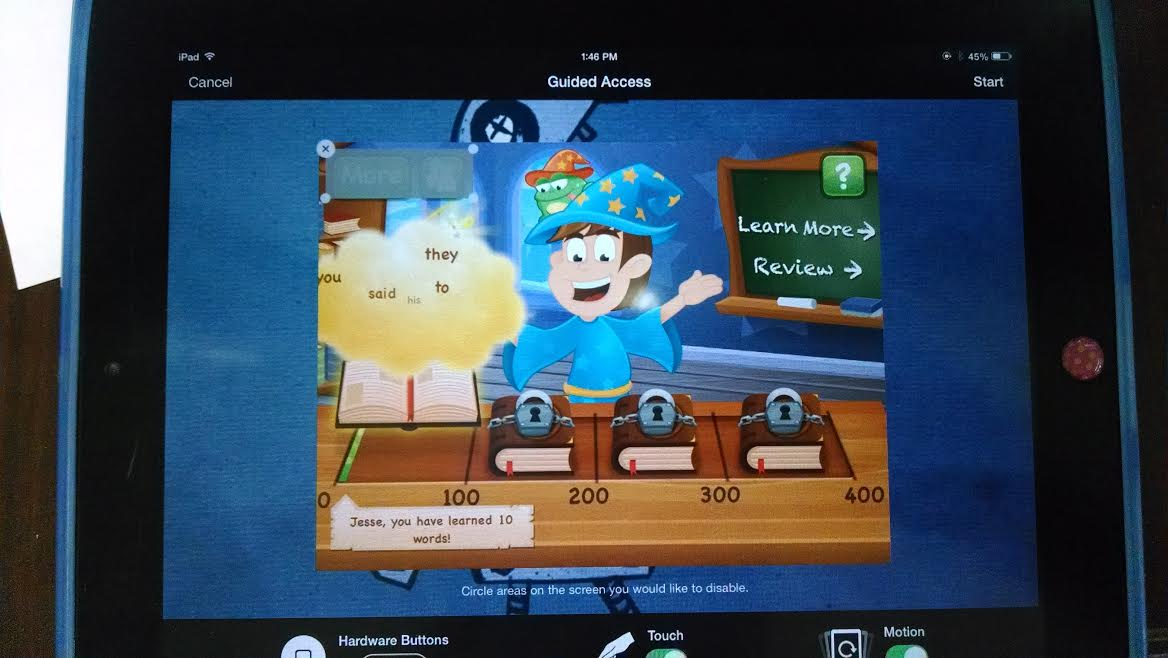
7. Triple Click the home button. This may take several attempts, but it will look like this when it registers your triple click. You will see “Cancel” in the top left corner, “Start” in the top right corner, etc.

8. At this point, you have 2 choices:
1. Click start and let the student use the app as is.
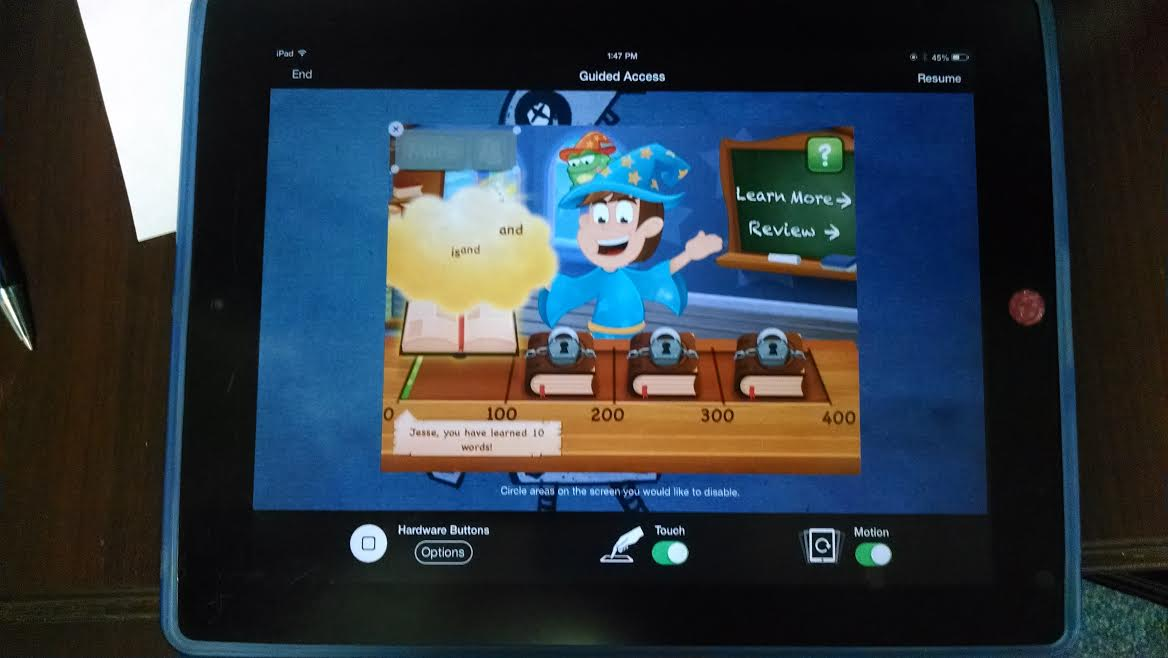
2. You have the option to circle areas of the screen that you don’t want the students to access during guided access. This might be the exit door, more fun, etc. Just remember, the area of the screen that you circle will stay the same throughout the activity in the app, so be sure that they don’t NEED to have access to that area during the process of the app.

(Below you will see that the more and the “friends” icon have been circled and grayed out)

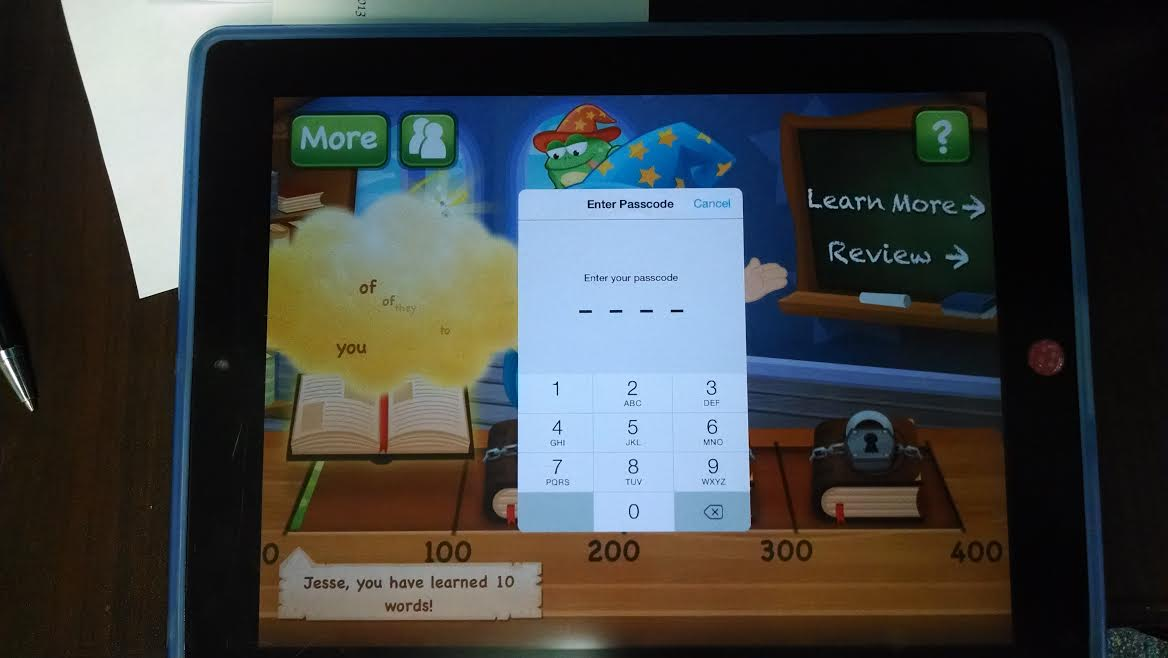
9. To EXIT Guided Access-You will triple click again to enter that “code” you set during the Guided Access set up. This is the ONLY way to exit out of Guided Access. 


10. This is also an option to remove grayed out areas in the Guided Access session and resume use of the app still in guided access. OR Click on “end” to end the Guided Access session. 

Wednesday, January 16, 2013

Apple Care

There have been a few changes to the procedures for Apple Care please look in the "Tech Folder" in the "Procedures Folder" for the adjusted procedure.

Wednesday, January 2, 2013

AppleCare

As your school makes decisions to purchase iPads, please encourage school administration to also purchase AppleCare with each device.  While AppleCare gives each device technical support as well as software support, we also get hardware coverage.  AppleCare has been overwhelmingly helpful in events of broken screens.  By default, the warranty is for one year, but your school can purchase the Protection Plan or AppleCare+.

Tuesday, November 27, 2012

AppleCare Instructions

Please call Apple directly for any iPad repairs and/or broken glass.  Apple will provide you with the steps you need to take for the repairs.  

We have provided a document that will assist you in this process.  It is in the following folder: Tech Leaders > Policies & Procedures > Apple iPad Repair (AppleCare) Instructions.