Friday Google Tidbits: Insert Videos in Slides and the New Team Drive! Friday Google Tidbits: Insert Videos in Slides and the New Team Drive!

Happy Friday! This week we have two tidbits to share with you. First, Google updated Slides to now allow you to import Videos from ...

Friday Google Tidbit: New Option to Create from Template Friday Google Tidbit: New Option to Create from Template

Happy Friday! This week G Suite was updated with a new option to create a Google Doc, Slide, Sheet, or Drawing from a Template. We ...

Wednesday Web Tool: How to Embed a Google Slides Newsletter on Your SharpSchool Website Wednesday Web Tool: How to Embed a Google Slides Newsletter on Your SharpSchool Website

This week we are sharing a way to create a digital newsletter via Google Slides and embed it on your SharpSchool teacher website. Th...

Friday Google Tidbit: Get Immediate Feedback from Your Students with Questions in Google Slides! Friday Google Tidbit: Get Immediate Feedback from Your Students with Questions in Google Slides!

Happy Friday! This week Google has added a great new feature to Google Slides that allows students to submit questions during a liv...

Friday Google Tidbit: New Templates Available for Google Docs, Sheets, and Slides Friday Google Tidbit: New Templates Available for Google Docs, Sheets, and Slides

Happy Friday! This week Google has introduced new templates for Google Docs, Sheets, and Slides. These templates make it easy to ma...

Friday Google Tidbit: New Versions of Google Docs, Sheets, and Slides Friday Google Tidbit: New Versions of Google Docs, Sheets, and Slides

New Versions of Google Docs, Sheets, and Slides Update: Back in May, Google released new mobile apps for Google Docs, Sheets, and Sl...

Friday Google Tidbit: Adjust Images in Google Slides Friday Google Tidbit: Adjust Images in Google Slides

Adjust Images in Google Slides Over the next 2 weeks, users will receive the ability to adjust image color and filters in Google Slide...

Friday Google Tidbits: New Slides App and Classroom Icon Now Available! Friday Google Tidbits: New Slides App and Classroom Icon Now Available!

Happy Friday! This week, we have two new Google tidbits to share. First, Google now has a separate Slides App available for Android and...

Showing posts with label Google Slides. Show all posts

Friday, February 10, 2017

Friday Google Tidbits: Insert Videos in Slides and the New Team Drive!


Happy Friday!

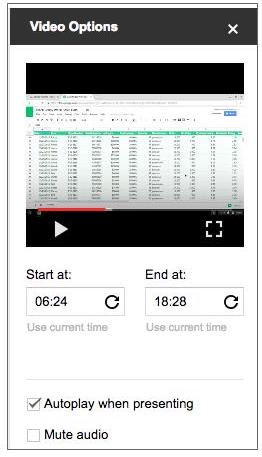
This week we have two tidbits to share with you. First, Google updated Slides to now allow you to import Videos from your Google Drive. This greatly expands the possibilities for adding videos and audio to your Google Slides presentations.


Here is a screenshot of the new options for playing videos, including an option to mute audio.

Google also recently introduced a new feature in Google Drive, called Team Drive. Team Drive allows you to share files with a team of users. One benefit of Team Drive is that if one team member leaves, the remaining members still have access to the files on the Team Drive. The main drawback to using Team Drive is that you cannot have files in both your personal Drive and the Team Drive. Team Drive is a brand new feature to stay tuned for more updates about its possible uses.

Friday, February 3, 2017

Friday Google Tidbit: New Option to Create from Template


Happy Friday!

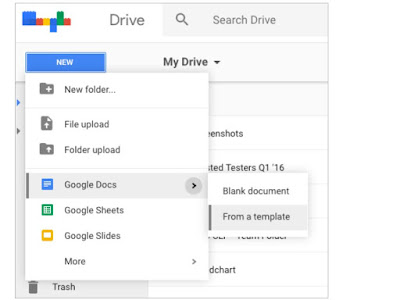
This week G Suite was updated with a new option to create a Google Doc, Slide, Sheet, or Drawing from a Template. We do have a template gallery just for JCS, you can upload your own templates to the gallery and students can use them to create from the templates. This is handy if you have a specific format you want your students to use for a project.

Here is a screenshot of the new feature:

Have a great weekend!

Wednesday, September 28, 2016

Wednesday Web Tool: How to Embed a Google Slides Newsletter on Your SharpSchool Website


This week we are sharing a way to create a digital newsletter via Google Slides and embed it on your SharpSchool teacher website. This allows you to update the newsletter in Google and it will auto-publish the changes to your website without you logging into SharpSchool.

You can also share the newsletter with your PLC or Grade level to have a common newsletter to update students and parents.

The first step is to create your newsletter in Google Slides.
  1. Open a new Google Slide presentation from Google Drive
  2. Your newsletter will be just one slide.
  3. Change the page size of your slide to be 8.5" wide by 11" high (this is great for printing the newsletter to send home to parents). 
    • Go to File--> Page Setup--> Custom: 


I have created a Newsletter Template that is already the correct size and has some basic formatting. You are welcome to use the template as a starting point. When you click on the link, it will ask you to make a copy of the template that you can start editing.

Now comes the fun part...adding your content! Google Slides allows you to insert links, videos, and images into your newsletter. There is also word art to give your newsletter some flair!

Once your newsletter has all of your content, it is time to embed the newsletter into your website. This is a one time process, once it is embedded, you no longer have to make changes in SharpSchool to your newsletter-you just update it in Google and it will publish the changes!


Please let me know if you have any questions!

Friday, May 13, 2016

Friday Google Tidbit: Get Immediate Feedback from Your Students with Questions in Google Slides!


Happy Friday!

This week Google has added a great new feature to Google Slides that allows students to submit questions during a live Google Slides presentation.

Check out this video of Google Slides Q&A in Action:


The Slides Q&A feature works on desktop computers, chromebooks, and Apple/Android mobile devices.

To launch the Q&A feature, open any Google Slide presentation and click the down arrow next to the present button:


The presenter view box will open, this is where you can start the Q&A session and see questions as they pop-up:


This is a wonderful new feature to make your presentations interactive!

Have a great weekend!

Friday, March 4, 2016

Friday Google Tidbit: New Templates Available for Google Docs, Sheets, and Slides

Happy Friday!


This week Google has introduced new templates for Google Docs, Sheets, and Slides. These templates make it easy to make reports, resumes, and newsletters in Google and look very similar to the templates offered in Microsoft Office products. 

To access the templates, you will need to open the home screen of Google Docs, Sheets, or Slides (you can also open the app on a mobile device to see the templates).

From your email, click on the Google Apps Launcher, then click on one of the Google Apps:


This will take you to the app "home screen":


Look for the "More" button on the right side to view all the templates available:


If you scroll down to see additional template categories, you will see Education templates:


Click on any template to create a copy of that document that you can start editing!

Some of my favorites are the newsletter and report templates for Google Docs. I hope these templates make it easier for you and your students to create beautiful documents!

Have a Great Weekend!

Friday, December 12, 2014

Friday Google Tidbit: New Versions of Google Docs, Sheets, and Slides

New Versions of Google Docs, Sheets, and Slides


Update: Back in May, Google released new mobile apps for Google Docs, Sheets, and Slides. The new apps have allowed for more editing options for docs on the go as well as a new offline feature that allows you to edit documents offline and automatically loads them the next time you connect to the internet.  At the time, the Android version was better than the IOS version. This week, Google updated the Docs, Sheets, and Slides iOS app. You can now view and edit text in tables in Docs and insert, move, resize and rotate text boxes, shapes and lines in the updated Slides app.


Click below to access/download these new apps:

Friday Google Bonus
Let Google Drive take some of the holiday stress. Click here to see how to: Organize your holiday essentials, Quickly share family files, Go attachment free in holiday emails, View Google files offline, and Share lists across devices.
This guide might also be helpful!


Questions or comments?
Email me at brandywhitley@johnston.k12.nc.us


Friday, October 31, 2014

Friday Google Tidbit: Adjust Images in Google Slides

Adjust Images in Google Slides

Over the next 2 weeks, users will receive the ability to adjust image color and filters in Google Slides. Adjustments include the ability to change color, transparency, brightness and contrast.

Once available, users can select an image in Google slides, click the “Image Options” button in the toolbar (or right click the image then “Image Options” or click on “Format” then “Image Options”)


The “Image Options” toolbar will open on the right. Check out some examples of these options:

Recolor


Brightness


Contrast


If you don’t like what you have done, you can always reset adjustments on the “Image Options” toolbar.


Questions or comments?
Email me at brandywhitley@johnston.k12.nc.us


Friday, September 12, 2014

Friday Google Tidbits: New Slides App and Classroom Icon Now Available!

Happy Friday!

This week, we have two new Google tidbits to share. First, Google now has a separate Slides App available for Android and Apple devices so you can create and edit presentations with mobile devices. If you attempt to open a presentation with the Google Drive App, you will be prompted to download the new Slides App.


Click Here to download the Slides App for Android Devices on Google Play

Click Here to download the Slides App for Apple Devices from the App Store

Secondly, Classroom now has an icon within the Google Apps "Rubik's Cube" when you are logged-in to Google.


Click on your cube and then "More" and scroll down.


Classroom icon will be in the bottom left corner.

I hope you have a great weekend!

Questions? Comments?
Please email me at: pamelabatchelor@johnston.k12.nc.us