Friday Google Tidbit: New Option to Create from Template Friday Google Tidbit: New Option to Create from Template

Happy Friday! This week G Suite was updated with a new option to create a Google Doc, Slide, Sheet, or Drawing from a Template. We ...

Friday Google Tidbit: Columns in Google Docs Friday Google Tidbit: Columns in Google Docs

COLUMNS are finally available in Google Docs! Google has added a long awaited feature to Google Docs -> Columns, it has been one o...

Friday Google Tidbit: New Templates Available for Google Docs, Sheets, and Slides Friday Google Tidbit: New Templates Available for Google Docs, Sheets, and Slides

Happy Friday! This week Google has introduced new templates for Google Docs, Sheets, and Slides. These templates make it easy to ma...

Friday Google Tidbit: New Voice Commands in Google Docs and Style Editor in Mobile! Friday Google Tidbit: New Voice Commands in Google Docs and Style Editor in Mobile!

Happy Friday! This week, Google has launched voice commands for Google Docs. This is exciting news because now you can speak commands...

Wednesday Web Tool: Making the Most of Google Docs! Wednesday Web Tool: Making the Most of Google Docs!

One topic that has come up frequently is how to use Google Docs. Since we are a Google Apps For Education (GAFE) district, and Google o...

Friday Google Tidbit: New Speech Recognition Add-on for Google Docs Friday Google Tidbit: New Speech Recognition Add-on for Google Docs

Happy Friday! Google Docs has a new add-on available that allows for speech recognition. This is a great feature for students who p...

Friday Google Tidbit: Pin a Document for Easy Access in Chrome Friday Google Tidbit: Pin a Document for Easy Access in Chrome

Happy Friday! This week we are sharing a handy tip to quickly add a Google file (such as a Google Doc or Sheet) to your taskbar on a ...

Upcoming Google Sessions-Register Today on My Learning Plan! Upcoming Google Sessions-Register Today on My Learning Plan!

The Digital Learning Team will be offering two Google Sessions in December. These sessions are open for all staff members and will be...

Wednesday Web Tool: Take Feedback to the Next Level with Kaizena! Wednesday Web Tool: Take Feedback to the Next Level with Kaizena!

With the introduction of electronic papers, it is more convenient than ever to provide feedback for your students. With the digital con...

Friday Google Tidbits: Google Docs and Classroom Just Got Better! Friday Google Tidbits: Google Docs and Classroom Just Got Better!

Happy Friday! Google released new updates yesterday for Google Docs and Classroom. Google developers have been hard at work over the...

Friday Google Tidbit: Automatic Copy of Google Document Friday Google Tidbit: Automatic Copy of Google Document

There are times as a teacher when you want your students to make a copy of a Google document for a class assignment. As a presenter or c...

Friday Google Tidbit: Mixed Columns in a Google Doc Friday Google Tidbit: Mixed Columns in a Google Doc

Sometimes there is a need to have a document with multiple columns. Google Documents do not currently have the ability to have more than...

Showing posts with label Google Docs. Show all posts

Friday, February 3, 2017

Friday Google Tidbit: New Option to Create from Template


Happy Friday!

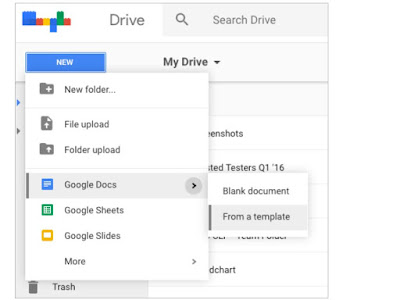
This week G Suite was updated with a new option to create a Google Doc, Slide, Sheet, or Drawing from a Template. We do have a template gallery just for JCS, you can upload your own templates to the gallery and students can use them to create from the templates. This is handy if you have a specific format you want your students to use for a project.

Here is a screenshot of the new feature:

Have a great weekend!

Friday, September 23, 2016

Friday Google Tidbit: Columns in Google Docs

COLUMNS are finally available in Google Docs!

Google has added a long awaited feature to Google Docs -> Columns, it has been one of the most requested features.

So here is how to get started, using the Format -> Columns option allows you to add the columns to your document.
You can select 2 or 3 columns for your document


Once you have your columns inserted, you can go to more options to set your margins and spacing between columns, you can also add a line in between your columns:


If you select the line it will appear as you start the second column of text and will look something like this:

Have a great weekend!

Friday, March 4, 2016

Friday Google Tidbit: New Templates Available for Google Docs, Sheets, and Slides

Happy Friday!


This week Google has introduced new templates for Google Docs, Sheets, and Slides. These templates make it easy to make reports, resumes, and newsletters in Google and look very similar to the templates offered in Microsoft Office products. 

To access the templates, you will need to open the home screen of Google Docs, Sheets, or Slides (you can also open the app on a mobile device to see the templates).

From your email, click on the Google Apps Launcher, then click on one of the Google Apps:


This will take you to the app "home screen":


Look for the "More" button on the right side to view all the templates available:


If you scroll down to see additional template categories, you will see Education templates:


Click on any template to create a copy of that document that you can start editing!

Some of my favorites are the newsletter and report templates for Google Docs. I hope these templates make it easier for you and your students to create beautiful documents!

Have a Great Weekend!

Friday, February 26, 2016

Friday Google Tidbit: New Voice Commands in Google Docs and Style Editor in Mobile!

Happy Friday!


This week, Google has launched voice commands for Google Docs. This is exciting news because now you can speak commands to edit the formatting and structure of your Google Doc.

To activate voice typing, open a Google Doc and click on the "Tools" menu, then click on "Voice Typing":


Voice typing is not available in mobile versions and you must have a microphone attached if you are using a desktop computer.

For a list of voice commands, click here.

The Google Docs App was also updated this week with a new style editor to customize the look of your Google Doc while using the mobile version.

The style editor icon is available in the top right corner of the iOS app and allows you to set style options for the current selection and paragraph.

Here is the new style editor icon on my iPhone:

Here are the new style options:


The ability to add subscript and superscript letters/numbers is a nice feature for editing documents in a mobile setting.

I hope you explore the new features in Google Docs and have a great weekend!

Wednesday, December 2, 2015

Wednesday Web Tool: Making the Most of Google Docs!


One topic that has come up frequently is how to use Google Docs. Since we are a Google Apps For Education (GAFE) district, and Google offers unlimited storage with easy collaboration, now is a great time to explore all that Google Docs has to offer.

I have created five short video tutorials to help explain some of the most useful features in Google Docs.

Click on the link above to view the video tutorial

Google has over two hundred additional fonts you can add to Google Docs. The nice thing is that once you add the fonts one time, they will be available across all Google products on any device you use. Also Google fonts are universal so even if you share the document with someone who does not have that font, they will still be able to read the document.

Click on the link above to view the video tutorial

One feature that Google Docs currently does not offer is the ability to create multiple columns. However you can create a table and then hide the table border to create columns in your document.

Click on the link above to view the video tutorial

The research tool allows students to open a safe search browser within their document to research any topic. They can insert images and citations will automatically be inserted with the image. You can change the citation format to MLA, APA, or Chicago standards. This is my very favorite tool for Google Docs!

Click on the link above to view the video tutorial

Use Google Drawings to create custom word art headers or any variety of flow charts and diagrams within your Google Doc. Drawings act as an image within the document and can be easily resized and edited.

Click on the link above to view the video tutorial

The translate tool creates a copy of your Google Doc in one of a hundred different languages! This is a great tool for parents and community members who need a translated copy of your document. You could also use the translate tool as an instructional aid in a foreign language course.

I hope these short video tutorials help you become more familiar with Google Docs. Please feel free to share with your staff and students.

Friday, November 13, 2015

Friday Google Tidbit: New Speech Recognition Add-on for Google Docs

Happy Friday!


Google Docs has a new add-on available that allows for speech recognition. This is a great feature for students who prefer to talk instead of type and a timesaver for adults as well!

To get the add-on, open a new Google Doc and find the "Add-ons" menu, click on "Get add-ons":

Type "Speech Recognition" in the search bar on the right side, then click on the "+Free" button to add it:

You will need to allow permissions for the add-on:


You should see a pop-up message that the add-on has been installed. To access the add-on, find the "Add-ons" menu and find "Speech Recognition" and then click on "Start":


The add-on will appear on the right side, you can select your input language and accent to improve the recognition. Click on the "Start" button and allow the microphone access to begin speech recognition. Speak normally and click on "Stop" to insert your text.


I hope you explore the speech recognition add-on to save time and increase student interest in writing. Have a great weekend!

Friday, October 30, 2015

Friday Google Tidbit: Pin a Document for Easy Access in Chrome

Happy Friday!

This week we are sharing a handy tip to quickly add a Google file (such as a Google Doc or Sheet) to your taskbar on a Chromebook for easy reference. This is great for documents you need to access frequently such as lesson plans, student information, or a testing schedule.

To get started: Open the Google file you wish to pin.


  1. Find the Chrome Menu icon (looks like three lines) in the top right corner
  2. Hover over "More Tools"
  3. Click "Add to shelf"
  4. Name the document
  5. Click "Add"


The file will now be represented by an icon in your taskbar and can be referenced quickly. If you wish to remove the file from your taskbar, you can right click (two-finger tap) and "Unpin" the document.

You can also use this process to add links to websites to your taskbar as well.

Have a Great Weekend!


Monday, October 26, 2015

Upcoming Google Sessions-Register Today on My Learning Plan!


The Digital Learning Team will be offering two Google Sessions in December. These sessions are open for all staff members and will be held in the West Campus Computer Lab in Smithfield, NC. 
Please register in My Learning Plan.

Session Descriptions:

Google It Up

Learn how to use Google Apps for Education to organize your classroom and let your student's innovation shine. Focus will be on recent updates to Google Apps such as Calendar, Google Drive, and Docs.

Differentiate with Google Classroom

Learn how to differentiate learning in your classroom with Google Classroom. See model lesson plans and activities to help you create your Google Classroom.


Wednesday, October 21, 2015

Wednesday Web Tool: Take Feedback to the Next Level with Kaizena!


With the introduction of electronic papers, it is more convenient than ever to provide feedback for your students. With the digital conversion comes the need for a new set of "Teacher Pens" to mark student work. This week we are featuring a free Add-On to Google Docs called Kaizena that allows you to mark skills, assign digital links, and add typed or voice comments. Students can see your feedback and reply with typed or voice comments as well.

To get started, open a new Google Doc from your Google Drive (or you can open a Google Doc you want to give feedback on):


Then find "Add-Ons" and click on "Get Add-Ons":


In the search box, type "Kaizena", then click on the "+Free" to connect the Add-On:

Allow the permissions box that pops-up:
You should now see a message that Kaizena has been added. Go to the "Add-ons" menu and click "Open Kaizena Mini" to launch the add-on. Please note that students will need to connect this add-on in order to see your feedback. Connecting the add-on is a one-time process for each account.

The Kaizena add-on will appear on the right side:


Select your role and answer a couple of demographic questions to begin using Kaizena. Then you should be asked if you wish to give feedback or receive feedback:


Kaizena will automatically add the users who opened the add-on and the owner of the document. You can add someone else by their email address (such as a parent or another student if coauthoring). Click "continue" to start the feedback process.


Highlight any part of the document and click on "+New Feedback"


You can add skills such as vocabulary, grammar, content, ect. Kaizena will remember the skills you create and offer them for future feedback choices. You can use the microphone icon to add voice comments (must have a device with a microphone). The text box allows you to add typed comments. The chain icon allows you to add "lessons" that you can customize with outside links, such as review videos or research resources.

Here is my example feedback with a skill, written, and audio comments:


Kaizena adds a message at the top of the document to direct students to look for feedback in the Kaizena add-on:

Kaizena allows for students to provide feedback to other students as well. Kaizena takes collaboration and feedback to a new level. I hope you explore it with your students!

Questions or Comments?

Friday, September 4, 2015

Friday Google Tidbits: Google Docs and Classroom Just Got Better!

Happy Friday!


Google released new updates yesterday for Google Docs and Classroom. Google developers have been hard at work over the summer making Google even more useful for education. Please see the post below from the Google blog for all the details.
Schoolwork, minus the work

Schoolwork, minus the work

Writing papers is now a lot easier with the Research tool in Docs for Android. You can search Google without leaving Docs, and once you find the quotes, facts or images you’re looking for, you can add them to your document with just a couple taps. That means less time switching between apps, and more time perfecting your thesis statement.

With Voice typing, you can record ideas or even compose an entire essay without touching your keyboard. To get started, activate Voice typing in the Tools menu when you're using Docs in Chrome. Then, when you’re on the go, just tap the microphone button on your phone’s keyboard and speak your mind. Voice typing is available in more than 40 languages, so we can help with your French homework, too. VoilĂ !

Do more, together

We’ve made it easier for you to tell what was added or deleted in Docs—and who made the changes. Now when you’ve left a document and you come back to it later, you can just click “See new changes” to pick up right where your classmates left off.


Forms helps you get a lot of information easily and in one place—so when you want to vote on your class field trip or collect T-shirt sizes for your team, you don’t have to sort through dozens of emails. With the new Forms, you can survey with style—choose one of the colorful new themes or customize your form with your own photo or logo, and we’ll choose the right color palette to match. Easily insert images, GIFs or videos and pick from a selection of question formats. Then send out your survey and watch as the responses roll in!

Your best work, your best you 

Creating presentations, crafting newsletters and managing your team’s budget is hard enough without having to worry about making everything look good. With the new collection of templates in Docs, Sheets and Slides, you can focus on your content while we make sure it gets the expert polish it deserves. Choose from a wide variety of reports, portfolios, resumes and other pre-made templates designed to make your work that much better, and your life that much easier.


With Explore in Sheets, you can now spend less time trying to decipher your data, and more time making a point. Explore creates charts and insights automatically, so you can visualize trends and understand your data in seconds on the web or on yourAndroid. It’s like having an expert analyst right by your side.

Mission control, for teachers and students

A year ago, we launched Classroom to save teachers and students time and make it easier to keep classwork organized. Today we’re launching a Share to Classroom Chrome extension to make it easy for teachers to share a website with the entire class at the same time—no matter what kind of laptop students have. Now the whole class can head to a web page together, without losing precious minutes and focus to typos.

Rock this school year with Google Docs and Classroom. Your first assignment? Try these new features, which are rolling out now!

Friday, March 20, 2015

Friday Google Tidbit: Automatic Copy of Google Document


There are times as a teacher when you want your students to make a copy of a Google document for a class assignment. As a presenter or colleague, you may want to share documents, templates or presentations. Unless they are familiar with making copies within Google drive, this can be a time consuming task helping individuals make a copy. Google Drive now has the ability to force or automatically create a copy of a shared document.

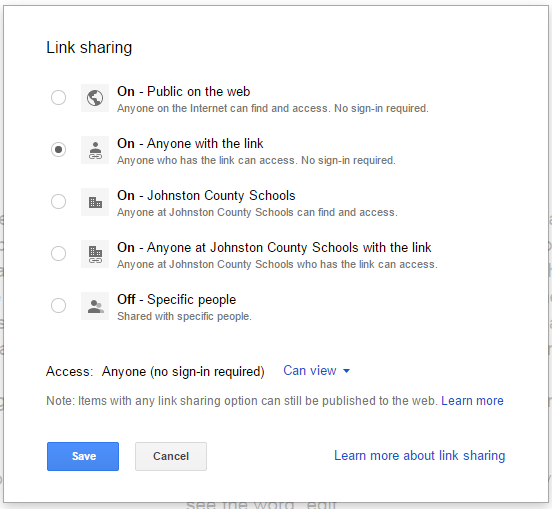
To get started open the document to be shared/copied. Edit the sharing settings to anyone with a link can view.


Next, look at the URL at the top of the screen. At the end of the URL, you will see the word “edit”.


Change these words to copy.


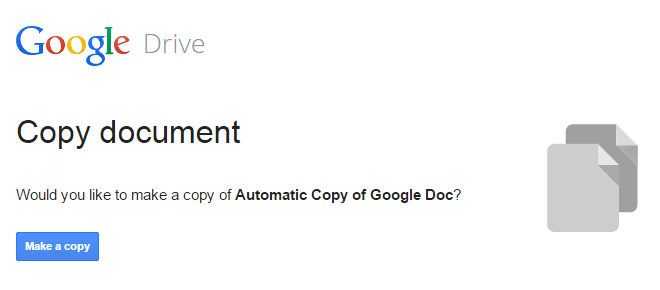
Now copy and share the changed URL. Anyone opening the document with the new URL will now see the following prompt:


The person getting the copy will have to be logged into a gmail account in order to get the above prompt. If they are not logged it, the link will redirect to the Google log-in first. After clicking on “Make a copy”, a duplicate copy of the document will now appear in their Google Drive.

Questions or comments?
Email me at brandywhitley@johnston.k12.nc.us

Friday, March 6, 2015

Friday Google Tidbit: Mixed Columns in a Google Doc


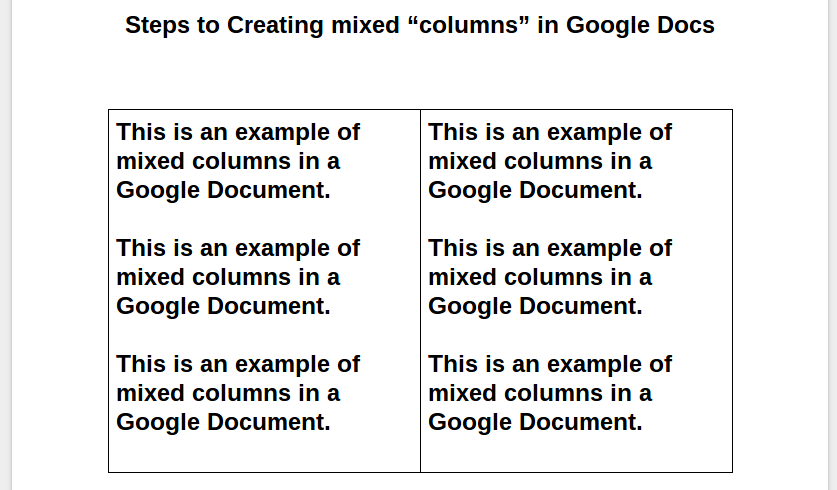
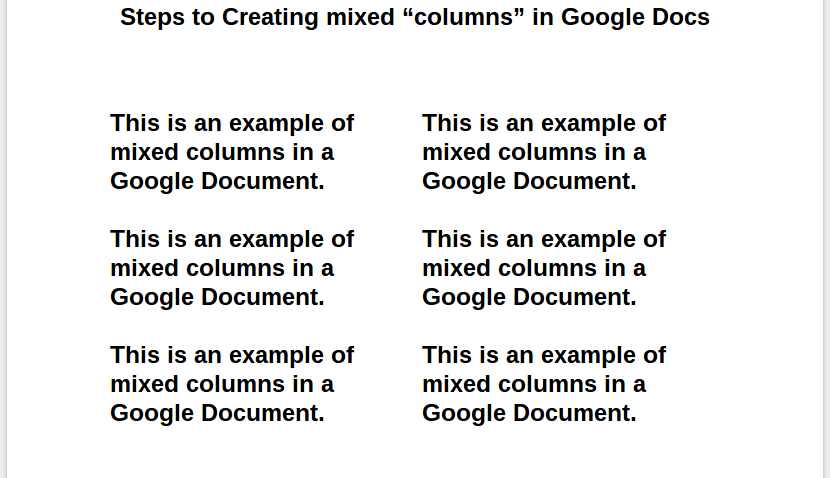
Sometimes there is a need to have a document with multiple columns. Google Documents do not currently have the ability to have more than one column, but there is a way to work around this.....add a table.

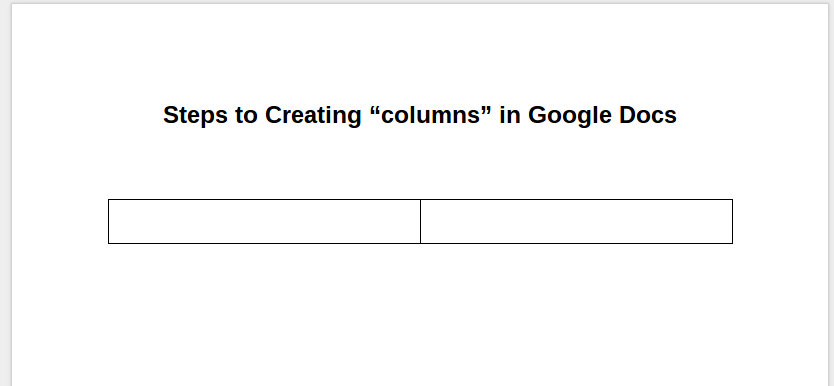
To get started, open a Google Document and add the title to the top of the page. Insert a 2 column table under the title.
(To insert table: Click on Table, Insert Table, select 2 columns)


Enter desired text into the table.


Right click the table (not the columns inside) and select Table Properties again. Change the table border to 0pt to “remove” the lines of the table.


Questions or comments?
Email me at brandywhitley@johnston.k12.nc.us