Weekly Update Weekly Update

 Newest Features in Google There are 3 new features that have been released recently - to improve Google Meet functionality Raise Hand - all...

Classlink update Classlink update

 Classlink update The plan is to turn on Google Integration on Monday, August 10 which will change the chromebook experience.  Users will us...

Claiming JCPS ID Account for Staff & Students Claiming JCPS ID Account for Staff & Students

UPDATED:   Sept 24 2019 To ensure a safe, secure, and private environment for both staff and student JCPS AD & Googl...

Friday Google Tidbit - Web Whiteboard - Collaborate in Real Time Over Google Hangout Friday Google Tidbit - Web Whiteboard - Collaborate in Real Time Over Google Hangout

Friday Google Tidbit - Web Whiteboard Collaborate in Real Time Over Google Hangout Today's Friday Google tidbit is a collaborati...

Friday's Google Tidbit: Table of Contents Improvements Friday's Google Tidbit: Table of Contents Improvements

Google recently updated their Table of Contents feature it will now include page numbers of you! This is a great new feature that all...

Friday Google Tidbit: Summer Updates to Classroom Friday Google Tidbit: Summer Updates to Classroom

This week, we want to share the awesome updates Google has made to classroom over the summer! The long awaited parent option has been...

Friday Google Tidbit: Looking Forward to Next Year in Google Classroom Friday Google Tidbit: Looking Forward to Next Year in Google Classroom

In the fall of the 2015/16 school year, Google released several extremely useful updates to Classroom.  These included the ability t...

Friday Google Tidbit - Google Classroom now has Calendar Integration! Friday Google Tidbit - Google Classroom now has Calendar Integration!

The latest update to Google Classroom has added a helpful feature to keep students and parents informed of upcoming assignments. Go...

Friday Google Tidbit - Use Google Classroom's Header for More than Decoration Friday Google Tidbit - Use Google Classroom's Header for More than Decoration

Like most learning management systems,  Google Classroom  allows you to easily choose a theme. There is also the option to upload a photo...

Google Camp - Virtual Fun for Kids! Google Camp - Virtual Fun for Kids!

Do you know a kid who is getting antsy to go back to school?   or just needs something fun to do? Check out Google's Camp  http...

Friday Google Tidbit: Google Search Tip Friday Google Tidbit: Google Search Tip

Searching for something in Google can sometimes feel like looking for a needle in a haystack. This is especially true if you are looking ...

Friday Google Tidbits: Too Many to Count! Friday Google Tidbits: Too Many to Count!

Whew!   Google has had a busy week with updates! Let's get started with Google Sheets! You can now merge cells!  This upd...

Friday Google Tidbit: Google Classroom Updates! Friday Google Tidbit: Google Classroom Updates!

New Google Classroom Updates Teachers and students around the world have given Google feedback in regards to Google Classrooms and Goog...

Email Signature Email Signature

We would like for you to continue to encourage your staff to add their signature to their email account. In order to do this it is just...

AD Transfer of Student Accounts AD Transfer of Student Accounts

This year all schools are in AD and we had hoped to start the year with an automation process that would sync with PowerSchool to handle ...

Showing posts with label Google. Show all posts

Monday, November 23, 2020

Weekly Update

 Newest Features in Google

There are 3 new features that have been released recently - to improve Google Meet functionality

  • Raise Hand - allows students to raise their hand to ask for assistance, we will be removing nod so students can use the native feature built in
  • Breakout (ask for help) - when using Breakouts your students can ask for help from the teacher
  • Backgrounds -  students can not only blur their background but also change it to a cool bank of images (like green screen) to hide their current environment visibility from others.

Chrome has also made some accessibility updates that might be helpful for your students with disabilities check out this video to see those updates:


Happy Thanksgiving!
Enjoy your time and a little turkey :)


Friday, August 7, 2020

Classlink update

 Classlink update

The plan is to turn on Google Integration on Monday, August 10 which will change the chromebook experience.  Users will use their Classlink credentials to sign into the chromebooks.  Here is a brief video of how to set up your password recovery which will come up for student Grades 6-12 and all staff members.  If you have users experiencing issues with Classlink please email Amy Stanley with as much detail as possible regarding what the issue is.

Start Video for Staff
Start Video for Students

Here is a guide that offers a bit of information regarding apps that have special log in requirements:
Please use as needed.  Teachers might also consider sharing important information like Powerschool numbers (and passwords) with students at welcome back orientation/calls.


Wednesday, September 25, 2019

Claiming JCPS ID Account for Staff & Students


UPDATED:   Sept 24 2019

To ensure a safe, secure, and private environment for both staff and student JCPS AD & Google accounts, Tech Services will execute a district wide password change Jan 2, 2020.  The password change is actually a password sync, which means on Jan 2 the password for the JCPS AD accounts will become the password for both JCPS AD & Google accounts for ALL staff and students.  

This is for JCPS AD & Google accounts ONLY not the NCEdCloud (or Powerschool) portal.  

All staff and students have the ability to “CLAIM” their JCPS ID account through the JCPS ID Portal from now until the end of the semester. IF staff and students CLAIM their JCPS ID account AND reset their Google password to match, before Jan 2, then access will be seamless.Once your JCPS ID account is claimed, the JCPS ID Portal will provide self help tools for access issues and password resets.

*  ALL JCPS Staff will CLAIM their JCPS ID account which will prompt them setup a  
   password and challenge questions. 

*  Students in grades 3-12+ will CLAIM their JCPS ID account which will prompt them to
    setup a password and challenge questions. 

*  K-2 Students will NOT CLAIM accounts and the password will remain as the
   current default.  

Step by Step Instructions to Claim Your JCPS ID

Click for Directions to change your google password


IMPORTANT:

Students and staff who have NOT claimed their JCPS ID by Jan 2, 2020, will NOT be able to login to a Chromebook on Jan 2! Users will have to access the Chromebooks Apps to Claim their account before they can login to the Chromebook.

IF staff and students CLAIM their JCPS ID account AND reset their Google password to match before Jan 2, then access will be seamless.   (Directions to Change Google Passwords

***Reminder:  Google Passwords will change on mobile devices***

ALL STAFF AND STUDENTS grades 3-12+ must CLAIM their account
****K-2 STUDENTS will not use the JCPS ID portal****


Friday, December 16, 2016

Friday Google Tidbit - Web Whiteboard - Collaborate in Real Time Over Google Hangout

Friday Google Tidbit - Web Whiteboard

Collaborate in Real Time Over Google Hangout


Today's Friday Google tidbit is a collaborative tool called Web Whiteboard


While there are several online whiteboard tools available for free, Web Whiteboard has a feature that none of the others have - integration with Google Hangout. 


You can use Web Whiteboard over Google Hangout to allow several people to write in a collaborative space at the same time. There are drawing tools available to allow more than simple text. This allows for the creation of diagrams, mind maps and other brainstorming ideas. All you have to do in order to use this in a Hangout is click the green "Start a Hangout" button from the Web Whiteboard homepage. The instructions will guide you through the rest!

Friday, October 14, 2016

Friday's Google Tidbit: Table of Contents Improvements

Google recently updated their Table of Contents feature it will now include page numbers of you!

This is a great new feature that allows for better organization of your large documents and papers.
To access this feature, go to Insert where you want your Table of Contents to be located in your document, then using the Table of Contents menu select the option with numbers.
Here is a sample of what it will look like:

Happy Friday!  Hope you have a great weekend!


Friday, August 26, 2016

Friday Google Tidbit: Summer Updates to Classroom

This week, we want to share the awesome updates Google has made to classroom over the summer!

The long awaited parent option has been added.  The call it "Guardian" and you can invite one or more parent/guardian to receive updates about their child's work for the week.  
Once you turn this feature on under the students tab, you will need the parent email address it invite them.
Guardian email summaries include:
  • Missing work—Work that’s late at the time the email was sent
  • Upcoming work—Work that’s due today and tomorrow (for daily emails) or work that’s due in the upcoming week (for weekly emails)
  • Class activity—Announcements, assignments, and questions recently posted by teachers
By default, email summaries for your classes are turned off so it will need to be turned on. Guardians can’t access Classroom or view your class stream. 
The other big update is the option to add a "Topic" on teacher posts.  This allows postings to be grouped together and sorted by topic.  This feature can be extremely helpful in organizing posts by unit, or by group.

Once topics have been added to postings an option to view the stream by topics will be available on the left for ease of use by both teachers and students.
Lastly, the Google classroom mobile app has added functionality to annotate student work.  Using the app you can now draw on, highlight, and write on top of students' Google Documents, PDFs, and Microsoft Word documents. The iOS version of the app will also let you type on top of a document. With both apps students can annotate items that teachers have shared in Google Classroom and teachers can annotate items that students have shared back to them.

2016-17 is off to a great start!  


Friday, May 27, 2016

Friday Google Tidbit: Looking Forward to Next Year in Google Classroom

In the fall of the 2015/16 school year, Google released several extremely useful updates to Classroom. 

These included the ability to create a question, the ability to move posts to the top of the stream, and perhaps most helpful, the reuse post option. Shortly after that, Google added the Share to Classroom extension as well as integration with Google Calendar

These updates added a great deal of functionality to Classroom. Not only in terms of learning options, but workflow as well. The rapid addition of so many features right at the beginning of the school was a pleasant surprise to many teacher who continue to look forward to more new features. 

What Can We Look Forward to Next Year?

So far there has only been one new feature announced for 2016-2017. 


However, it's a BIG one and something many teachers having been asking for. 

Earlier this month, Google announced that features to improve contact with guardians will be launched this fall. Guardians will now be able to sign up for daily or weekly emails, allowing them to easily keep up with their student's progress and assignments. By using this feature along with the ability to share the classroom calendar, Google Classroom make it easy to keep all stakeholders informed of what is happening in classrooms!


Friday, September 25, 2015

Friday Google Tidbit - Google Classroom now has Calendar Integration!


The latest update to Google Classroom has added a helpful feature to keep students and parents informed of upcoming assignments. Google Classroom now integrates with Google Calendar so that all activities are instantly posted to Google Calendar as they a assigned.

To start using this feature, go to the About tab in Google Classroom.  


About Header.png

You will now see two new options:
  1. View in Classroom
  2. Open in Google Calendar.

Calendar setup.png


Choosing View in Classroom will display a calendar within Google Classroom that displays any announcements, assignments or discussions that have been posted.

Choosing Open in Google Calendar will open up your Google Calendar which will now have a new calendar added. This calendar will have the same name as the title of your Google Classroom.

If the box in your About tab looks says No Google Calendar created, it simply means that you have not yet posted in your Google Classroom.

Calendar setup 1.png


Once you post your first assignment, announcement or discussion, a Google Calendar created specifically for your class will be generated.

Sharing Your Calendar

Once you begin adding items to the calendar, you will likely want to share it outside of Google Classroom so that the parents of your students will be able to see due dates.

In order to do this, open your calendar and click the gear symbol in the upper right corner. Then click on settings

Calendar settings.png


On the next screen click the calendars link in the upper left hand corner.

Calendar Settings 2.png

This will open up a screen listing all of your calendars and calendars that are shared with you. From this screen you can edit the sharing settings. On the right hand side, click on the Shared: Edit setting link.   

Shared Settings.png


On the next screen, you will need to select Share this calendar with other AND Make this calendar public. If you do not choose to make the calendar public then you will not be able to share it with parents. Make sure to click Save.

Share with others.png


After clicking Save, you will be brought back to the previous screen,

Calendar select screen.png


On the next screen you will have two sharing options.

Embed code - This will allow you to place the calendar in a web page by inserting the copying and pasting the html code.

embed.png


Direct link - This will give you a web address that you can share.

Click the Blue HTML button.

html link.png


This will give you the web address that you can share.
Calendar Box.png


Have a Great Weekend!


Friday, September 18, 2015

Friday Google Tidbit - Use Google Classroom's Header for More than Decoration

Like most learning management systems, Google Classroom allows you to easily choose a theme. There is also the option to upload a photo of your own. 


Because it so easy to click on one of many themes provided by Google Classroom, this option is largely overlooked. However, by using a image editing program such as Google Drawings, you can creatively use this space to communicate information to your students. 

Step by Step
1. Open up Google Drawings
2. Go to File>Page Setup and choose the following settings.
3. Use the paint and text tools to create a custom header. 
4. Go to File>Download and choose .PNG as the format.
5. Open Google Classroom and click the Upload photo option.

Here is an example of a custom header the communicates class information.


Not only is this another way to communicate important information to students, but with a little thought and creativity this can become a fun way to get students excited about logging in to Google Classroom. 
Some Ideas:
- Procedures
- Project reminders
- Reminders to bring in forms
- Student birthdays 
- Student of the month or other honors 

If you have any creative ideas on how you might use the header in Google Classroom, please share them in the comments section. 

Have a great weekend!

Friday, July 10, 2015

Google Camp - Virtual Fun for Kids!


Do you know a kid who is getting antsy to go back to school?  
or just needs something fun to do?
Check out Google's Camp https://camp.withgoogle.com/

IT'S FREE!  and it STARTS MONDAY!

Friday, February 20, 2015

Friday Google Tidbit: Google Search Tip

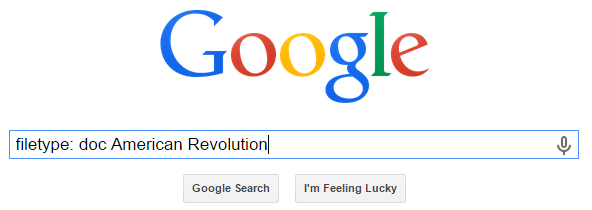
Searching for something in Google can sometimes feel like looking for a needle in a haystack. This is especially true if you are looking for something in a specific file type such as a PDF, PowerPoint, Spreadsheet, MP3, etc. Here’s how to get started:


Go to Google.com. In the search box, start your search with the following:
filetype: (type of file)

Examples:
_____________________________________________
__________________________________________________________________________________________
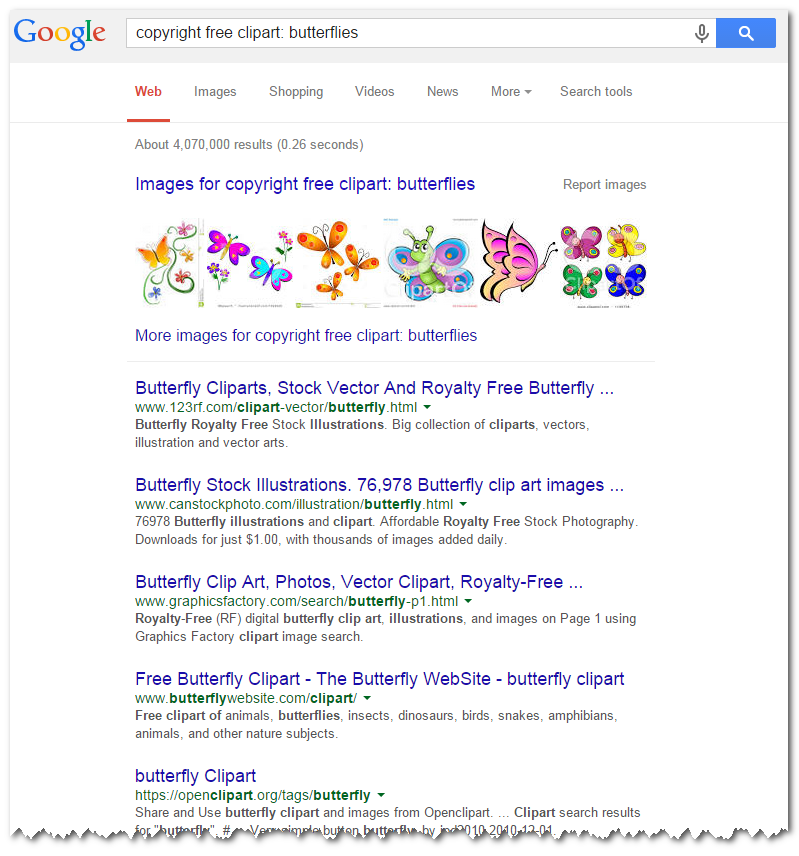

This works for copyright free clipart too. Simply start your search with: copyright free clipart: (topic)


Find what you are looking for faster!

Questions or comments?
Email me at brandywhitley@johnston.k12.nc.us


Friday, December 5, 2014

Friday Google Tidbits: Too Many to Count!

Whew!  
Google has had a busy week with updates!

Let's get started with Google Sheets!

You can now merge cells! 
This update adds the ability to merge the cells of a table in Google Docs. Merged table cells can span more than one row and/or column. 

To merge table cells, highlight the cells to be merged in your table and select Merge cells from the Table menu (or right click and select Merge cells).
Merged table cells in Word documents can now be imported as well.

Now, on to Google Docs!

When working with images in Google Docs on the web you now have the ability to adjust their color, transparency, brightness, and contrast.

To use this feature, select an image in Google Docs and click the Image options button in the toolbar (you can also right click on the image, or use the Format menu, and select Image options). Under "Recolor," you can change the color of your image to match your presentation. Under "Adjustments," you can change the transparency, brightness, and contrast of the image.


Next up is Google Slides!

In Google Slides you can now add slide numbers to your presentations, providing a reference guide for both presenters and audiences. To add slide numbers, go to Insert > Slide numbers from the toolbar. You can then choose to apply slide numbers to all slides or selected slides. You can also choose to skip title slides.

Finally, two updates to Google Classroom!

First, you can now attach multiple Google Drive files to an assignment. This is great if you have a rubric and instructions or if you wish to create more in-depth assignments or units.


The second update is that you can now add your profile photo to your avatar for Classroom. 


Thanks to the Google Blog and Google for Education for providing the information about these updates!

Questions or Comments?
Email me at: pamelabatchelor@johnston.k12.nc.us


Friday, October 17, 2014

Friday Google Tidbit: Google Classroom Updates!

New Google Classroom Updates
Teachers and students around the world have given Google feedback in regards to Google Classrooms and Google has listened. Check out the new improvements just released for Google Classrooms.

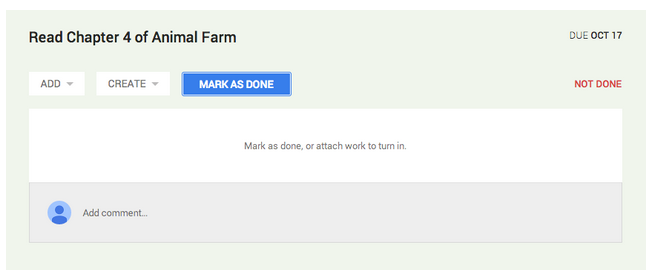
Mark Assignments as DONE
Prior to this update, students had to submit something in order for the assignment to appear as done. For example, a teachers assigns a quiz using Google forms. The student completes the form, but the assignment remained incomplete unless they submitted a document. Now students will see a “Mark as Done” button to indicate that they have completed the assignment if there is not anything for them to actually turn in.
 

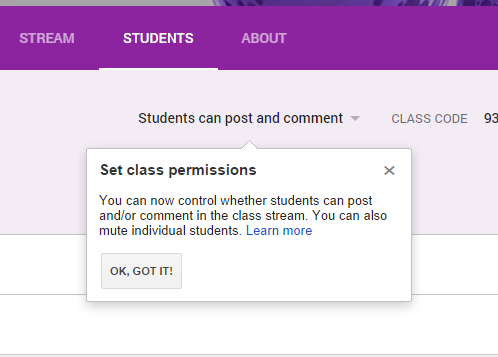
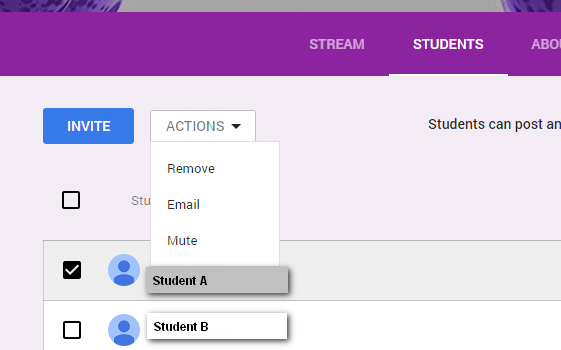
Teacher Control over Class Stream
Teachers can now control if students can post or comment in the class stream. Default settings allow students to post and comment. The new options allow teachers to set students to comment only or not allow students to comment or post to the class stream. There is also the ability to mute students individually. Teachers can also see deleted items in the stream as well.


Export All Grades
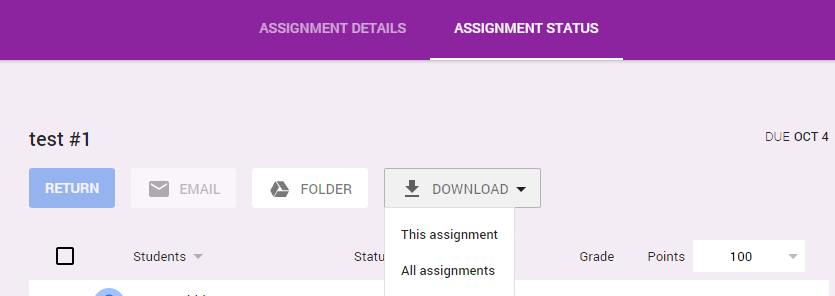
Teachers can also now download grades for all assignments at one time. Click on an assignment and view the assignment status. Click on Download and choose “This Assignment” or “All Assignments”. A CSV file will be downloaded containing the assignment(s) grades.


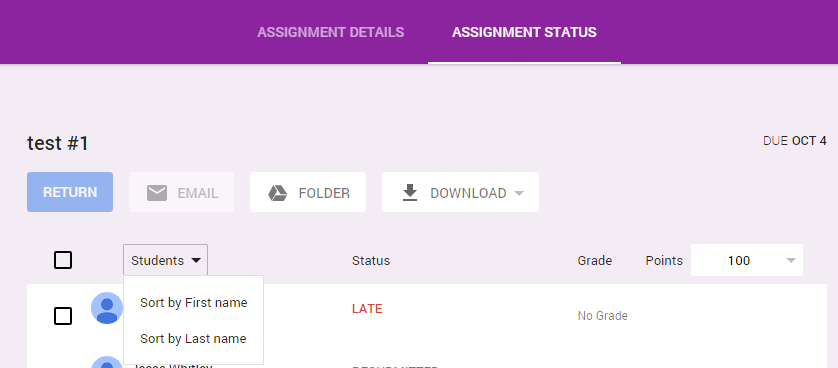
Sort by First or Last Name
Need to sort your students? Sorting by first or last name is now an option.


Click here to go to Google’s Help Forum for Classroom where you can find detailed steps for just about anything Classroom.

Haven’t joined Google Classroom yet? Go to classroom.google.com, log into your school gmail account (if you are not already signed in), scroll down to “Get started using Classroom”. Click on the blue TEACHER button. Within 24 hours, you will see the “Create a Class” option next to your name in the top right corner. This will let you know you are ready to explore Google Classroom as a JCS Teacher.

Questions or comments?

Email me at brandywhitley@johnston.k12.nc.us

Monday, September 15, 2014

Email Signature


We would like for you to continue to encourage your staff to add their signature to their email account.

In order to do this it is just a few steps.  They will also need to add it to any clients that they use to send messages - ipad, phone, etc.

To add your Signature:
1. Open your Google Mailbox and go to the settings
2. On the General Tab - scroll to the bottom and find the signature box.
3. Please be sure to include - Name, Title, School, Phone number if you have a direct line
4. Scroll to the very bottom and SAVE your changes.

Thursday, July 31, 2014

AD Transfer of Student Accounts


This year all schools are in AD and we had hoped to start the year with an automation process that would sync with PowerSchool to handle transfers throughout the year.  However, that is not in place yet and may not be available by August 25.  So we will continue with our previous process with one exception - our K-2 students will now have a Google account for chromebook use however they will not have an active email.  Below is the process currently in place.

  1. Terry Thompson will create the initial accounts a few days prior to student arrival.
  2. He will send you a list of the accounts he has made.  
  3. Any student not on the list will need an account created by the CTA at the school - be sure to reference the notes on how to create their home directory and properly set up their email accounts.  AD for CTA's notes  (Remember: Do not create generic accounts - they will be deleted and you could risk losing your rights)
  4. Transfers to your school from another JCS school will require you to request a transfer. (Remember each AD account has to be unique to our WHOLE domain) so you will not be able to make a duplicate account for the student.  Here is the form to request a transfer: bit.ly/adtransfer
If you have questions about how to create accounts please contact Terry Thompson or Angela Moore. Other issues can be submitted through IT Direct.