Friday Google Tidbit: Google Forms Choose a Winner Template from Alice Keeler Friday Google Tidbit: Google Forms Choose a Winner Template from Alice Keeler

Happy Friday! This week's tidbit comes from Google Genius Alice Keeler . Alice has developed a template for Google Forms that a...

Friday Google Tidbit: Save Time with the New Predictive Features in Google Forms! Friday Google Tidbit: Save Time with the New Predictive Features in Google Forms!

Happy Friday! Google Forms was updated this week to now include "magical" predictive features when typing in a question, ...

Friday Google Tidbit: Video Tutorial on How to Create a Quiz in Google Forms! Friday Google Tidbit: Video Tutorial on How to Create a Quiz in Google Forms!

Happy Friday! This week we are continuing our thoughts on Google Forms with a tutorial video on how to create a quiz with Google Fo...

Friday Google Tidbit: New Quiz Feature on Google Forms! Friday Google Tidbit: New Quiz Feature on Google Forms!

Happy Friday! Over the summer Google updated Forms to include a new quiz option! This update eliminates the need for the Flubar...

Friday Google Tidbit: Tour of the New Google Forms! Friday Google Tidbit: Tour of the New Google Forms!

This week Google has upgraded Google Forms to the new version as the default option. The new version has a completely different layout ...

Friday Google Tidbit: Google Forms Integration Now Available in Google Classroom! Friday Google Tidbit: Google Forms Integration Now Available in Google Classroom!

Happy Friday! Google Classroom has just been updated to now include Google Forms integration!  This is wonderful news as you ca...

Friday Google Tidbit: Video Tutorial on How to Create a Student Information Form using Google Friday Google Tidbit: Video Tutorial on How to Create a Student Information Form using Google

Happy Friday! For our traditional calendar schools, students come back next week. One part of the back to school process is collecting ...

Friday Google Tidbit: Add-ons Now Available for Google Forms! Friday Google Tidbit: Add-ons Now Available for Google Forms!

Yesterday Google released Add-ons for Forms. This is an exciting update as the Add-ons give forms more use and customization options. C...

Friday Google Tidbit: More Exciting Google Forms Updates Friday Google Tidbit: More Exciting Google Forms Updates

MORE Exciting Google Forms Updates Google has again updated their Forms to make them more user friendly and customizable. There are n...

Showing posts with label Google forms. Show all posts

Friday, January 27, 2017

Friday Google Tidbit: Google Forms Choose a Winner Template from Alice Keeler


Happy Friday!

This week's tidbit comes from Google Genius Alice Keeler. Alice has developed a template for Google Forms that allows you to choose a random winner from the form responses. This is very handy if you use a Google Form for giveaways or to choose students to share explanations. Alice has created a template form to use with your students as well as the script code if you have already created your Google Form and would like to choose a random winner.

Please click here to view Alice's blog post with the template and instructions.

Have a Great Weekend!

Friday, October 28, 2016

Friday Google Tidbit: Save Time with the New Predictive Features in Google Forms!


Happy Friday!

Google Forms was updated this week to now include "magical" predictive features when typing in a question, it will predict what type of question you are creating and change the question type and/or answer choices to match!


Google Forms also has advanced copy/paste compatibility and it will separate answer choices if you paste a list of items in the first answer response.

These two features make it easier than ever to create a new Google Form!

Have a wonderful weekend!

Friday, September 16, 2016

Friday Google Tidbit: Video Tutorial on How to Create a Quiz in Google Forms!

Happy Friday!


This week we are continuing our thoughts on Google Forms with a tutorial video on how to create a quiz with Google Forms.

This tutorial will show you how to create a Google form, insert different question types and images, use the new quiz features, share it with your students, and analyze your results.


Please feel free to share this video tutorial with your staff!

Have a great weekend!

Friday, September 2, 2016

Friday Google Tidbit: New Quiz Feature on Google Forms!

Happy Friday!


Over the summer Google updated Forms to include a new quiz option!

This update eliminates the need for the Flubaroo add-on to grade your quiz.

To use the new feature, open a Google Form and click on the settings cog in the top right corner:


Click on the "Quizzes" tab and slide the indicator to make this Form a Quiz:


You then have a few options, such as when you want to release quiz grades and if students can see missed questions, correct answers, and point values.


Click on "Save".

You should now see an "Answer Key" on the bottom corner of each question. Click on it to set the correct answer and point value for each question.


I love that you can add answer feedback to give students resources and explanations instantly!

One you have selected a correct answer for each question, share your Google Form in Google Classroom or share the link with your students.


Once you have at least one response, Google Forms creates an insights report for your quiz. You can see your average, median, and range of responses. Google Forms also highlights your frequently missed questions.

I hope you explore the Google Forms Quiz Update!

Have a safe and dry weekend!

Friday, February 19, 2016

Friday Google Tidbit: Tour of the New Google Forms!


This week Google has upgraded Google Forms to the new version as the default option. The new version has a completely different layout that is streamlined and easier to use once you are familiar with the new layout.

Here is a short video tour of the new Google Forms:


If you would like more information about the new version of Google Forms, here is a Google blog post about the latest update.

Have a great weekend!

Friday, October 9, 2015

Friday Google Tidbit: Google Forms Integration Now Available in Google Classroom!

Happy Friday!


Google Classroom has just been updated to now include Google Forms integration! 

This is wonderful news as you can now attach a Google Form to an assignment in Google Classroom and it will automatically track student submissions to the form. You can use Google Forms for a variety of purposes in the classroom such as assessments and reading log submissions.

Using Forms in Google Classroom is simple...open Google Classroom, then click on your desired class, click on the + button:


Create a new assignment by adding a title and due date, then click the Drive icon to attach your Google Form, then click assign.


Google will automatically create a link for you to view student responses in the post for the assignment (only teachers can see the link to submissions):

If you need a quick tutorial on how to use Google Forms, here is a video tutorial for making a student information form.

Have a great weekend!

Friday, August 21, 2015

Friday Google Tidbit: Video Tutorial on How to Create a Student Information Form using Google

Happy Friday!

For our traditional calendar schools, students come back next week. One part of the back to school process is collecting valuable student and parent information. Did you know that with Google Forms, you can create a custom form to gather information that automatically is collected into a sort-able spreadsheet? This is a valuable time saver that will put information at your finger tips throughout the year.

I have created two video tutorials. The first video shows you how to create a student information form using Google Forms. The second video shows how to then embed your Google Form on your SharpSchool website so students and parents can easily access and complete the form.

How to Create a Student Information Form:


How to Embed a Google Form in SharpSchool:


Student information forms are just one way to use Google Forms...you can create student assessments, field trip forms, reading logs, assignment trackers, and so much more with Google Forms. The possibilities are endless.

Have a great weekend!

Questions or Comments?

Friday, October 24, 2014

Friday Google Tidbit: Add-ons Now Available for Google Forms!


Yesterday Google released Add-ons for Forms. This is an exciting update as the Add-ons give forms more use and customization options. Current Add-ons available include formLimiter and g(Math) for forms which will allow you to insert math questions into forms!

The Google Drive blog wrote the update below:

Google Forms is a free and simple way to collect information--from quickly polling your friends about who'll be attending your trip to the haunted hayride, to getting thousands of responses to an awareness survey for work.

Over the last few months, Forms has been getting a bunch of updates to help you make good looking surveys, likenew theme choices and the ability to create your own personalized themes.

To give you even more flexibility and options, we’re introducing add-ons for Forms—new tools, created by developer partners, that deliver even more features to your surveys (just like add-ons for Docs and Sheets).

Add-ons bring handy extras to your survey building experience, like setting a survey end date, sending custom emails based on responses, storing lists of choices that you frequently add to questions, and more.

You can access add-ons from the “Add-ons” menu in Forms, or by directly visiting the Forms add-on store.
Here are just a few of the growing list of add-ons that you can use today with Google Forms:
  • formLimiter: Close your survey automatically, after a maximum number of responses is reached, or at a date and time of your choosing. 
  • Ultradox Trigger: Create custom emails, reports, invoices, newsletters, etc., based on information that people enter into your form. 
  • Form Values: Store and pull from lists that you use regularly in Forms, like a list of staff, students, rooms, resources or anything you want. 
We hope these new tools make your Forms creation process even easier and more useful--and stay tuned for more--our developer partners will be launching even more add-ons in the coming weeks.

We are excited to explore the new possibilities that Add-ons give Forms, stay tuned for further updates!

Questions or comments?
Email me at: pamelabatchelor@johnston.k12.nc.us  

Friday, October 3, 2014

Friday Google Tidbit: More Exciting Google Forms Updates

MORE Exciting Google Forms Updates


Google has again updated their Forms to make them more user friendly and customizable. There are now options to shuffle questions, allow only one response from a person, and validate information for grid responses.

Shuffling Questions and One Response:
There is now an option to shuffle questions to randomize the order of questions on quizzes or surveys. Have you ever gotten several responses from the same person on a quiz or survey and had to decide which one to use? Now you can ensure that a person only responds to your form once.
Both of the options are easy to use. When editing the form, there is a box at the top labeled “Form Settings”. Both of these options are now located here. Simply check the box next to the desired option(s).


Validate Information for Grid Responses:
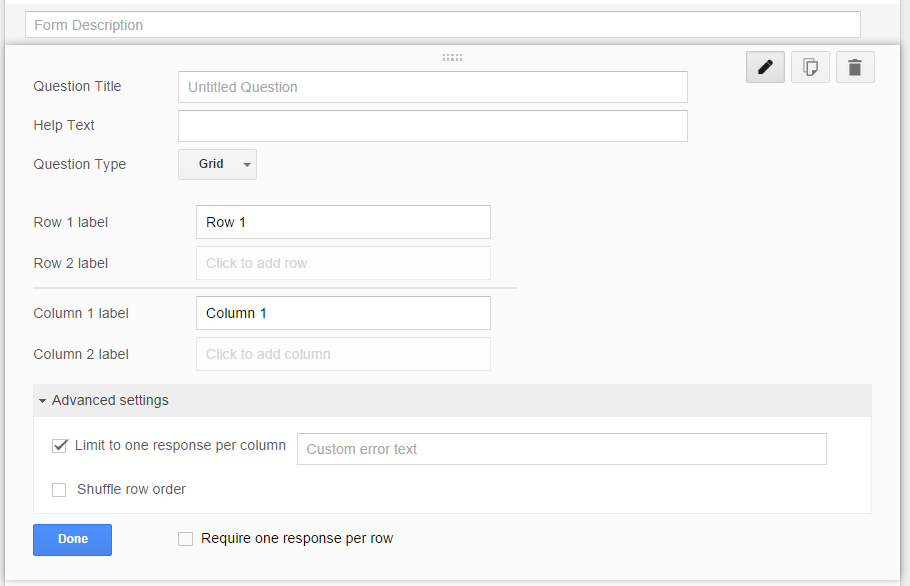
When using grid style questions, form creators now have the ability to limit responders to one response per column. After inserting a Grid question, click on the “Advanced settings” option at the bottom of the question.


Once selected, the “Advanced settings” option will show a validation message stating not to select more than one response per column.

If you don’t see these options yet, don’t worry. Just like most updates, Google releases it over the span of a couple of weeks. So keep an eye out for it.

___________________________

Things to keep in mind with Google Forms:

  • Forms are not shared the way other Google documents are shared. To share a form, you need to provide the person with the link to the form.

  • Dont forget to collect names, either by selecting the option in the form settings OR by adding it in the form.

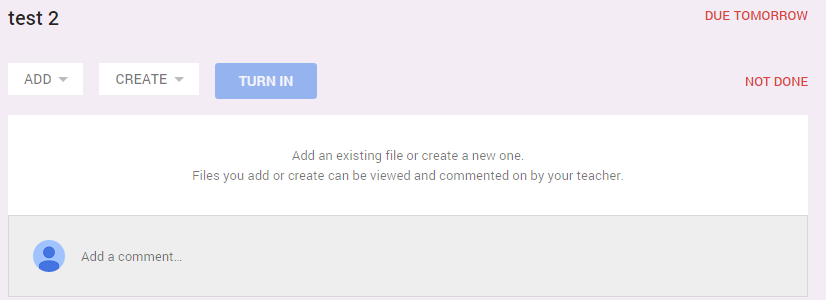
  • When assigning a form in Google Classroom, it DOES NOT give the students an option to turn in the assignment after completing the form. Right now, the only way to determine if students have completed it, is to look at the forms response spreadsheet.


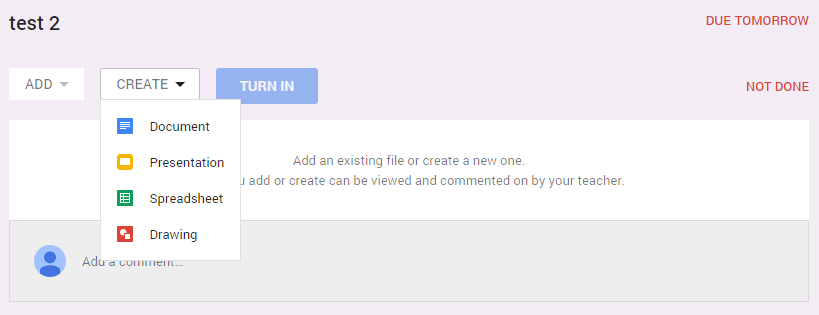
A possible “solution” for this would be for students to click on the Create button for the assignment and create a blank document.


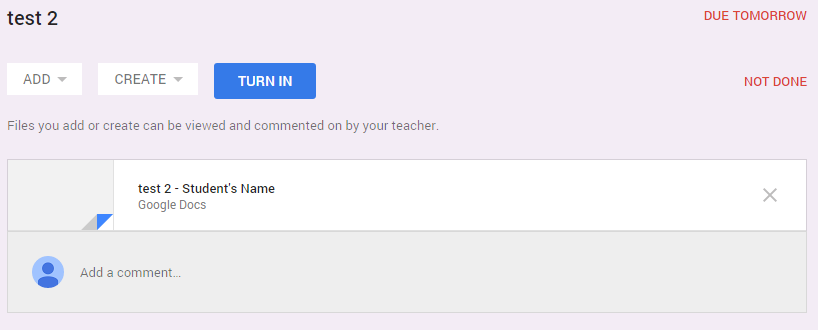
It will automatically name it after the assignment and add the student’s name.


The student now has the option to “Turn In” the assignment indicating that they have completed the form, and the teacher can now see who has or has not completed the assignment.


Questions or comments?
Email me at brandywhitley@johnston.k12.nc.us