Friday Google Tidbits: Insert Videos in Slides and the New Team Drive! Friday Google Tidbits: Insert Videos in Slides and the New Team Drive!

Happy Friday! This week we have two tidbits to share with you. First, Google updated Slides to now allow you to import Videos from ...

Friday Google Tidbit: Tips for Working Offline Friday Google Tidbit: Tips for Working Offline

Imagine: It is 7:12am, you have ten minutes until students enter your classroom and when you try to access Google Drive you see this me...

Friday Google Tidbit: How to Limit Access to Google Files! Friday Google Tidbit: How to Limit Access to Google Files!

Happy Friday! This week we are exploring two new features that Google has released to give us more control over who views our files...

Upcoming Google Sessions-Register Today on My Learning Plan! Upcoming Google Sessions-Register Today on My Learning Plan!

The Digital Learning Team will be offering two Google Sessions in December. These sessions are open for all staff members and will be...

Friday Google Tidbit: Google+ Photos Now Available on Google Drive Friday Google Tidbit: Google+ Photos Now Available on Google Drive

Happy Friday! Starting today, Google is adding a new section to your Google Drive specifically for your photos. This feature is being l...

Friday Google Tidbit: Automatic Copy of Google Document Friday Google Tidbit: Automatic Copy of Google Document

There are times as a teacher when you want your students to make a copy of a Google document for a class assignment. As a presenter or c...

Wednesday Webtool: Timeline JS Wednesday Webtool: Timeline JS

Create a web base timeline that is easy to use in various projects, easy view and read, and easy to make in the comfort of your Google Dr...

Friday Google Tidbit: Add a File to Multiple Folders in Google Drive Friday Google Tidbit: Add a File to Multiple Folders in Google Drive

Add a File to Multiple Folders in Google Drive Have you ever wished you could put a single file in Google Drive in more than 1 folder...

Friday Google Tidbit: Digitally Print Google Emails to Drive Friday Google Tidbit: Digitally Print Google Emails to Drive

Digitally Print Google Emails to Drive Clean up your inbox by saving those “MUST KEEP” emails in your Google Drive. To get started,...

Friday Google Tidbits: Unlimited Space for Drive Now Available and New Drawing Feature in Chat! Friday Google Tidbits: Unlimited Space for Drive Now Available and New Drawing Feature in Chat!

Happy Friday!!! This week we have two Google Tidbits to share...first, the unlimited storage on Drive that we mentioned a few weeks ago...

Friday Google Tidbits: Coming Soon- Unlimited Storage on Drive and Tips for Getting Started with Classroom! Friday Google Tidbits: Coming Soon- Unlimited Storage on Drive and Tips for Getting Started with Classroom!

Happy Friday! Two tidbits to share with you today. First, Google has announced that Google Apps for Education users (including us) ...

Friday Google Tidbit: New Look for Drive Friday Google Tidbit: New Look for Drive

Welcome back to school!  We are excited to start another year of Digital Learning! Over the summer, Google released a new look for Goog...

Friday Google Tidbit: New Mobile Apps for Google Docs and Sheets Friday Google Tidbit: New Mobile Apps for Google Docs and Sheets

Google has released new mobile apps this week for Google Docs and Google Sheets. The new apps allow you to have more editing option...

Friday Google Tidbit: New Gmail Option-Download to Google Drive Coming Soon! Friday Google Tidbit: New Gmail Option-Download to Google Drive Coming Soon!

Earlier this week, Google announced a new update to Gmail and how attached files in an email can be downloaded. With the new update, ...

Showing posts with label Google Drive. Show all posts

Friday, February 10, 2017

Friday Google Tidbits: Insert Videos in Slides and the New Team Drive!


Happy Friday!

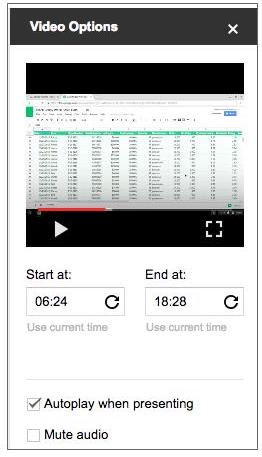
This week we have two tidbits to share with you. First, Google updated Slides to now allow you to import Videos from your Google Drive. This greatly expands the possibilities for adding videos and audio to your Google Slides presentations.


Here is a screenshot of the new options for playing videos, including an option to mute audio.

Google also recently introduced a new feature in Google Drive, called Team Drive. Team Drive allows you to share files with a team of users. One benefit of Team Drive is that if one team member leaves, the remaining members still have access to the files on the Team Drive. The main drawback to using Team Drive is that you cannot have files in both your personal Drive and the Team Drive. Team Drive is a brand new feature to stay tuned for more updates about its possible uses.

Friday, April 22, 2016

Friday Google Tidbit: Tips for Working Offline

Imagine:

It is 7:12am, you have ten minutes until students enter your classroom and when you try to access Google Drive you see this message:


At this point, you might feel like this:


Thankfully, Google has some features and tools to keep us working even when the internet is down. The key is that we need to prepare for this situation in advance (while the internet is working).

Watch this episode of the Google Apps Show and learn all about accessing Gmail and Google Drive without an internet connection (click here for the direct link to the video):


With offline access, you can be prepared and productive anywhere from the ball field to the beach!

Have a great weekend!

Friday, March 18, 2016

Friday Google Tidbit: How to Limit Access to Google Files!


Happy Friday!

This week we are exploring two new features that Google has released to give us more control over who views our files. The first feature is to restrict the ability to download, print, or copy a file on Google Drive, Docs, Sheets, or Slides. The newest feature that was just released this week is expiration dates for view access. This feature is being rolled out gradually and may take up to two months for all users to see. It allows you to set view access that expires after 7 days, 30 days, or a custom date. The two features together work nicely to protect access to a document with sensitive information.

I have created a video overview of the new security features and how you can use them.


Have a Great Weekend!

Monday, October 26, 2015

Upcoming Google Sessions-Register Today on My Learning Plan!


The Digital Learning Team will be offering two Google Sessions in December. These sessions are open for all staff members and will be held in the West Campus Computer Lab in Smithfield, NC. 
Please register in My Learning Plan.

Session Descriptions:

Google It Up

Learn how to use Google Apps for Education to organize your classroom and let your student's innovation shine. Focus will be on recent updates to Google Apps such as Calendar, Google Drive, and Docs.

Differentiate with Google Classroom

Learn how to differentiate learning in your classroom with Google Classroom. See model lesson plans and activities to help you create your Google Classroom.


Friday, April 10, 2015

Friday Google Tidbit: Google+ Photos Now Available on Google Drive

Happy Friday!

Starting today, Google is adding a new section to your Google Drive specifically for your photos. This feature is being launched slowly so when the new section is added to your Drive, you will see a message like this:


Now, when you upload photos to Google+, they will automatically appear in your Google Photos section of your Drive.  You can organize your photos in Drive and they will appear in the same organization on Google+. If you add or delete photos in Drive, the same changes will be reflected in Google+.

Google Drive has unlimited storage for education users so the photo section is a great addition!

If you would like to learn more about organizing and storing photos on Google Drive, please click here.

Have a Great Weekend!

Questions or Comments?
Email me at: pamelabatchelor@johnston.k12.nc.us

Friday, March 20, 2015

Friday Google Tidbit: Automatic Copy of Google Document


There are times as a teacher when you want your students to make a copy of a Google document for a class assignment. As a presenter or colleague, you may want to share documents, templates or presentations. Unless they are familiar with making copies within Google drive, this can be a time consuming task helping individuals make a copy. Google Drive now has the ability to force or automatically create a copy of a shared document.

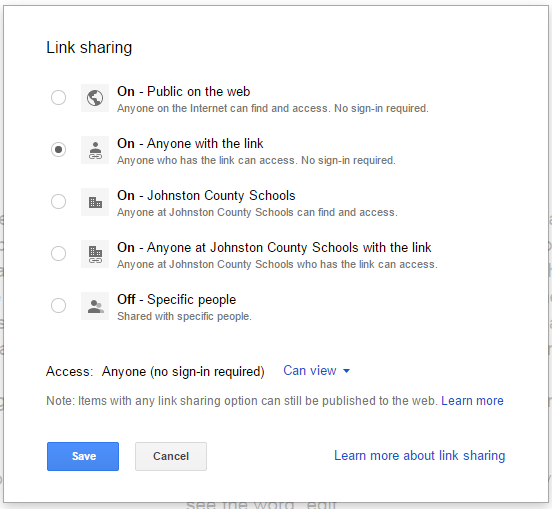
To get started open the document to be shared/copied. Edit the sharing settings to anyone with a link can view.


Next, look at the URL at the top of the screen. At the end of the URL, you will see the word “edit”.


Change these words to copy.


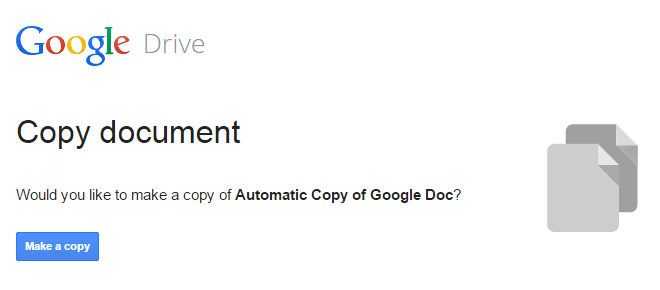
Now copy and share the changed URL. Anyone opening the document with the new URL will now see the following prompt:


The person getting the copy will have to be logged into a gmail account in order to get the above prompt. If they are not logged it, the link will redirect to the Google log-in first. After clicking on “Make a copy”, a duplicate copy of the document will now appear in their Google Drive.

Questions or comments?
Email me at brandywhitley@johnston.k12.nc.us

Wednesday, March 18, 2015

Wednesday Webtool: Timeline JS

Create a web base timeline that is easy to use in various projects, easy view and read, and easy to make in the comfort of your Google Drive. 

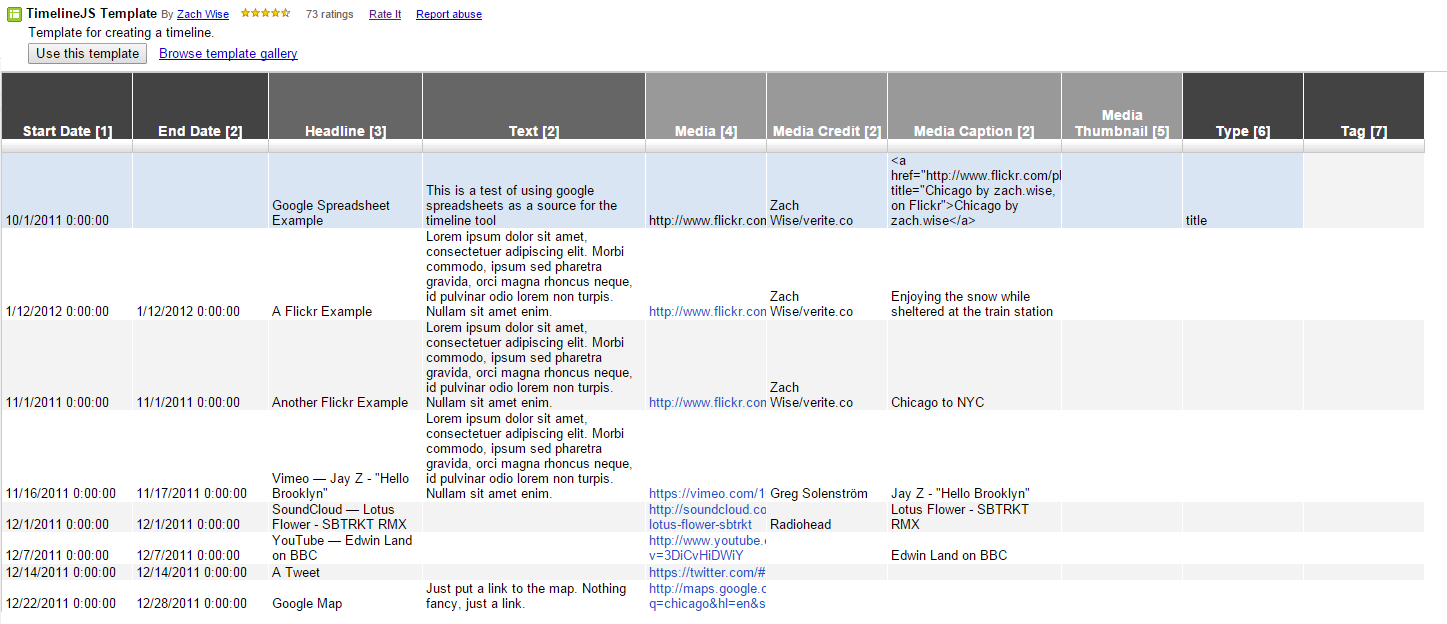
To get started go to the Timeline JS website: timeline.knightlab.com/#. Make sure you are logged into your Google account and download the TimelineJS Template.


Enter the desired information for each event that will be added to the timeline. Each row is a different event. The only REQUIRED columns on this template are column 1 and column 3 (Start date and Headline), however, the other columns add additional features and details to the timeline.

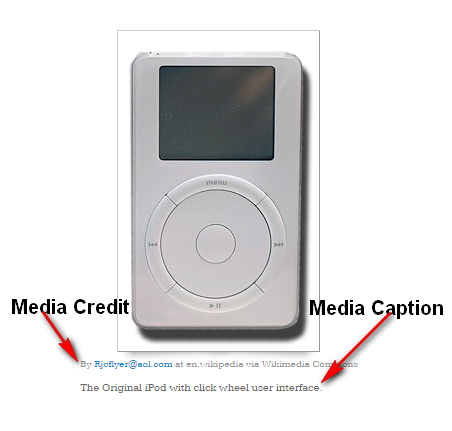
Add an image url to the Media column to include a picture for the event. The Media Credit and Caption columns add information about the picture.


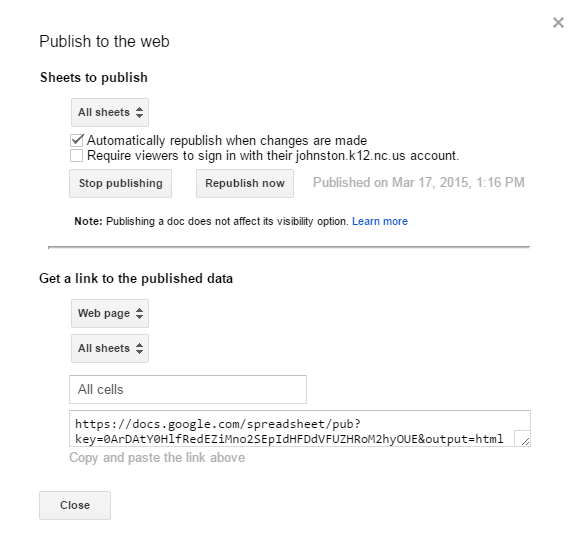
Once all the information is entered into the Google Spreadsheet, publish the spreadsheet:
Click on File
Select “Publish to the Web”
Check “Automatically republish when changes are made.” (this should be the only thing checked)
Click “start publishing”
Copy the URL


Go back to the Timeline JS website and paste the spreadsheet’s URL in the generator box.


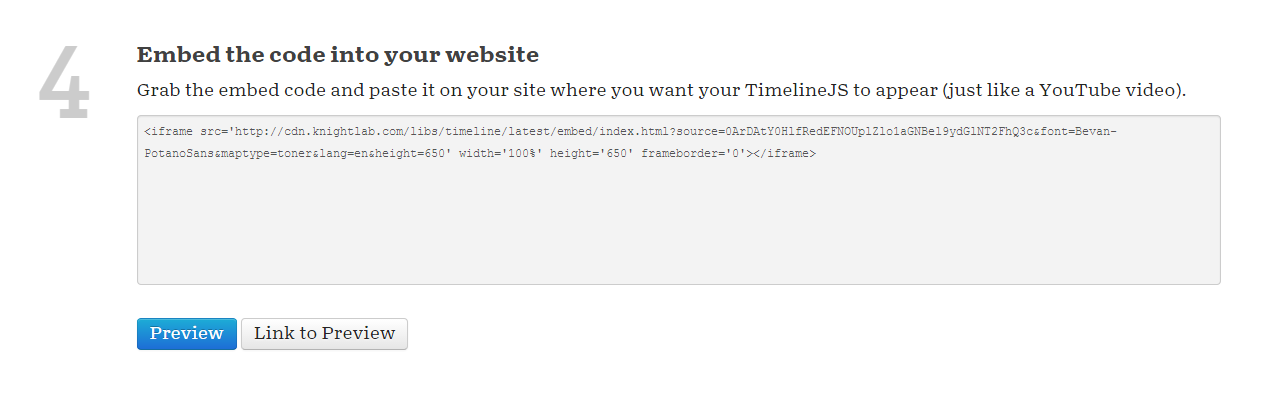
Scroll down to the Embed/Preview/Link to Preview buttons.


Here you can preview, get a link or get the embed code for the timeline. Save the link to view at anytime or embed the timeline on your webpage.


Questions or comments?
Email me at brandywhitley@johnston.k12.nc.us

Friday, January 9, 2015

Friday Google Tidbit: Add a File to Multiple Folders in Google Drive

Add a File to Multiple Folders in Google Drive

Have you ever wished you could put a single file in Google Drive in more than 1 folder? It is possible! This is not a copy of a file, but one single file located in two different folders.

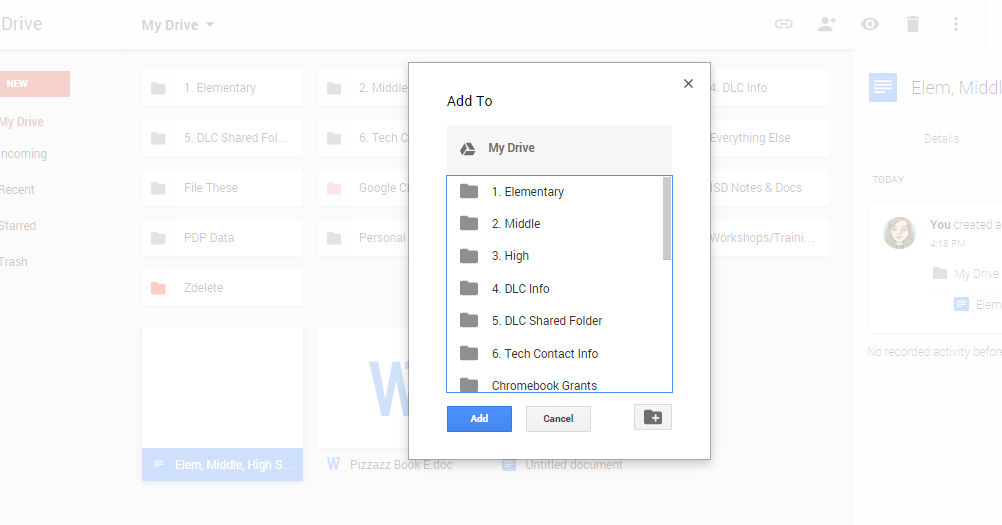
To get started, locate the desired file in Google Drive. Click on the file one time to select the file.


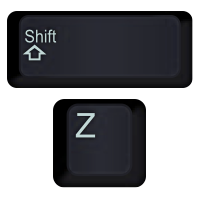
Hold the shift button down and tap Z. This will open the prompt to “ADD TO” a folder.


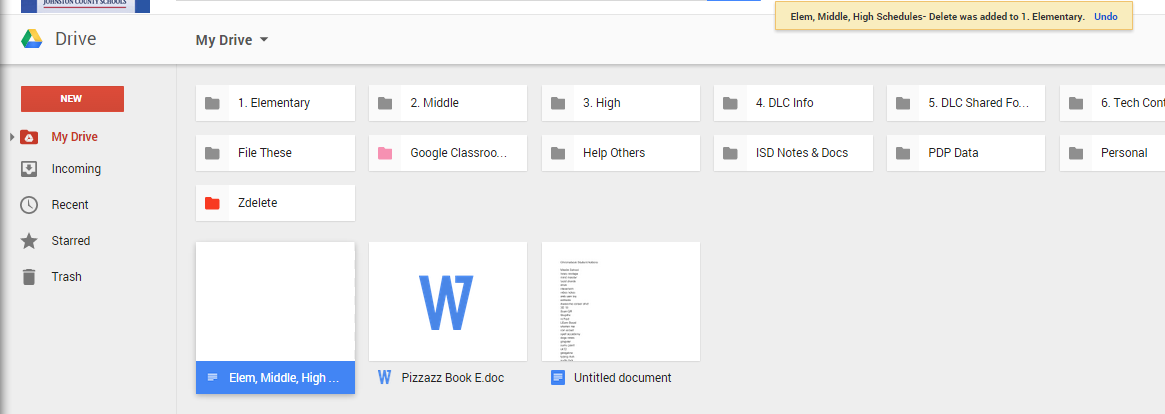
Select the desired folder and click on Add. A confirmation that the file was added to the selected file will show up at the top of the screen.


In the picture below, the selected file is still in it’s current location, but it is ALSO located in the folder it was just “added to.”


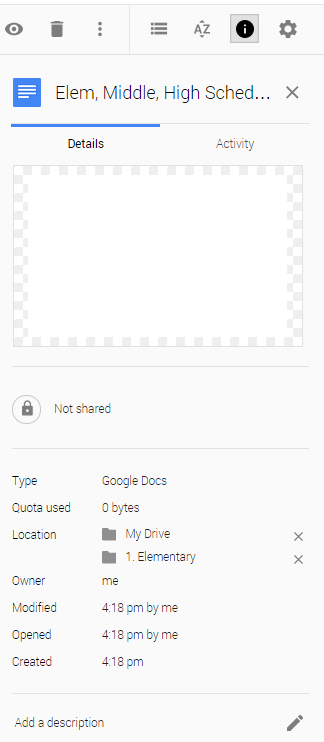
Keep in mind that there is still only ONE file, so deleting it from any of it’s locations will delete it from all locations. To delete the file from a single location, click on the file one time to select it, then click on the view details icon.


Under the “Details” tab, there is a list of locations for this file. Click on the X next to the folder to remove the file from that location.


Questions or comments?
Email me at brandywhitley@johnston.k12.nc.us


Friday, November 14, 2014

Friday Google Tidbit: Digitally Print Google Emails to Drive

Digitally Print Google Emails to Drive
Clean up your inbox by saving those “MUST KEEP” emails in your Google Drive.

To get started, open the “must keep” e-mail and click on the print icon.


The print screen will open. Change the “Destination” to “Save to Google Drive”. You should also see your gmail address below the words “Save to Google Drive”. This lets you know that it is being saved in your account.


Click “Save”. The email has now been saved in your Google Drive.
To find the saved email, go to your drive, and your messages will show up there as a PDF. If desired, you can rename the document as it is assigns a name based on the subject line.


Questions or comments?

Email me at brandywhitley@johnston.k12.nc.us

Friday, November 7, 2014

Friday Google Tidbits: Unlimited Space for Drive Now Available and New Drawing Feature in Chat!

Happy Friday!!!

This week we have two Google Tidbits to share...first, the unlimited storage on Drive that we mentioned a few weeks ago is now available. If you look in the bottom left corner of your Drive, you should now see "X amount used" instead of a percentage bar.  Feel free to upload video and smart notebook files to your Drive as you now have unlimited space!

This is what my Drive states:


Our second tidbit is a new drawing feature in Chat. If you hover on the bottom right corner of your chat window, you should see a pencil appear. Click on it to launch the drawing window.


In the sketch window you can change the color and size of your paintbrush. Click on Send to send your drawing as a chat message. Please note the students do not have access to chat.

Questions or Comments?
Please email me at: pamelabatchelor@johnston.k12.nc.us

Friday, October 10, 2014

Friday Google Tidbits: Coming Soon- Unlimited Storage on Drive and Tips for Getting Started with Classroom!


Happy Friday!

Two tidbits to share with you today. First, Google has announced that Google Apps for Education users (including us) will soon have access to unlimited storage on Google Drive!  This is incredible news as more and more teachers are flipping their classrooms and students are creating media, both of which require a lot of storage space. Look for the update to the unlimited storage over the next month.


Secondly, a few weeks ago, we blogged about getting started with Classroom. If you have not started using Classroom or are new to it, I have collected some additional resources below. I also asked our Digital Learning Coaches for their tips on getting started and Kim Ellison had this to share: "Make sure you pay attention and click on teacher (not student) when you are first setting it up. If you want kids in the same class to do different assignments (tiered assignments) you need to set them up as different classes."

Are you looking for a presentation to help you get started with Google Classroom? If so, click HERE.

There is a Classroom Community on Google+ that has lots of great tips and feedback from current users. Click HERE to see the community.

Do you have a tip to share about Classroom? 
Leave it in the comments box below or email me at pamelabatchelor@johnston.k12.nc.us


Friday, August 15, 2014

Friday Google Tidbit: New Look for Drive

Welcome back to school!  We are excited to start another year of Digital Learning!

Over the summer, Google released a new look for Google Drive. The new look is slowly being changed over so if you don't see it now, you can click on the settings cog and click on "Experience the new Drive" to see the new version. It is expected that the old Drive view will be phased out over the next month.


What's new in Drive? 


The new Drive has a sleek look that makes it easier to see all your files. Also, you will notice that "Shared with Me" is now labeled as "Incoming." 

Clicking on the red "New" button will give you the following options:

Want to learn more about the new Google Drive? If so, click here!

Questions or comments?
Email me at pamelabatchelor@johnston.k12.nc.us


Friday, May 2, 2014

Friday Google Tidbit: New Mobile Apps for Google Docs and Sheets


Google has released new mobile apps this week for Google Docs and Google Sheets. The new apps allow you to have more editing options for docs on the go as well as a new offline feature that allows you to edit documents offline and automatically loads them the next time you connect to the internet.  Brandy and I tried the new mobile apps and we found that the android verision has more advanced features than the iOS app. You can continue to use the Google Drive app to open all of your documents. Google is working on a separate Slides app for Google presentations that should be available in the near future.

To read more about the new apps, click HERE

Questions? Comments?
Please email me at: pamelabatchelor@johnston.k12.nc.us

Friday, November 15, 2013

Friday Google Tidbit: New Gmail Option-Download to Google Drive Coming Soon!


Earlier this week, Google announced a new update to Gmail and how attached files in an email can be downloaded. With the new update, you will have the option of downloading attachments directly to your Google Drive. This will eliminate the process of having to download the file to your computer or flash drive and then uploading the file to Google Drive.  You will still have the option of saving the file to your computer or flash drive as well as Google Drive.

This update will be available within the next few weeks.

For more information, please see the official Google Blog post by clicking HERE