Wednesday Web Tool: How Are You Growing This Summer? Wednesday Web Tool: How Are You Growing This Summer?

Happy Last Wednesday of the 2016-2017 School Year! This week we are sharing some books that our team has found to be inspiring and/or a...

Wednesday Web Tool: Keep them Engaged! Wednesday Web Tool: Keep them Engaged!

Looking for something to do with your students to keep them engaged for the last few days of school!?  This week's blog posts w...

Wednesday Web Tool: Tips for Easing Stress During EOY! Wednesday Web Tool: Tips for Easing Stress During EOY!

This time of year, it can feel like EVERYTHING is a must do. Students are not exempt from the stress of the end of the year. This week ...

Wednesday Web Tool: Edulastic - Create Formative Assessments with Standards Based Grading! Wednesday Web Tool: Edulastic - Create Formative Assessments with Standards Based Grading!

This week we are sharing a wonderful new web tool that allows you to create standards based formative assessments with instant access t...

Wednesday Web Tool: Create and Publish Webpages with Telegraph! Wednesday Web Tool: Create and Publish Webpages with Telegraph!

Telegraph is a very simple web tool that allows anyone to create and publish online work without an account. It supports text, links, a...

Wednesday Web Tool: Just Launched- Recap 2.0! Wednesday Web Tool: Just Launched- Recap 2.0!

Last week Recap launched Recap 2.0, a totally re-imagined tool to gather student feedback. Recap 2.0 now lets students pose questi...

Wednesday Web Tool: Interactive Sites for K-5 Education Wednesday Web Tool: Interactive Sites for K-5 Education

This week we are highlighting an awesome resource for all elementary teachers. Karen Ogen has created a clean website filled with inte...

Wednesday's Web 2.0 Tool: Vizia Video Tool Wednesday's Web 2.0 Tool: Vizia Video Tool

Vizia Video Tool Today's web 2.0 tool is Vizia! Vizia is another video quiz tool and the big advantage is that you can collect the ...

Wednesday Web Tool: Newsela Now Imports Classes from Google Classroom Wednesday Web Tool: Newsela Now Imports Classes from Google Classroom

Newsela now allows you to import your classes from Google Classroom. This allows you to get started using Newsela quickly with your st...

Wednesday Web Tool: Write Interactive Stories with inklewriter! Wednesday Web Tool: Write Interactive Stories with inklewriter!

This week we are featuring a web tool that allows teachers and students to write their own interactive stories. inklewriter has a easy ...

Wednesday Web Tool: Easier Student Sign-In with Epic! Wednesday Web Tool: Easier Student Sign-In with Epic!

Epic! Has updated their student login process to make it easier than ever for students to login! The new process is code based- whe...

Wednesday Web Tool: Help Students Understand Text with Rewordify! Wednesday Web Tool: Help Students Understand Text with Rewordify!

This week we are featuring a great free tool to help students understand text. Rewordify will simplify text selections or entire web p...

Wednesday's Web 2.0 Tool: CommonLit Wednesday's Web 2.0 Tool: CommonLit

CommonLit.Org Last week we shared a tool for K-3 Reading and this week our tool is for 5-12.  Commonlit is 100% free teachers and student...

Wednesday Web Tool: New Reading Mini-Games from Teach Your Monster to Read! Wednesday Web Tool: New Reading Mini-Games from Teach Your Monster to Read!

This week we are featuring a new series of mini-games from Teach Your Monster to Read that are completely web based and can be played o...

Wednesday Web Tool: Make Your Twitter Searches Visible with Twitter Fontana Wednesday Web Tool: Make Your Twitter Searches Visible with Twitter Fontana

With the rapid growth in popularity for Twitter Chats at meetings and group events, there is the need for a nice way to display a runni...

Showing posts with label Wednesday web tool. Show all posts

Wednesday, June 7, 2017

Wednesday Web Tool: How Are You Growing This Summer?

Happy Last Wednesday of the 2016-2017 School Year!

This week we are sharing some books that our team has found to be inspiring and/or a fantastic resource for teachers.


First up is The Innovator's Mindset by George Couros. This book is amazing and filled with resources to change how you view education and your students. If you have not read this book yet, our entire team wholeheartedly recommends it!


If you have already read The Innovator's Mindset, here are some other great reads!

  1. Start Right Now by Todd Whitaker, Jeffrey Zoul, and Jimmy Casas. 
  2. Learn Like a Pirate by Paul Solarz (really anything in the Pirate series is GREAT)
  3. Hacking PBL by Ross Cooper and Erin Murphy
  4. The Book Whisperer by Donalyn Miller and Jeff Anderson
  5. Creative Confidence by Tom Kelley and David Kelley
  6. Kids Deserve It by Todd Nesloney and Adam Welcome
  7. Inevitable: Mass Customized Learning by Charles Schwahn and Beatrice McGarvey


We hope you have a wonderful summer filled with learning! Be sure to share with us on Twitter @jcsdlt your thoughts over the summer!

Happy Reading!

Wednesday, May 31, 2017

Wednesday Web Tool: Keep them Engaged!


Looking for something to do with your students to keep them engaged for the last few days of school!? 

This week's blog posts will offer educational tips to keep your students engrossed in learning until that last day!

Tip #1- Allow your students to check out educational videos on 


Friendly Reminder: You may not show movies in your classroom without Administrators approval and those movies must have Public Performance Rights. See your media specialist for any questions.

Tip #2- Let them explore and research something that want to learn more about on NC WISE OWL


Wednesday, May 24, 2017

Wednesday Web Tool: Tips for Easing Stress During EOY!


This time of year, it can feel like EVERYTHING is a must do. Students are not exempt from the stress of the end of the year. This week we are sharing some strategies to help calm the end of year stress felt by students and staff.

Positive Notes

Image result for positive sticky notes

Give students sticky notes and have them write a positive affirmation for a classmate. Talk about growth mindset and discuss the efforts you have seen your students make this year.

Take a Brain Break

Image result for brain breaks

Go Noodle is a great free tool that has tons of appropriate music videos with coordination activities for your students. From yoga to The Sid Shuffle, these short videos will help students take their mind off testing and get the wiggles out!


Practice Social and Emotional Skills


This article from Edutopia has some great activities to build social and emotional skills in your classroom. By building strong relationships, you are helping your students develop self and social awareness that will help them deal with stressful situations.

We hope these tips help you keep calm over the next few weeks!


Wednesday, May 17, 2017

Wednesday Web Tool: Edulastic - Create Formative Assessments with Standards Based Grading!


This week we are sharing a wonderful new web tool that allows you to create standards based formative assessments with instant access to mastery grading.

To get started, go to: https://www.edulastic.com/

Click on the "Join for Free" button and you can create a free teacher account by linking your Google account.

Once you have created your account and entered your school information, create your classes. Edulastic allows you to import student rosters from Google Classroom.


On the left side of the screen, you can see the menu to create an assessment, visit the assessment library, view student reports, or manage classes.


Edulastic has a fantastic library of assessments already made and tied to standards.


In this example, I searched for "fractions" in the assessment library. I can search assessments by grade level, topic, or standards. You can click on an assessment in the library to preview it or assign it to a class.


Here is an example of what an assessment question looks like.

When you give an assessment in Edulastic, you have several options for dates, scoring, and mastery thresholds. This is an exciting feature for our teachers who are using standards based grading!


Under the reports section, Edulastic will track which standards you have assessed and mastery by standard.


I hope you explore Edulastic with your students!


Wednesday, May 10, 2017

Wednesday Web Tool: Create and Publish Webpages with Telegraph!

Image result for student clipart computer

Telegraph is a very simple web tool that allows anyone to create and publish online work without an account. It supports text, links, and images and is mobile device friendly. You could use it for students to create simple webpages, blog posts, or even for online reflection.

To get started, go to: http://telegra.ph/

Enter your title, author, and start writing your story!


Click on the link or camera icons to insert links or images. You do have to have the images downloaded on your device for Telegraph to upload them.

Once you are finished with your work, click on the publish button. You work is now publicly viewable at the URL on the top of the screen. You can share this link for others to view.

One word of caution- http://telegra.ph/ is a unique URL- if your students incorrectly type it, they may find a dating or news site with a similar name- for this reason, I would link to Telegraph in Google Classroom or some other content sharing method. 

I do love the simple style of Telegraph and the fact there is no account creation makes it very kid friendly- especially for younger students.

I hope you explore Telegraph with your students!


Wednesday, May 3, 2017

Wednesday Web Tool: Just Launched- Recap 2.0!


Last week Recap launched Recap 2.0, a totally re-imagined tool to gather student feedback.

Recap 2.0 now lets students pose questions for teachers to answer as well as a new visual layout for organizing questions and responses as journeys.


I love that you can share responses and journeys with other students and teachers.

For more details about Recap 2.0, check out their blog post.

Wednesday, April 26, 2017

Wednesday Web Tool: Interactive Sites for K-5 Education


This week we are highlighting an awesome resource for all elementary teachers. Karen Ogen has created a clean website filled with interactive lessons and simulations for all areas of elementary education. Interactive Learning Sites has categories by subject area and strand with direct links to activities.

To visit Interactive Learning Sites, go to: http://interactivesites.weebly.com/


Once you click on a subject area, you will be taken to a list of topics/objectives to choose from. Here is the current list of science topics:


Clicking on a topic will take you to a grid of interactive websites and games. Here is the grid of interactive activities for the topic of landforms in science:


Karen has put together an amazing resource to share with educators and updates the site on a routine basis.

As with any website that could be considered a "game" by our district internet filter, I would recommend you have a student try to access the resource on a Chromebook or other device to make sure they can access it with our internet filters. If you find a resource that is blocked that you would like to use, you can request it to be unblocked by filling out this brief form.

Thanks to Karen for her hard work in creating Interactive Learning Sites!

Wednesday, April 19, 2017

Wednesday's Web 2.0 Tool: Vizia Video Tool


Today's web 2.0 tool is Vizia! Vizia is another video quiz tool and the big advantage is that you can collect the responses in a google spreadsheet and then if you wanted you could grade the responses using the Flubaroo add-on.

So how to you get started:
Step 1: Create an account, if you use Google the results will be linked to your drive.
Step 2: Insert the video that you would like to use - it can be from YouTube.  
Step 3: You will be able to add quizzes, polls, response or call to action. 
Quizzes can be marked as correct, Polls are just for collecting opinions, Responses are open ended and a Call to Action allows you to link outside source or sign up for something or take a Google quiz created in forms.
Step 4: Share your video with your students/audience and collect the data.  If you want to collect their names, be sure to turn on the Gate Video so they will have to sign up as the video begins.

If you have questions, email me!


Wednesday, April 5, 2017

Wednesday Web Tool: Newsela Now Imports Classes from Google Classroom

Image result for newsela logo

Newsela now allows you to import your classes from Google Classroom. This allows you to get started using Newsela quickly with your students.

To get started, go to: https://newsela.com/

Login or Sign-Up with your Google Account

Click on your name in the top right corner of the page and click on the "Classes" tab:


Click on the "Import Google Classroom" button.

You will need to authorize Newsela to have access to your Google Classroom account. I had to close and refresh the page to see my classes.

Check the box(es) next to the class(es) you wish to import:


Your students will now have their own accounts created and added to your classes. You can immediately assign them articles and text sets!

I hope this new feature saves you time and helps you use Newsela more effectively with your students!

Wednesday, March 29, 2017

Wednesday Web Tool: Write Interactive Stories with inklewriter!

Image result for students writing

This week we are featuring a web tool that allows teachers and students to write their own interactive stories. inklewriter has a easy to use drag and drop editor to help authors create choose your own adventure style stories with just a few clicks.


You can click on "Start Writing" or "Read Example" to dive in. I recommend reading the example story to introduce this style of writing to your students.

At the bottom of the page you can view a library of stories already created:


When you click on "Start Writing" you will be taken to a tutorial story that explains how to use inklewriter as well as some basics of writing interactive stories. To save your work, you will need to create a free account using your email and creating a password. At this time, inklewriter is ad free so no need to worry about distractions when students are writing. 

Here is a look at the tutorial story:


You can insert images into your story as well as text. The toolbar on the left side of the screen will automatically create the structure of your story as you add content.

Once you have completed your story, you can share the link to your story for anyone to view. This is a great way to share on Google Classroom or via social media to gain an authentic audience.


I could see inklewriter being a wonderful idea for students to create cumulative stories about topics you have studied this year/semester- imagine test review based on content stories!

Wednesday, March 22, 2017

Wednesday Web Tool: Easier Student Sign-In with Epic!


Epic! Has updated their student login process to make it easier than ever for students to login!

The new process is code based- when you setup your classes on Epic!, you will receive a code for students to join your class. This process is easy and saves time setting up student accounts.

The class code feature is available on the web version of Epic! and the latest app version. If you do not see the code option on your app, check to make sure you have the latest version of the app.

Here are instructions on how students can sign-in:

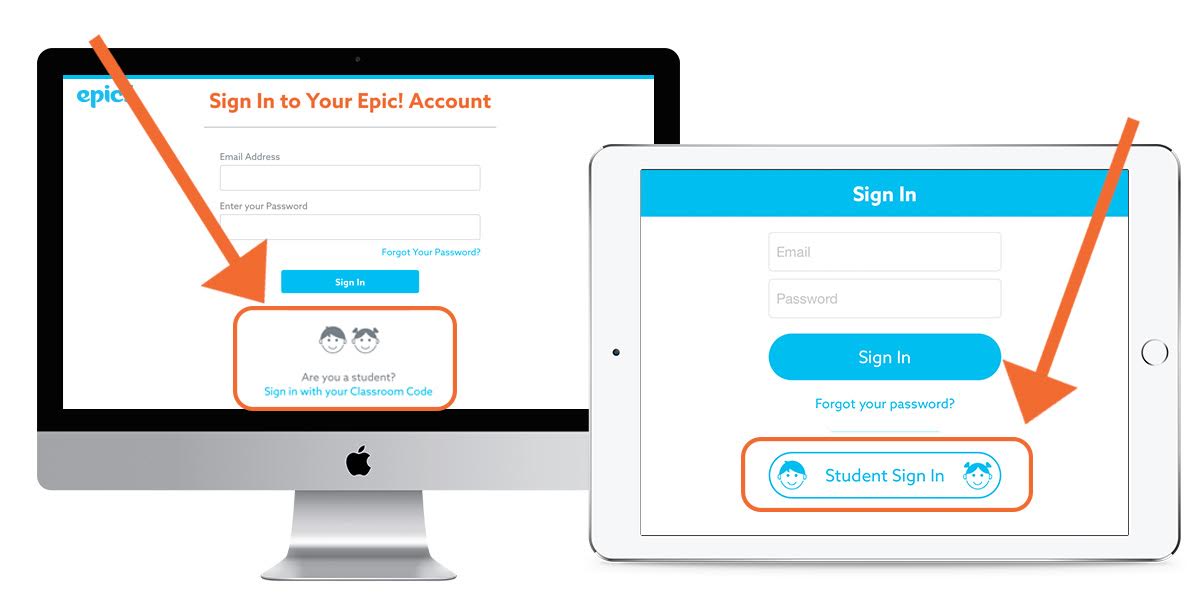
1. Open the App or Go to www.getepic.com and select student sign in:
Login1.jpg

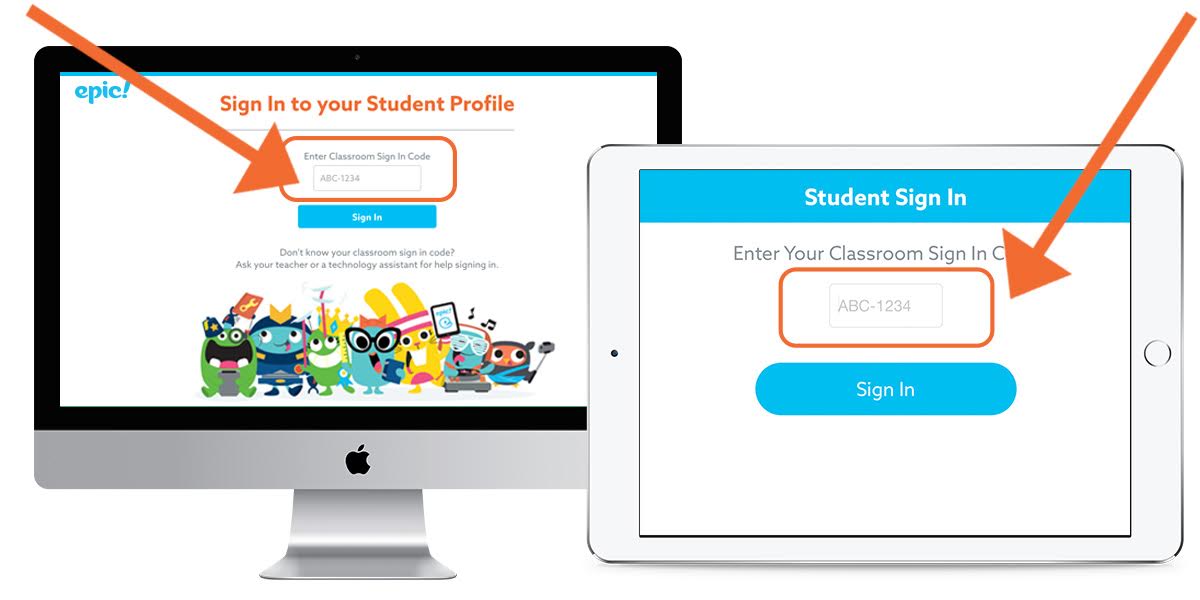
2. Enter your classroom code:

Login2.jpg
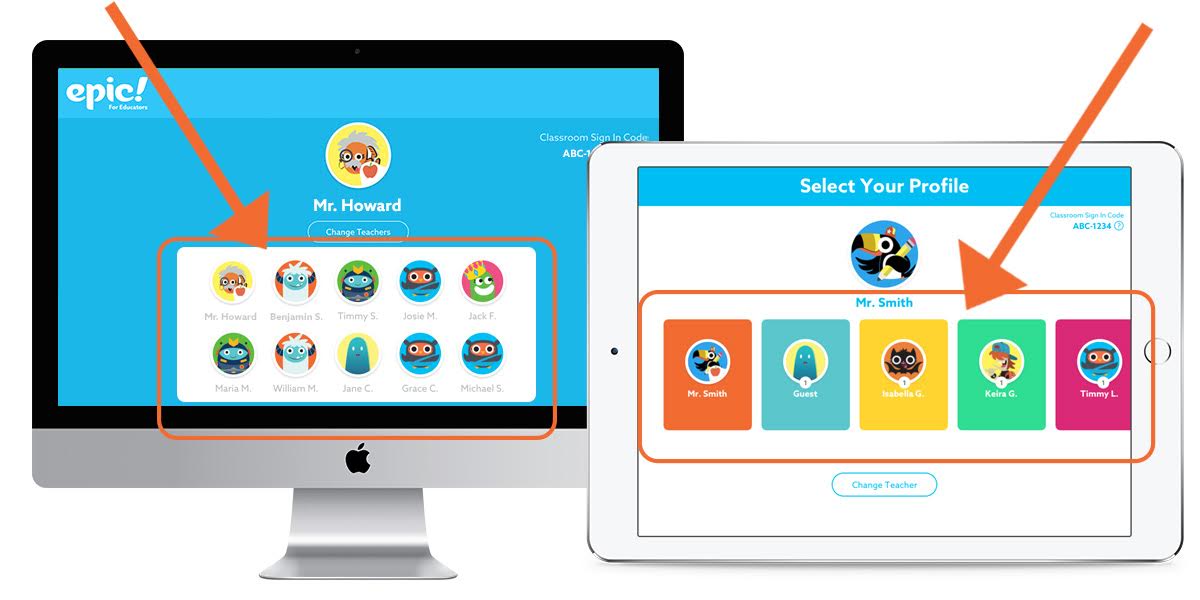
3. Students select their profile options:

Login3.jpg

Happy Reading!

Wednesday, March 15, 2017

Wednesday Web Tool: Help Students Understand Text with Rewordify!


This week we are featuring a great free tool to help students understand text. Rewordify will simplify text selections or entire web pages with highlighted vocabulary words for faster comprehension and vocabulary building.

To get started, go to: https://rewordify.com/

Copy/paste your text or enter the web page URL and click on the "Rewordify text" button.

One of my favorite ways to use Rewordify is with current events/nonfiction reading. 

Here is a current event article from Tween Tribune with a Lexile of 560L. If this article is within the instructional range of my students, I can use Rewordify to help them develop comprehension and build vocabulary.


I have copied and pasted the article URL into Rewordify:

Rewordify has simplified the text and highlighted vocabulary words. If you hover with your cursor over the highlighted selection, you will see the replaced word (for example see "realize" in the image above.)

Another idea is to share the link to the Rewordify article directly with your students in Google Classroom so they go directly to the article.

I hope you explore the possibilities of Rewordify with your students to develop comprehension and vocabulary!

Wednesday, March 8, 2017

Wednesday's Web 2.0 Tool: CommonLit

CommonLit.Org

Last week we shared a tool for K-3 Reading and this week our tool is for 5-12.  Commonlit is 100% free teachers and students and provides hundreds of fiction and non-fiction passages.

There are 3 Basic components:


Creating an account takes just minutes and you can then create a class.  Your newly created class will get a code much like Google classroom so you can assign things to your students once they enroll.

Reading selections include history, science and literature based topics and an option for Guided reading can be enabled for the whole class or just selected students.  The site provides comprehension questions with each passage to help ensure student understanding.  You can search by lexile level, theme, genre or by standards.


Once your students complete a lesson you will see data about their progress!

Check it out! Commonlit.org


Wednesday, March 1, 2017

Wednesday Web Tool: New Reading Mini-Games from Teach Your Monster to Read!


This week we are featuring a new series of mini-games from Teach Your Monster to Read that are completely web based and can be played on any device. The mini-games teach letter sounds and combinations in a fast and kid friendly manner that even the youngest pre-reader can master.

To access the minigames, go to: https://www.teachyourmonstertoread.com/minigames

You do not have to register or login to access the minigames.

Here is a screenshot of the different mini-game options:


Here is a screenshot of gameplay:


Kid-friendly features include a simple interface with an enlarged cursor. Hovering over any item with the cursor will repeat the sound and instructions for the students.

I hope you explore the new mini-games from Teach Your Monster to Read as a resource for your students.

Wednesday, February 22, 2017

Wednesday Web Tool: Make Your Twitter Searches Visible with Twitter Fontana


With the rapid growth in popularity for Twitter Chats at meetings and group events, there is the need for a nice way to display a running list of Tweets. Twitter Fontana is a free tool that allows you to sign it to your Twitter account and create a customized feed of Tweets that you could display in your classroom or meeting space.

To get started, go to: http://twitterfontana.com/

Sign in to your Twitter account.

Click on the settings cog in the top left corner of the screen:


Select what you want to search Twitter for (most likely your event hashtag), your color theme and transition style.


Voila! You have a nice display of your Tweets in live time:


I hope you explore Twitter Fontana the next time you need to display Tweets during a chat or live event!