Videos over the next week Videos over the next week

Many times in the holiday season teachers will show videos to celebrate the season.  Please be mindful that copyright still should be follow...

Active Shooter Video Active Shooter Video

If you are experiencing issues with accessing the Active Shooter Video, please use this link until we can get the issue resolved.  If you ha...

Wednesday's Web 2.0 Tool: Vizia Video Tool Wednesday's Web 2.0 Tool: Vizia Video Tool

Vizia Video Tool Today's web 2.0 tool is Vizia! Vizia is another video quiz tool and the big advantage is that you can collect the ...

Wednesday Web Tool: eduCanon Wednesday Web Tool: eduCanon

eduCanon It’s time to take those videos that students passively watch and make them interactive. With eduCanon, teachers can make their...

Reminders/Updates Reminders/Updates

The SWAT approach for attacking calls will begin soon.  (If you aren't sure what we mean by SWAT approach, it means you have missed impo...

Showing posts with label video. Show all posts

Friday, December 11, 2020

Videos over the next week


Many times in the holiday season teachers will show videos to celebrate the season.  Please be mindful that copyright still should be followed.  Here are the copyright policies for Johnston County.  Revised January 2020 along with Permission Documents.  If you have questions, reach out to your media coordinator for advice.

Be mindful that Google Meet can be considered a public showing.


Friday, August 17, 2018

Active Shooter Video

If you are experiencing issues with accessing the Active Shooter Video, please use this link until we can get the issue resolved.  If you have any questions, please email Christa Leverette.  Thanks!

https://player.vimeo.com/video/90034197

Wednesday, April 19, 2017

Wednesday's Web 2.0 Tool: Vizia Video Tool


Today's web 2.0 tool is Vizia! Vizia is another video quiz tool and the big advantage is that you can collect the responses in a google spreadsheet and then if you wanted you could grade the responses using the Flubaroo add-on.

So how to you get started:
Step 1: Create an account, if you use Google the results will be linked to your drive.
Step 2: Insert the video that you would like to use - it can be from YouTube.  
Step 3: You will be able to add quizzes, polls, response or call to action. 
Quizzes can be marked as correct, Polls are just for collecting opinions, Responses are open ended and a Call to Action allows you to link outside source or sign up for something or take a Google quiz created in forms.
Step 4: Share your video with your students/audience and collect the data.  If you want to collect their names, be sure to turn on the Gate Video so they will have to sign up as the video begins.

If you have questions, email me!


Wednesday, October 1, 2014

Wednesday Web Tool: eduCanon

eduCanon
It’s time to take those videos that students passively watch and make them interactive. With eduCanon, teachers can make their own videos or any Youtube video an active and engaging learning experience for their students. Teachers can differentiate by assigning different videos or bulbs to groups of students, and reports let you see learning needs as assignments are completed.  

Create your free basic account by going to www.educanon.com 
(see end of blog post for details on how to get a free upgrade to premium access)

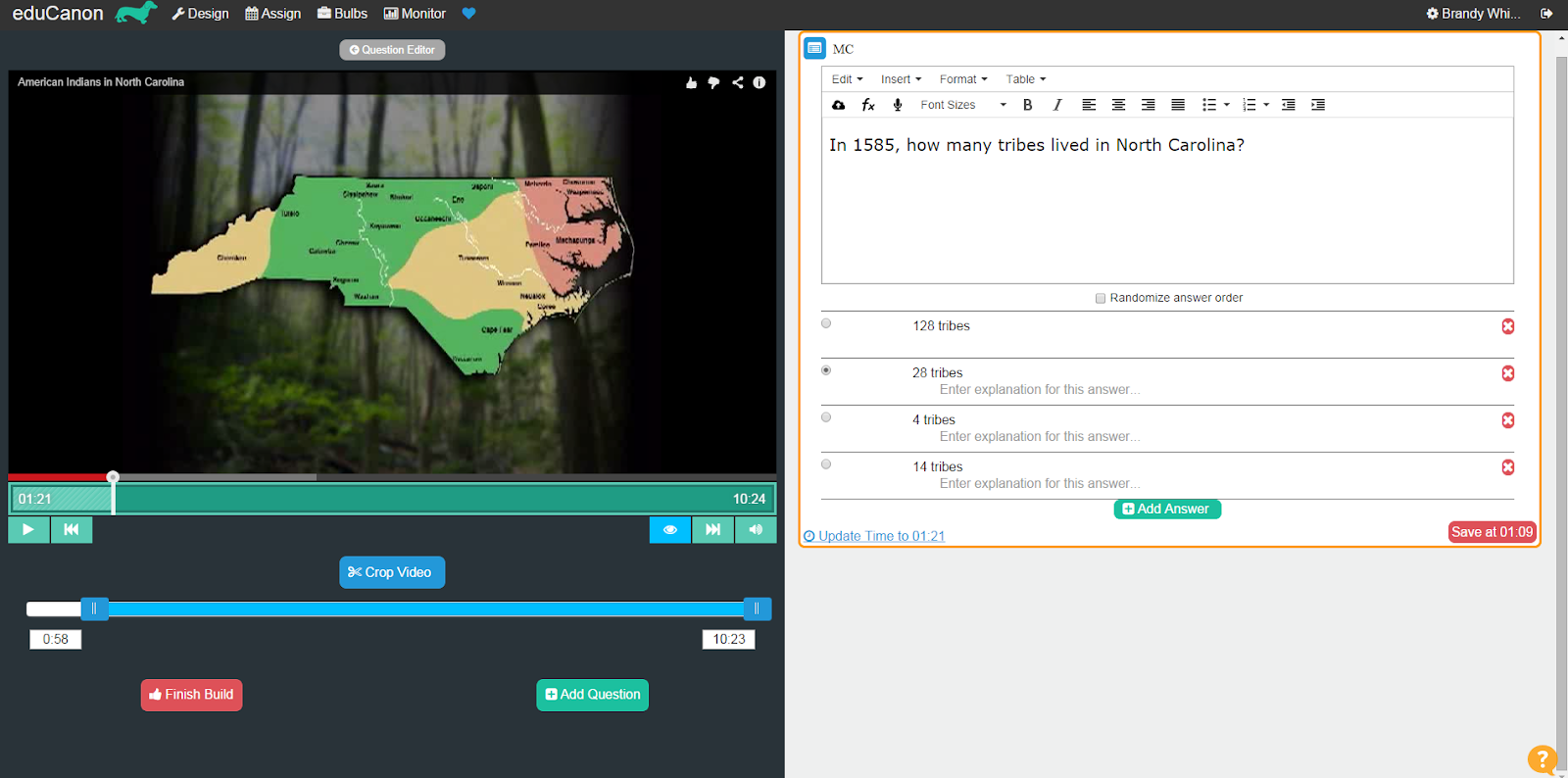
To design your first lesson, click on the design button at the top right corner. On the left hand side, you will see step by step directions for building your lesson-Enter in the title, learning objectives, grade, etc for the lesson. Search for video or enter url of desired video.


Once you have inserted the video, it will show up on the right hand side of the screen. Here you can crop the video, add questions to the video, and finalize your lesson.

To crop the video, click on the Crop Video button under the video. This is a great way to cut out introductions or trim down the video to a smaller chunk.


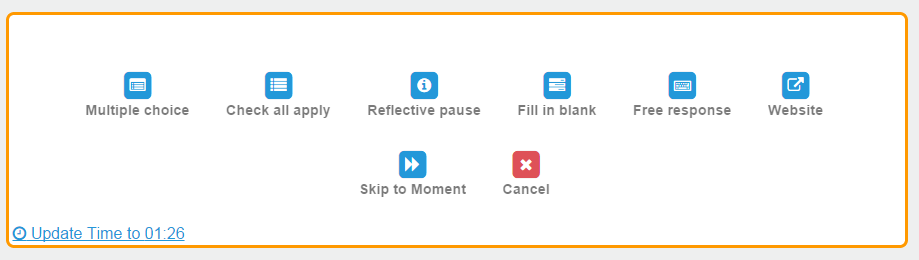
To add a question, locate the point in the video where you would like a question to be asked. Click on the Add Question button under the video. Select the desired question type. (With a basic account, teachers can choose Multiple Choice, Check All That Apply, and Reflective Pause.)


Questions will show up on the right side of the video and can be edited as needed.


Continue adding all desired questions for the selected video clip. Questions will populate on the right side of the video as they are created.


When done, click on the Finish Build to finalize the lesson.


At this point, the lesson is now a “bulb”can be assigned or it can be saved for later. At any time, a teacher can assign a bulb by selecting the assign button at the top of the page.


To assign to a class/group, select a due date and then drag and drop the bulb from the right side of the screen into the desired class/group.


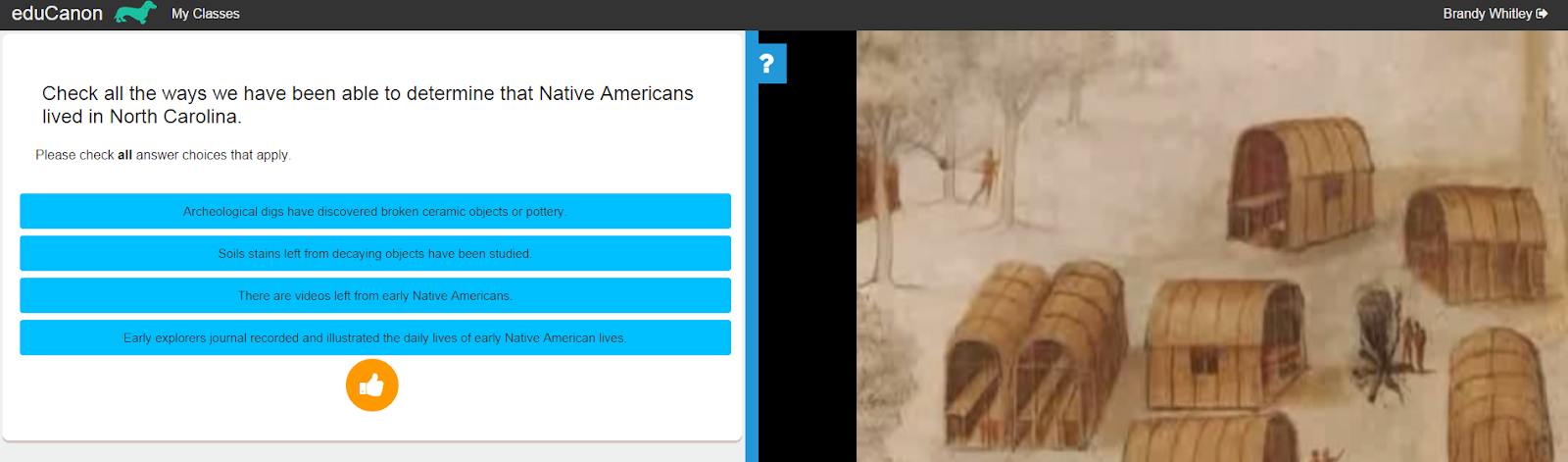
Students can either create an account and link to their teacher’s class, OR teachers can upload a roster. Here is a student view of their assigned bulbs.


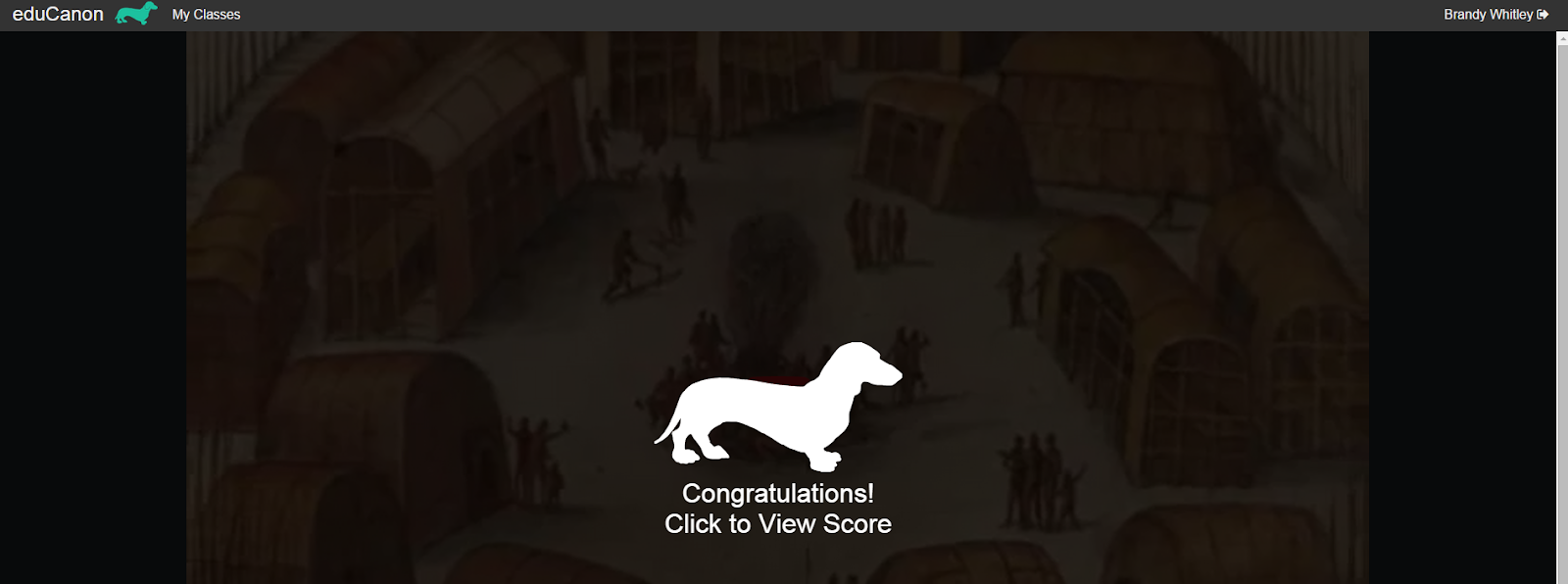
As students view the bulb, the questions pop up at the assigned spots in the video. Students can also view their score at the end of the video.


Teachers can view results for each bulb by classes/groups with a question by question breakdown.


********************************For a limited time*****************************
From now until October 5th, eduCanon is giving away premium subscriptions to entire schools for free. To get your premium subscription, refer your colleagues to sign up with your referral link. To access your referral link, click on your name in the top right corner of the page. Here you will find your profile along with your link to send out to the teachers at your school.


Ready to get started?
Go to www.educannon.com 
or 

Questions or comments?
Email me at brandywhitley@johnston.k12.nc.us

Friday, August 23, 2013

Reminders/Updates

The SWAT approach for attacking calls will begin soon.  (If you aren't sure what we mean by SWAT approach, it means you have missed important information.  Please go here to catch up.)  It is extremely important that you enter all calls into IT Direct.  Do not call your previously assigned technician.  If you have an emergency you should call the HelpDesk - 919-934-2016 ext 403 or email BuddLevick@johnston.k12.nc.us.

Here is the IT Requester Guide that you can share with your staff to help them get familiar with entering their own tickets:
 https://docs.google.com/file/d/12RrmUBzLuB2Hg7p_YZhVjeJjtyc0RbI33sTRZU00nV8_x_6xmcVVknG6ATTD/edit?usp=sharing

Digital Citizenship Agreements for staff and students/parents - remember this needs to be complete as soon as possible and maintained at your school. Here is the link if you need it: bit.ly/auaguide

Thanks for a great first week back - we look forward to a great year!