Wednesday Web Tool: Create and Publish Webpages with Telegraph! Wednesday Web Tool: Create and Publish Webpages with Telegraph!

Telegraph is a very simple web tool that allows anyone to create and publish online work without an account. It supports text, links, a...

Friday Google Tidbit: New and Improved Google Sites Friday Google Tidbit: New and Improved Google Sites

Google has been gradually releasing the new and improved sites editor, it is now available in our domain!  This tutorial will show you ju...

Wednesday Web Tool: Graphite Wednesday Web Tool: Graphite

Graphite Need a place to find a great app or website to go along with what you are teaching in class? Graphite is a great resource for ...

Showing posts with label websites. Show all posts

Wednesday, May 10, 2017

Wednesday Web Tool: Create and Publish Webpages with Telegraph!

Image result for student clipart computer

Telegraph is a very simple web tool that allows anyone to create and publish online work without an account. It supports text, links, and images and is mobile device friendly. You could use it for students to create simple webpages, blog posts, or even for online reflection.

To get started, go to: http://telegra.ph/

Enter your title, author, and start writing your story!


Click on the link or camera icons to insert links or images. You do have to have the images downloaded on your device for Telegraph to upload them.

Once you are finished with your work, click on the publish button. You work is now publicly viewable at the URL on the top of the screen. You can share this link for others to view.

One word of caution- http://telegra.ph/ is a unique URL- if your students incorrectly type it, they may find a dating or news site with a similar name- for this reason, I would link to Telegraph in Google Classroom or some other content sharing method. 

I do love the simple style of Telegraph and the fact there is no account creation makes it very kid friendly- especially for younger students.

I hope you explore Telegraph with your students!


Friday, December 2, 2016

Friday Google Tidbit: New and Improved Google Sites

Google has been gradually releasing the new and improved sites editor, it is now available in our domain!  This tutorial will show you just the basics to help you get started we will share more information about the features in future posts.

So how do you get started?
Open your drive and launch Google sites from the "New" Menu

Name your page and new Site - the Site name will become part of your URL so it shouldn't have spaces or special characters
Begin to add content using the drag and drop menu on the left


It is fully integrated with your google drive and you can insert any of your files on your page
Once you have items on the page you can arrange them by dragging and dropping - this will allow you to make 2 columns
Your can continue to build your content by adding elements to the page or pages. Use the built in section style options available on on the left side of each portion of your page

You will also want to define your theme/colors and adding additional pages
When you page is ready you need to "Publish".  If you want it available for just your students you can select the @jcsnc.org option but if you want others to be able to view it, select anyone.

You can edit your saved page anytime - it is stored in your drive like all your other google files

Need more information?  Check out these additional resources.
Video Tutorial:
Step by Step Guides on all the features

Have a Fabulous Weekend!

Wednesday, September 17, 2014

Wednesday Web Tool: Graphite

Graphite
Need a place to find a great app or website to go along with what you are teaching in class? Graphite is a great resource for locating these tools. Organized by Common Core Standards, Graphite makes it easy to find resources that have been reviewed expert educators and your fellow teachers. Graphite even provides tips on how to use a new tool or even one you have already been using.

Start by going to www.graphite.org to create your free account. Once logged in, there are several ways for finding apps/websites of your choice. 

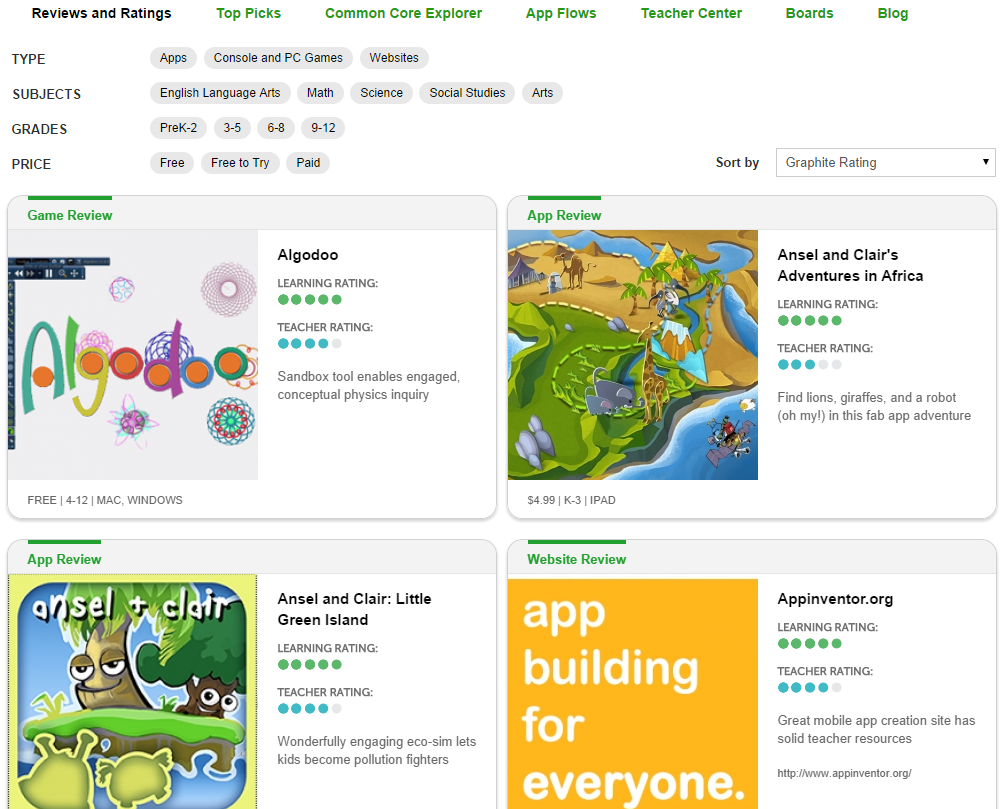
Reviews and Ratings:
Here you can select by type (app, console/PC, website), subjects, grade, price, etc. You will also see featured apps/websites along with their ratings/type/price.


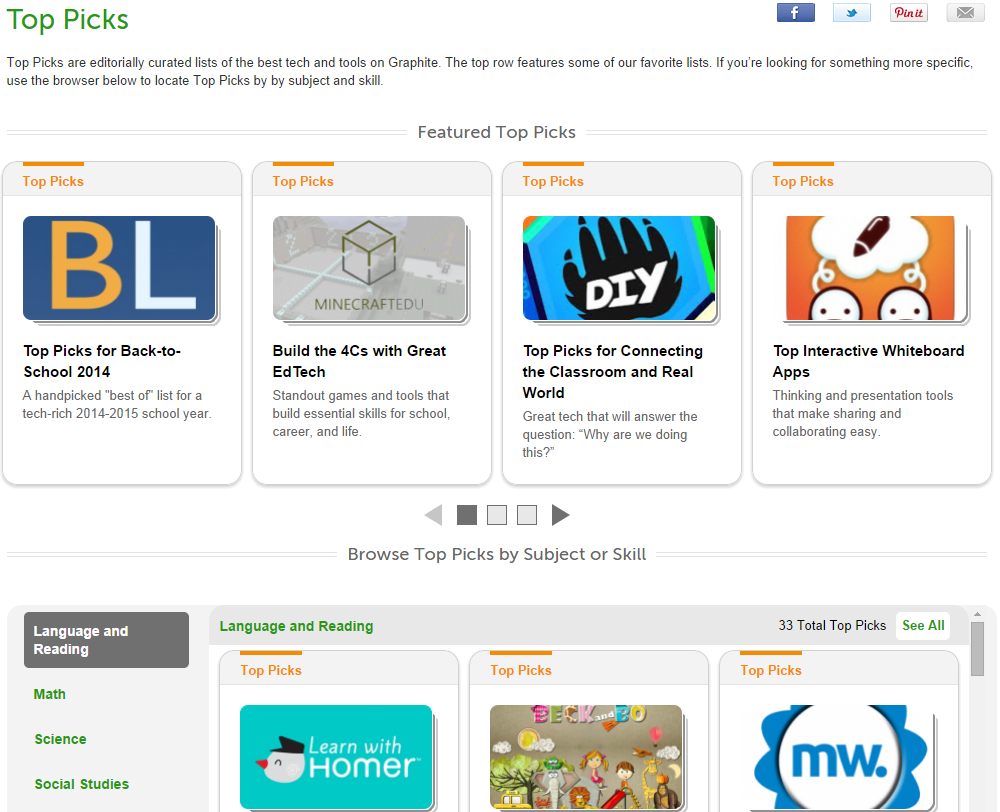
Top Picks:
Find featured top picks along with top picks by subject/skill here.


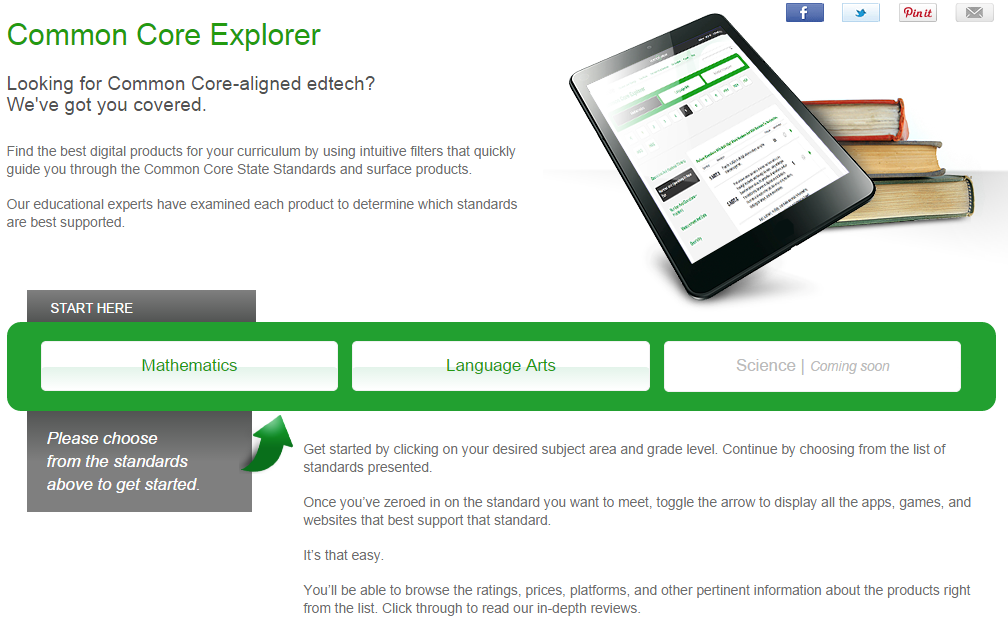
Common Core Explorer:
Use the Common Core Explorer to browse apps/websites by subjects: Math and Language arts. (Science coming soon!) Once you choose a subject area, select the grade level, strand, then specific standards. Select the green arrow to view the related resources.  


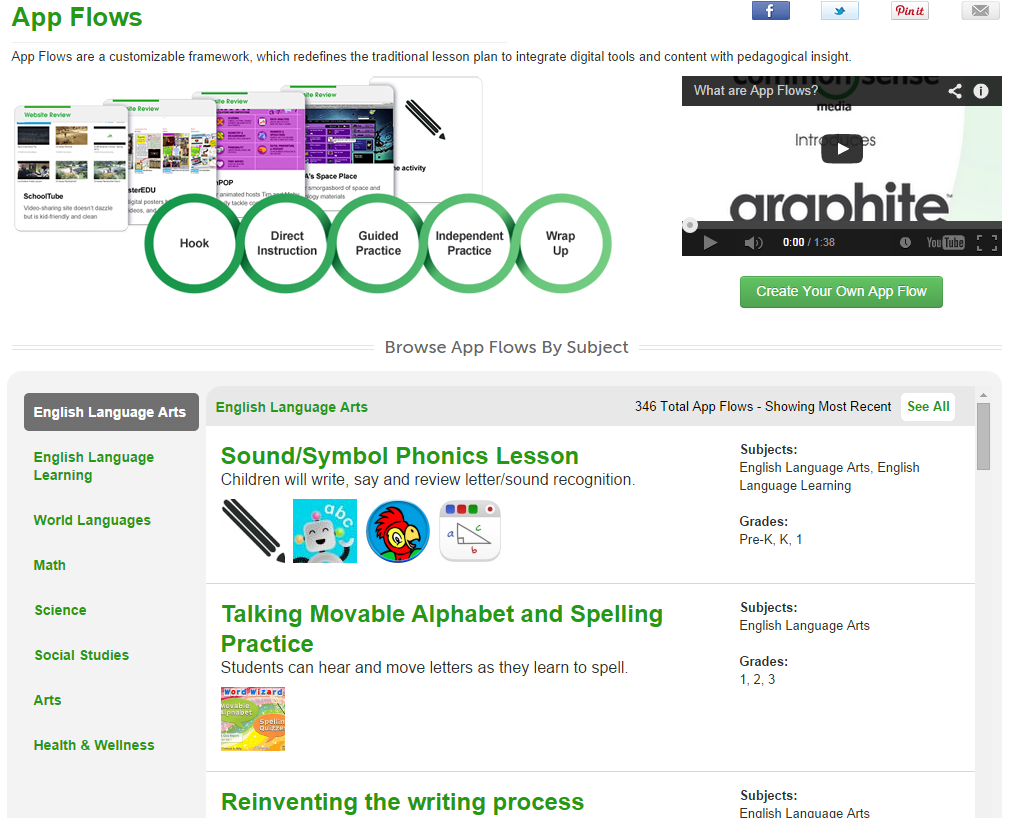
App Flows:
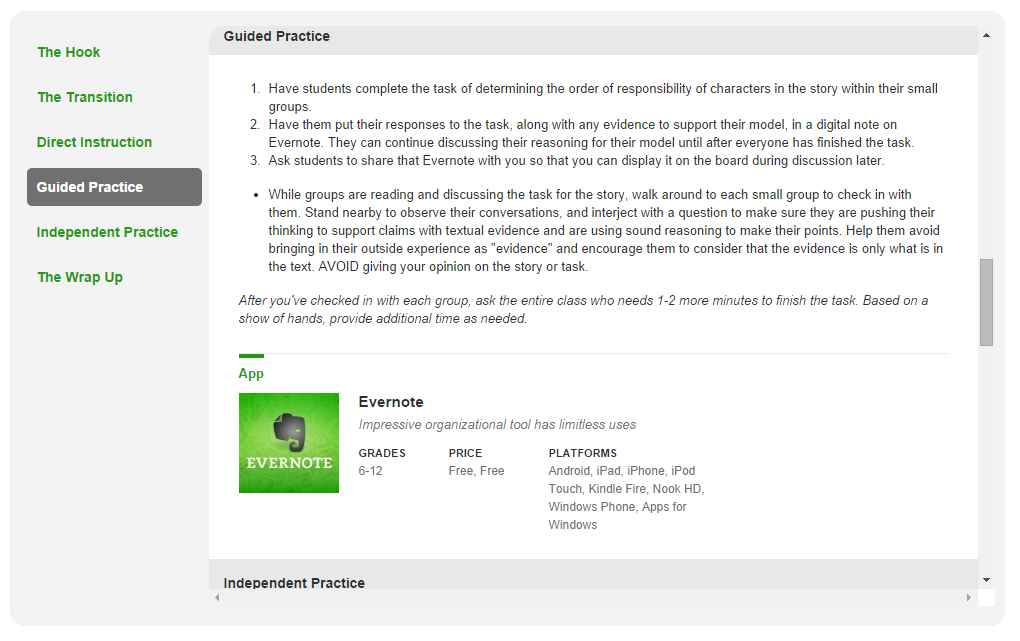
Click on App Flow to see how to implement the app/website with in specific lessons. Search by subject and choose a desired lesson. Here you will see 6 parts of a lesson: the hook, the transition, direct instruction, guided practice, independent practice, and the wrap up.


Teacher Center:
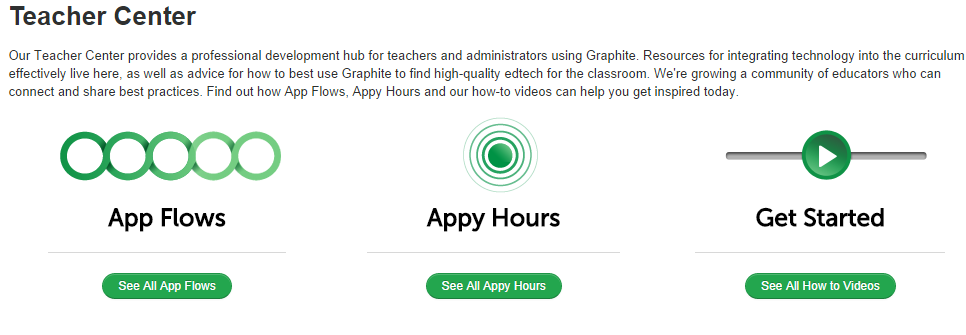
The Teacher Center is your place for how-to resources, teacher discussions, and a connection to App Flows lesson plans.

Boards:
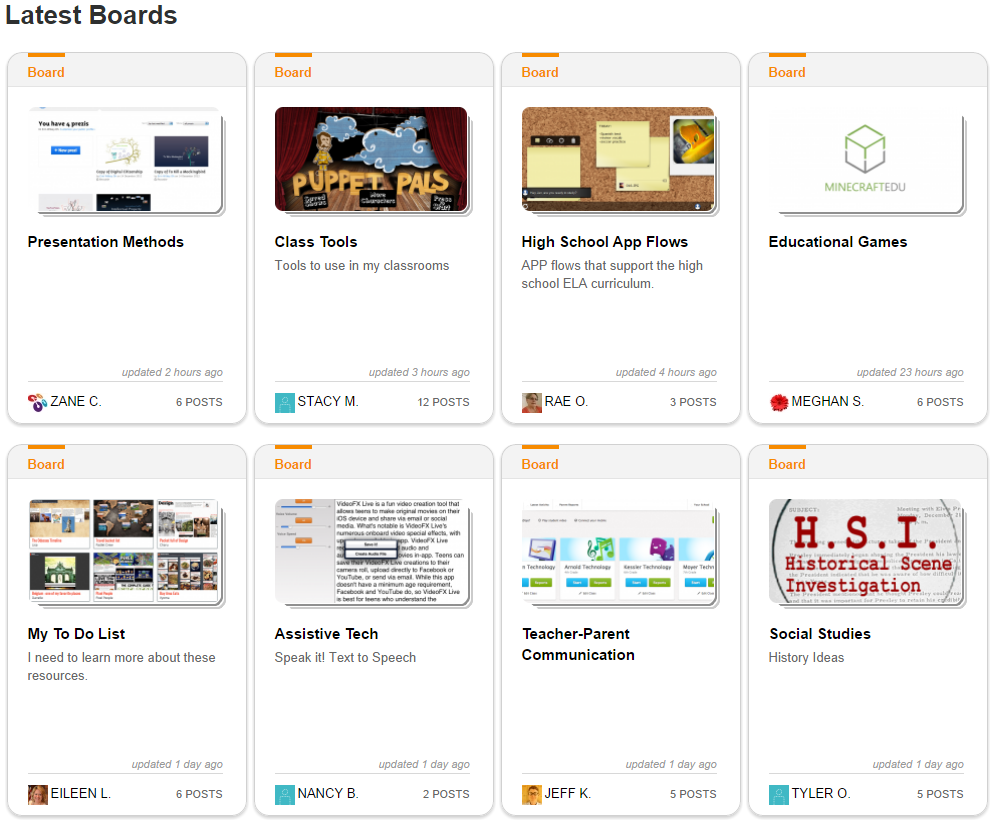
Boards are like Pinterest boards for Graphite. As you find apps/websites you like, pin them to a board and add your comments to them for your reference later.


Blog:
You know what a blog is, but check out this one for tips and ideas directly related to apps/websites from Graphite.


Questions or comments?
Email me at brandywhitley@johnston.k12.nc.us