JCPS ID has been turned on! JCPS ID has been turned on!

The date has finally arrived.  Thank you to all our tech leaders and teachers for helping staff and students to claim their accounts pr...

Claiming JCPS ID Account for Staff & Students Claiming JCPS ID Account for Staff & Students

UPDATED:   Sept 24 2019 To ensure a safe, secure, and private environment for both staff and student JCPS AD & Googl...

Speak Up Survey Open Speak Up Survey Open

Speak Up 2017 survey is open for participation October 16th through  January 19, 2018  with results released in February 2018. Speak Up...

Phone Update Phone Update

Phone Update From Shirley Nixon: If you are hearing or getting requests staff can not access their voice mail, the PIN needs to res...

Employee Password Expiration Policy Now in Effect for NCEdCloud Employee Password Expiration Policy Now in Effect for NCEdCloud

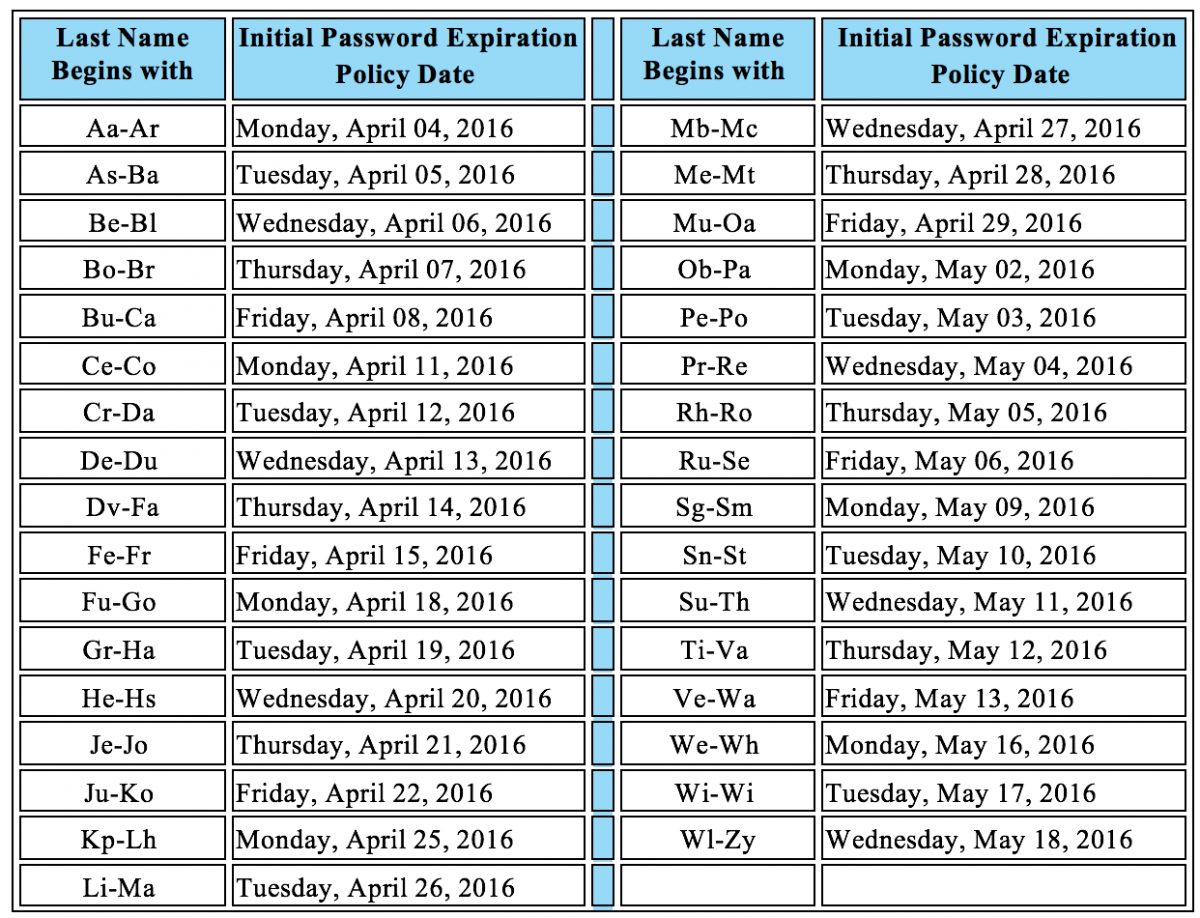
Starting this week, employee passwords will begin to expire every 90 days for the NCEdCloud IAM system. To begin this policy, employee p...

New Admin Console View New Admin Console View

Google is always updating - they have updated the Admin console.  In order to reset a password using the new console. Follow these steps: ...

School Dude Update School Dude Update

Shirley asked me to share the new change in SchoolDude regarding password restrictions. You do not need to do anything, this is just FYI...

AMTR - NCID AMTR - NCID

It's that time of year again to begin thinking about NCID.  The first thing we need to work on is making sure everyone has an accoun...

New Google Admin Console New Google Admin Console

When you log into the Google console - admin.google.com, you will be greeted with a new look!  To set a user's password: Click on Us...

Showing posts with label password. Show all posts

Friday, January 3, 2020

JCPS ID has been turned on!


The date has finally arrived.  Thank you to all our tech leaders and teachers for helping staff and students to claim their accounts prior to Christmas. This effort should make the transition much easier.  However, there will be a few folks who haven't claimed their accounts.

Here are the directions for Claiming your Account if they failed to do that prior to the break.

There will also be those who need assistance resetting their own password - here is a quick set of directions for helping them use their challenge questions to reset their own password.

This is going to make life smooth sailing moving forward.


Wednesday, September 25, 2019

Claiming JCPS ID Account for Staff & Students


UPDATED:   Sept 24 2019

To ensure a safe, secure, and private environment for both staff and student JCPS AD & Google accounts, Tech Services will execute a district wide password change Jan 2, 2020.  The password change is actually a password sync, which means on Jan 2 the password for the JCPS AD accounts will become the password for both JCPS AD & Google accounts for ALL staff and students.  

This is for JCPS AD & Google accounts ONLY not the NCEdCloud (or Powerschool) portal.  

All staff and students have the ability to “CLAIM” their JCPS ID account through the JCPS ID Portal from now until the end of the semester. IF staff and students CLAIM their JCPS ID account AND reset their Google password to match, before Jan 2, then access will be seamless.Once your JCPS ID account is claimed, the JCPS ID Portal will provide self help tools for access issues and password resets.

*  ALL JCPS Staff will CLAIM their JCPS ID account which will prompt them setup a  
   password and challenge questions. 

*  Students in grades 3-12+ will CLAIM their JCPS ID account which will prompt them to
    setup a password and challenge questions. 

*  K-2 Students will NOT CLAIM accounts and the password will remain as the
   current default.  

Step by Step Instructions to Claim Your JCPS ID

Click for Directions to change your google password


IMPORTANT:

Students and staff who have NOT claimed their JCPS ID by Jan 2, 2020, will NOT be able to login to a Chromebook on Jan 2! Users will have to access the Chromebooks Apps to Claim their account before they can login to the Chromebook.

IF staff and students CLAIM their JCPS ID account AND reset their Google password to match before Jan 2, then access will be seamless.   (Directions to Change Google Passwords) 

***Reminder:  Google Passwords will change on mobile devices***

ALL STAFF AND STUDENTS grades 3-12+ must CLAIM their account
****K-2 STUDENTS will not use the JCPS ID portal****


Monday, October 23, 2017

Speak Up Survey Open


Speak Up NC 2017 logo
Speak Up 2017 survey is open for participation October 16th through January 19, 2018 with results released in February 2018.
Speak Up is an annual research project conducted by Project Tomorrow, a national education nonprofit group that
collects and reports on the views of K-12 students, teachers, administrators, and parents on education and technology. More than 5 million students, educators, parents, administrators, and community members have shared their views regarding the use of educational technology through the Speak Up surveys.  The password for Johnston County is speakup17.  Please encourage teachers, students and parents to participate (one great way to promote it is to put the information on your website).  It only takes a few minutes.

The Speak Up 2017 website includes:
  • General information about the project
  • Instructions for the surveys
  • Ideas for how you can use your data
  • Promotional materials
  • and more
In general, Speak Up has three primary objectives:
  • To provide a means for local schools and districts to easily and effectively listen to and act upon the ideas of
    their stakeholders.
  • To provide a conduit for the voices of education stakeholders, most notably students, to inform national
    and/or state/provincial policies and programs.
  • To stimulate new local discussions around the use of technology within education.
Speak Up, North Carolina!

Thursday, September 1, 2016

Phone Update

Phone Update


From Shirley Nixon:
If you are hearing or getting requests staff can not access their voice mail, the PIN needs to reset. Please forward or have sites contact Shirley Nixon!  Also, some sites are just trying to access previous user phones without assigning extensions to new user...won't work correctly.  We actually need to assign/reassign users a phone extension and add his/her name for correct routing.  

Monday, April 4, 2016

Employee Password Expiration Policy Now in Effect for NCEdCloud


Starting this week, employee passwords will begin to expire every 90 days for the NCEdCloud IAM system. To begin this policy, employee passwords will start to expire according to the schedule below based on the user's last name.


Please note that this policy does not apply to students.


Please share this information with your staff so they will be aware when they see the password expiration notification when they login to the NCEdCloud.

For more information, please review this blog post from the NCEdCloud IAM service.

Wednesday, January 28, 2015

New Admin Console View

Google is always updating - they have updated the Admin console.  In order to reset a password using the new console. Follow these steps:

1. Find the User using the Admin search tool
2. Once you find the user click on their name to open their account
3. Use the 3 dot tower in the gray bar with their name to find the "Reset Password" menu this should allow you to reset their password as needed.


Tuesday, January 6, 2015

School Dude Update


Shirley asked me to share the new change in SchoolDude regarding password restrictions. You do not need to do anything, this is just FYI for the future.


ITDirect  -  Security Enhancements
SchoolDude is enhancing the security of user account access, beginning January 10th. This enhancement is designed to keep user account safe from unauthorized access.

What do you need to do? Nothing… just be aware of enhancement features below and continue logging in to ITDirect as you always have. You will only notice these security enhancements if you forget your account password.

Enhanced security features include:


Passwords will be case-sensitive 
When entering your password during login, you will need to use the same capital and/or lower case letters used when your password was last set.

“Forgot Login?” will change to “Reset Password”
If you forget your password, you will be able to click a “Reset Password” link on the login page. The system will generate a temporary password and email it to you; when you log in with this temporary password, you will be able to change it to a new password that you can remember.

Easily guessed passwords will not be allowed 
Security experts have a list of common passwords, and hackers know them as well! The next time you change your password, the system will verify that your new password isn’t on that “unsafe” common password list.

Failed login lock out 
To help prevent someone from gaining unauthorized access to your account by trying to guess your password, the login page will keep track of failed log in attempts with incorrect passwords. After 5 failed attempts, the system will lock the account for 10 minutes added security.
Secure password evaluation
When changing your password the new password will be evaluated for its security “strength,” and the strength will be displayed below the password input box. For your account protection, you will need to use an acceptably strong password (for instance, at least 8 characters, including both letters and numbers). This feature will be implemented first in FSDirect, with other products (ITDirect, MaintDirect, etc) to follow.   

Monday, April 28, 2014

AMTR - NCID


It's that time of year again to begin thinking about NCID.  The first thing we need to work on is making sure everyone has an account prior to the meeting next week, May 8.

Please help Stephanie Canning, Michelle Turnage's new assistant by completing this form by this Wednesday at 4:00 PM.  Thank you in advance!

Tuesday, October 29, 2013

New Google Admin Console

When you log into the Google console - admin.google.com, you will be greeted with a new look!  To set a user's password:

Click on Users

Search by name or username at the top
Click reset password icon (lock) in the top right corner


Reset password as you normally would.  Be sure if it is a staff member you check the box for them to reset on log in.