QuickKey

Use your iPhone or iPad to scan and grade your paper quizzes or test digitally! Download the QuickKey app, print out the scannable answer sheet, input your answer key and get ready to test.
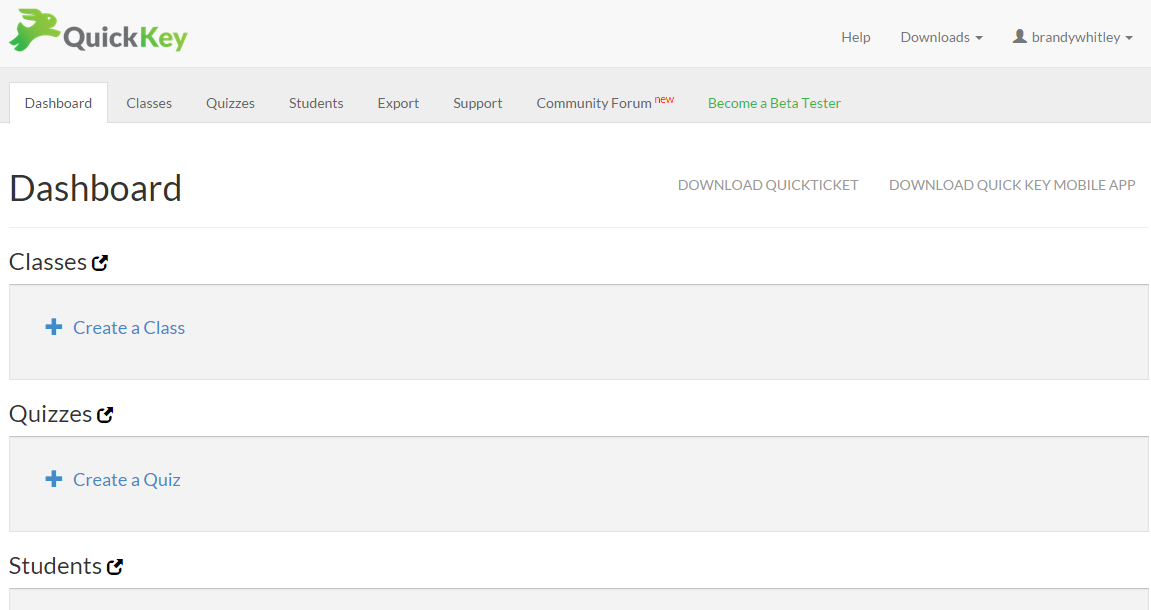
To get started, go to get.quickkeyapp.com and register for a free account. This can be done at a computer, Chromebook, or using your browser on your iPhone or iPad. Once logged in, you will see your Dashboard.
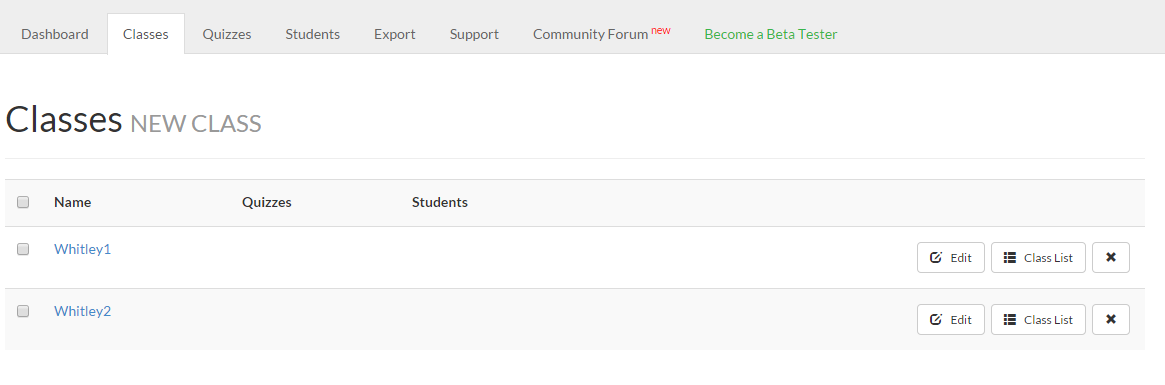
Click on + Create a Class or click on the Classes tab to add your class(es). Your list of classes will show up under the “Classes” tab after you have created them.
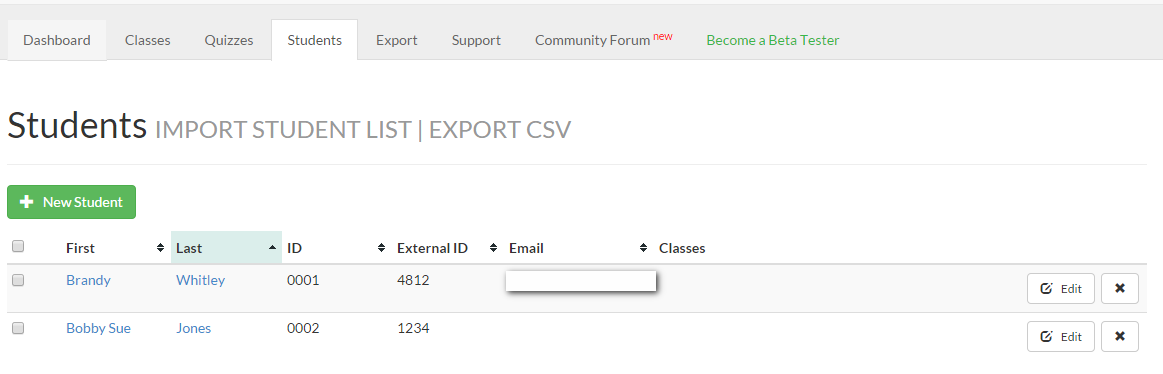
To add your students, click on the “Students” tab, and click on the + New Student button. There is also a spreadsheet template that can be downloaded and completed to import student lists into QuickKey. To access the template, click on the words “Import student list.”
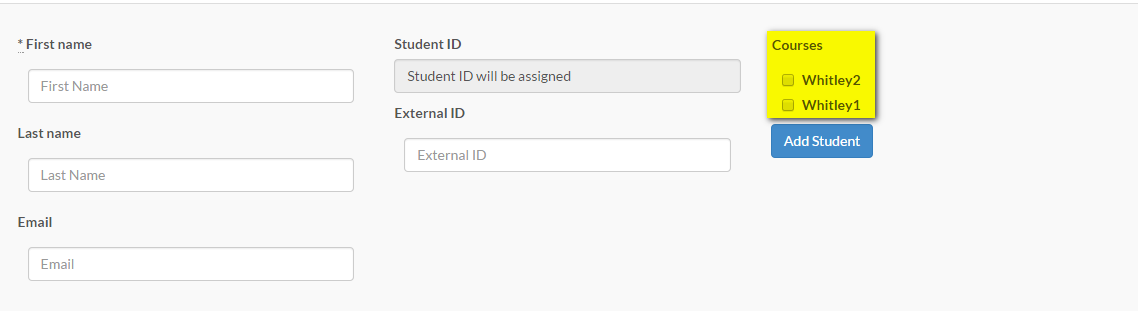
As you add students, you have to option to add them to the desired class(es).
When done, make note of the ID numbers assigned to the students. They will need this when filling out their answer sheet.
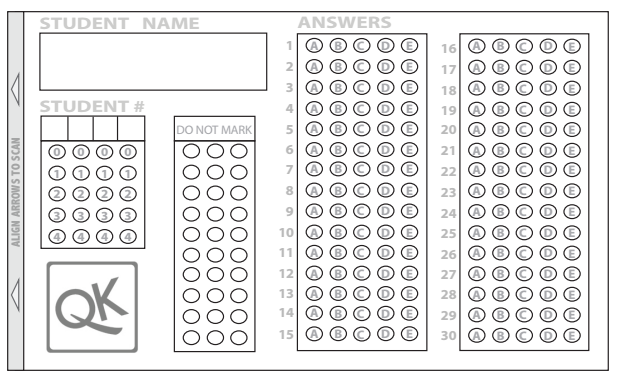
To administer and score an assessment, click on “Downloads” then “QuickTicket” in the top right corner of the screen. print the answer sheet and create copies as needed. There are 2 answer sheets on a page.
Next, click on the “Quizzes” tab then “New Quiz.” Give the quiz a name, choose the number of questions, select the desired class(es), then start inputting the assessment information.
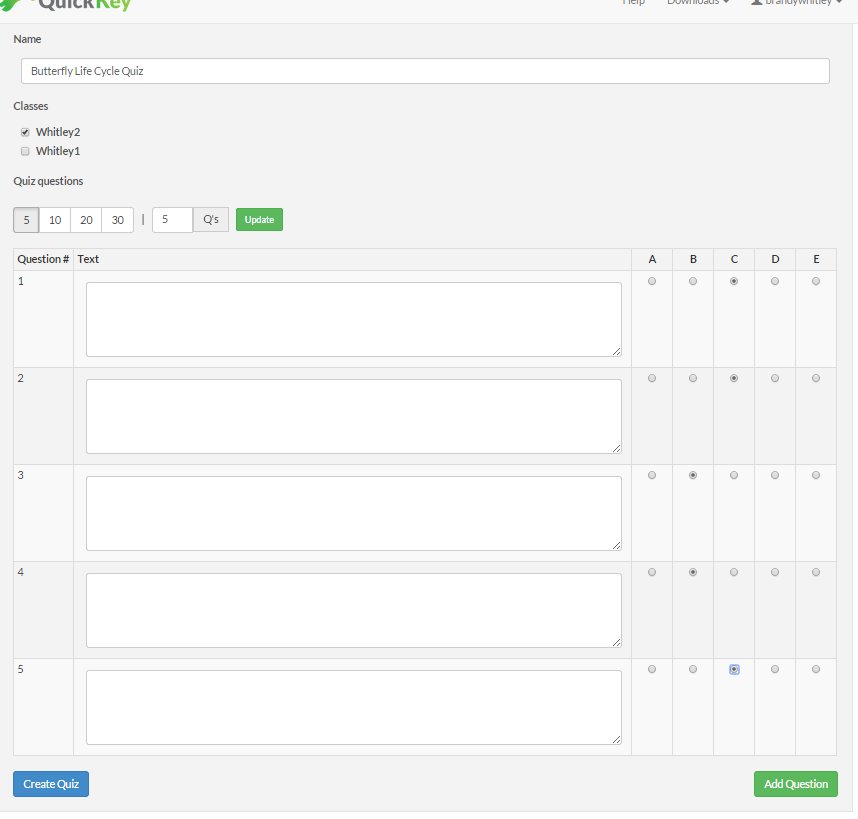
There are two options for entering your assessment information. The quick version is to create an answer key only. That would look something like this:
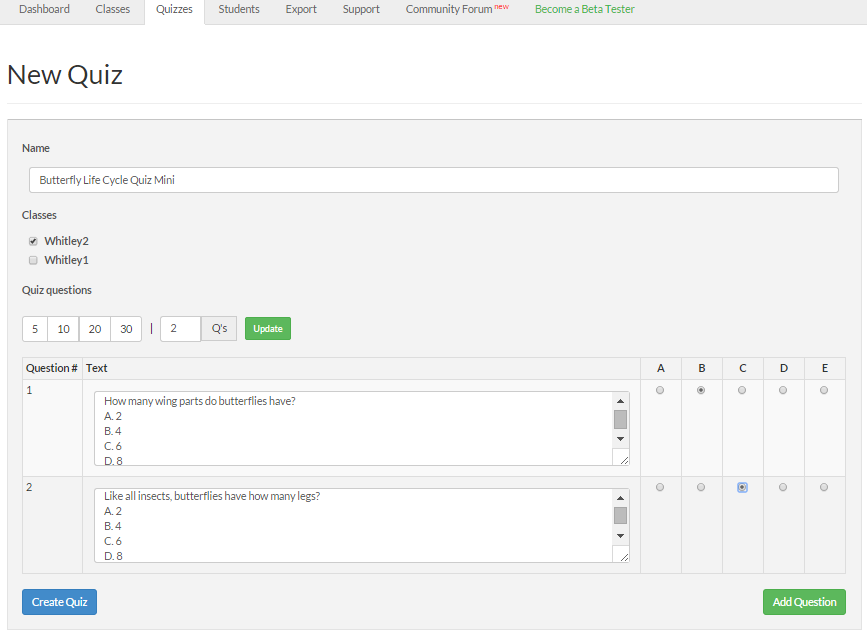
The other option would be to add the questions AND the answers to the quiz. That would look something like this:
Click “Create Quiz” to finalize your assessment.
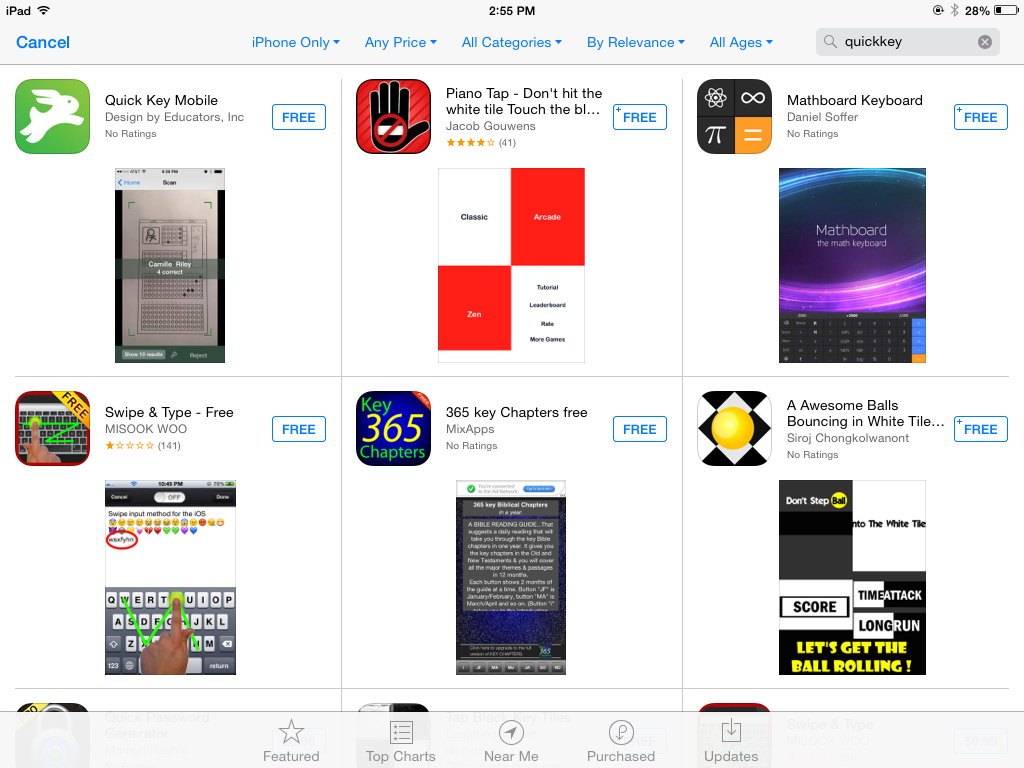
Download the app to your iPhone or iPad. This is what you will use to scan and grade their finished assessments.
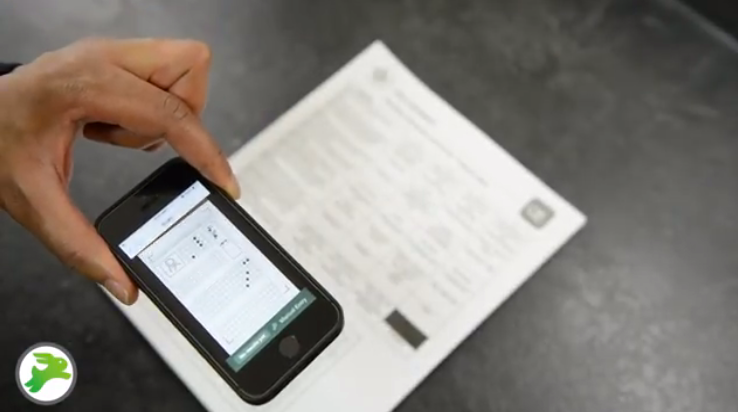
Provide students with their QuickKey ID number, an answer sheet and their assessment. When student complete the assessment, simply use the QuickKey app to “Scan An Existing Quiz”. Scan the student’s answer sheet and get instant feedback on grade.
Now student data and grades can be reviewed and sorted from the app or the website.
Questions or comments?
Email me at brandywhitley@johnston.k12.nc.us
 Check for NCTest App in Kiosk
 Wednesday Web Tool: QuickKey
 PowerSchool Apps