Technology Thursday (9/30/21): Digital Citizenship Week, Tech Collaborative Meet, and Google Meet Tips & Tricks! Technology Thursday (9/30/21): Digital Citizenship Week, Tech Collaborative Meet, and Google Meet Tips & Tricks!

                                           Mark Your Calendars for Digital Citizenship Week 2021! Our students are online more than ever. Te...

Google Meet Information Google Meet Information

 Google Meet Information Google shared the table below to help guide questions around expiring links, your teachers might find this helpful ...

Google Meet Backgrounds for students Google Meet Backgrounds for students

  Some have been asking about backgrounds and blur feature on student devices so we researched and wanted to share:  From what we found Chro...

Upcoming Meeting Upcoming Meeting

  MARK YOUR CALENDAR Media and Tech Fall meeting (required to maintain tech rights) will be October 28 at 3PM.   Join using this link We wil...

Videoconferencing with students. Videoconferencing with students.

Please let Teachers Know We have had lots of request for Zoom to be pushed to all student chromebooks, we wanted to make sure you that yo...

Showing posts with label google meet. Show all posts

Thursday, September 30, 2021

Technology Thursday (9/30/21): Digital Citizenship Week, Tech Collaborative Meet, and Google Meet Tips & Tricks!


                                          Mark Your Calendars for Digital Citizenship Week 2021!

Our students are online more than ever. Teaching them how to thoughtfully and respectfully use technology is an essential part of their social and emotional development and academic success. Digital Citizenship Week is the perfect time to re-engage students around how technology impacts their lives, and how they can use technology to make a positive impact in the lives of others. Let your school's commitment to digital citizenship kick off this Digital Citizenship Week! 

We will be sharing out several digital citizenship tips and tools throughout the month of October (and beyond) as we work to integrate digital citizenship lessons in throughout the year and promote the importance of teaching digital citizenship to our school communities. 

Resources to help you plan for Digital Citizenship Week 2021:

1. BrainPOP Digital Citizenship Collection: Search for "digital citizenship" and choose from 20 topics, engage students in games, and digital citizenship pacing-guides and lesson plans for educators. Be sure to access through ClassLink!
2. BrainPOP Junior: Search for "digital citizenship" and choose from eight topics and access educator lesson plans. Be sure to access through ClassLink!
3. Common Sense Education Digital Citizenship Week Page: Includes week-long schedule of activities that can be edited to suite your student's needs, CASEL-aligned activities to help students reflect on how technology impacts their social and emotional well-being, full K-12 digital citizenship curriculum which include videos, customizable lessons, Nearpod integration, and Spanish resources.
4. DigCitCommit: Resources to shift our digital citizenship conversations from "don't's to do's". 
5. Discovery Education: Search for "digital citizenship" and Explore SOS activities, videos, and lesson plans for educators and students. Be sure to access through ClassLink! 
6. Google's Be Internet Awesome: Includes several resources like Interland fun and interactive game, printable resources, curriculum, printable coloring books, ready-to-use Google Slides for teaching, teacher training courses, and more. All resources align with ISTE/ NC Digital Learning Standards for Students!
7. Google for Education's Applied Digital Skills: Search for "digital citizenship" and choose from over 100 lessons.

We will be sharing ideas and resources all month, but please reach out to Stephanie Haumont if you would like to collaborate on any digital citizenship lessons or events!


Google Meet Tips & Tricks

If you are looking for Google Meet tips and tricks, check out the resources on the newly redesigned JCPS Teacher website! Link to the Meet page HERE.


Reminder: Tech Contact/ Tech Facilitator Collaborative Meet Up!

Tech contacts and tech facilitators: Join us for our first tech collaborative meeting on Tuesday, October 5th from 4pm - 5pm! 


This is a time for school tech contacts and tech facilitators to share best practices in the effective use of digital tools and resources, leading successful instructional technology programs, implementing digital learning standards, and problem-solving the day-to-day challenges that tech contacts and tech facilitators encounter.  


Your attendance and participation are not required but can be used as an artifact to support your evaluation ratings. This is also an opportunity to grow your personal learning network.

If you plan to join us, please let us know what topics you would like to discuss here in this Google Form

Our running notes and Google Meet link can be found here: bit.ly/JCPSTechCollaborative.


Thursday, May 13, 2021

Google Meet Information

 Google Meet Information

Google shared the table below to help guide questions around expiring links, your teachers might find this helpful in the future.


Tuesday, January 12, 2021

Google Meet Backgrounds for students


Some have been asking about backgrounds and blur feature on student devices so we researched and wanted to share: 

From what we found Chromebooks have to be on version 86 or later for the background and blur options. We control the version our devices are allowed to update to and have them on version 85 as we never move to the latest version in case there are issues. Version 87 is now available so we have just increased the allowed version to 86. Once the Chromebooks update that should allow the students to see the background blur options. Currently there are no controls in the admin console to enable or disable this feature so we are confident this should resolve the issue.  

Original release notes from Google: https://support.google.com/meet/answer/10058482?co=GENIE.Platform%3DDesktop&hl=en

Hope this information is helpful as you move forward.

Tuesday, October 13, 2020

Upcoming Meeting


MARK YOUR CALENDAR
Media and Tech Fall meeting (required to maintain tech rights) will be October 28 at 3PM.  
We will be covering information regarding the annual reporting due in December - DLMI and DL Rubric please plan to attend.
Additional features available in Google Meet.  
You should see Q & A, in your Google Meets.  It is available along with Breakouts and Polls.  The really nice thing about this feature is a report will be sent to you at the conclusion of the meeting, enabling you to follow up with students who have asked questions that were not able to be addressed in the live instruction.   

Click on the image above for video on how to use your Webcam as a Document Camera.  Note: if your are in a Google Meet images will show up reversed for you as the presenter, but will be flipped to be correct for participants.


Sunday, March 22, 2020

Videoconferencing with students.

Please let Teachers Know
We have had lots of request for Zoom to be pushed to all student chromebooks, we wanted to make sure you that you are aware that we do not have any controls over the free version of Zoom and students could start their own meetings if we allow them to create accounts and download the app on school devices.

However, with Google Meet we have complete control over what they can do because it is part of their School owned Google account. So we ask for safety reasons, that JCPS employees videoconferencing with student participants use only Google Meet. Students can not start their own Meets, however they can join any Meet that they are invited to or that the link is shared to them. Google has bumped up their security so that when the last person the leaves the Meet the link can no longer be used (so kids can't rejoin without the teacher)

So How do you create a Google Hangout/Meet with Students.
Google Meet
Step 1: Sign into your Google Account
Step 2: Go to meet.google.com    
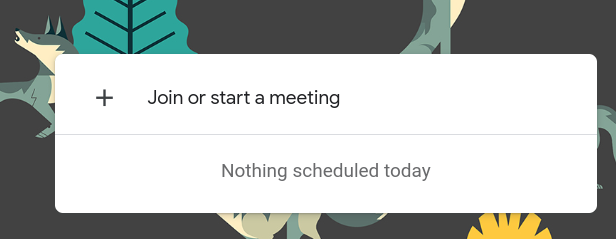
Step 3: Click Start a meeting to get the link and share it with your participants and you are off and running. This is for impromptu (and you have students emails saved to quickly invite them)


If you want to schedule a meet:
Step 1: Go to your calendar: calendar.google.com
Step 2: Click on the date and create an event, make sure you add a time.
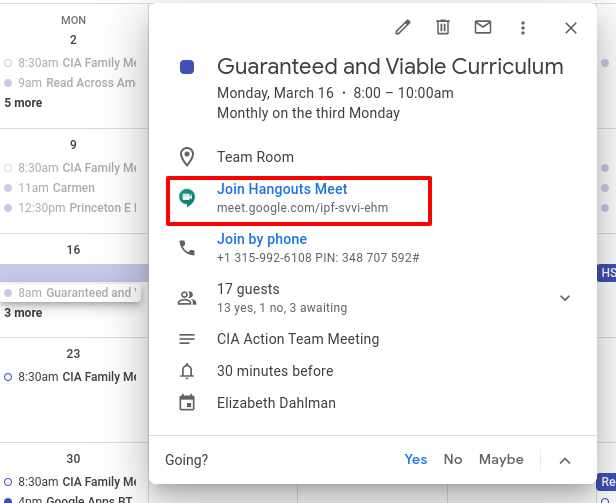
Step 3: Invite your participants - this schedules the event and also makes the meeting link in the invite - when it is time just click on the meet link in the calendar invite. (If you are putting this on the calendar created for your classroom - students can simply click on the day's event and join right from classroom. NOTE: at least 1 person has to be invited so if you go this route you might invite your personal account to get the link to show up)


When it’s time you just join via your calendar event and you are off and running - Meet! Meet!


To record use the three dots to get to the “record” option it will save to drive when you are done.  Be sure all students have permission for photo/video before recording. The video controls allow you to mute and hide your cameras will rest at the bottom of your screen if you hover they will reappear. If you have any trouble reach out to amystanley@johnston.k12.nc.us or your technician.

Here is some resources that might be helpful: https://teachercenter.withgoogle.com/first-day-trainings/welcome-to-google-hangouts-meet