Update Tomorrow
Just a heads up that we will be updating Destiny tomorrow 12/15/15 around 4:00 PM. Please be mindful that the system will be down for a very short period around that time.
Thanks for your understanding.
Today's Media Tip: Go Follett
Guest Blogger, Donna Tart from Princeton Middle/High
Do you ever get tired of telling your students the many different ways to find Destiny? You’ve got media.johnston.k12.nc.us. Then there’s “go the JCS webpage, then click on Students, then go to Student Online Connections, then click on JCS Media Centers.” And then there are the SharpSchool pages you’ve set links up on. Get my drift? Instead of using any of the other ways, why not have your students use GoFollett.com instead?
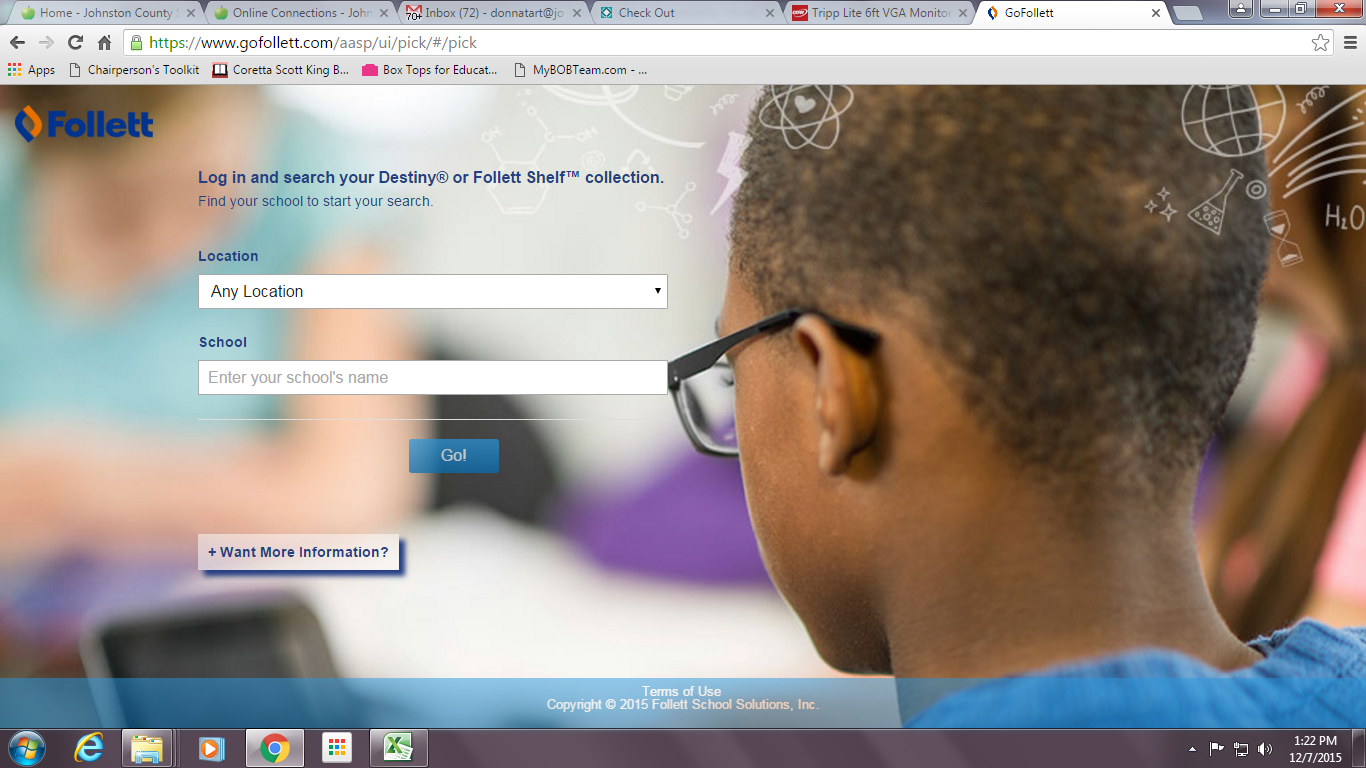
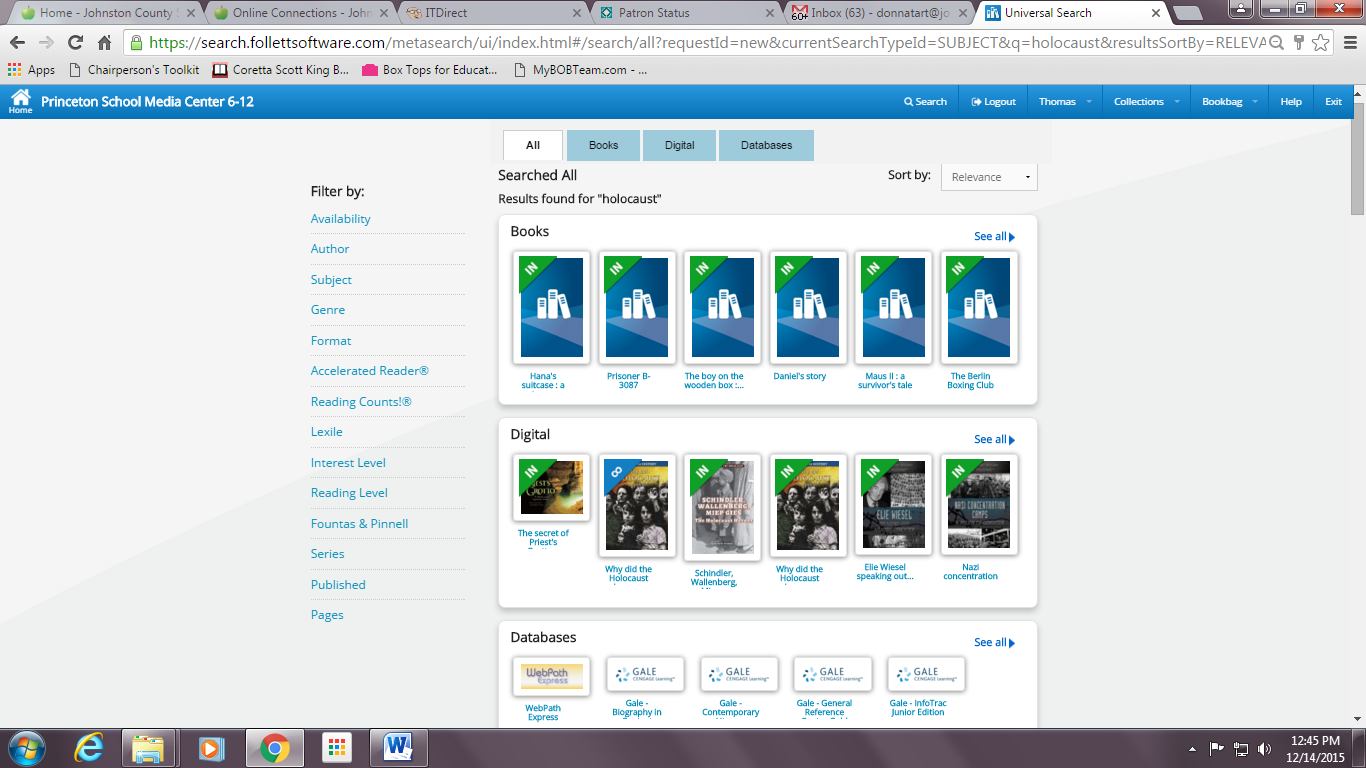
Begin by going to gofollett.com and finding your school. This will take you to the Universal Search interface that Karei communicated that Follett is moving toward to using solely in the future. Once you’re there, students can sign in with their login information to search for books, eBooks, websites, and more using this Universal Search interface. If you signed up for the free trial to WebPath Express, results will appear here as well. If students do not log in, they cannot read eBooks, place holds, see WebPath results, or check out the eBooks. They can only search for resources.
The results displayed in Go Follett depend on your school's specific Destiny Library Manager™ or Follett Shelf settings.
Thank you Donna for sharing tips on using
GoFollett for access to the Ebooks! If you would like to be a guest blogger let me know.
Additional Note for today!
Last Note: Here is
another list of the books on the District Shared Shelf if you need it for reference! These are also in the Media Folder in Google Drive.
 Media Monday: Software Updates
 Destiny Upgrade 12/15/15 PM and Media Tip: GoFollett