Adobe has launched a new FREE web tool to create multimedia presentations.
Adobe Slate is available as a free app for iOS devices as well as the web version.
Slate integrates with Adobe creative cloud, dropbox, and the copyright free creative commons library. One of the best features is that Slate automatically collects image attribution information as you build the story.
Create your free account to use Slate.
Click on the "+" to create your first story or browse the public gallery for inspiration.
Add a title and subtitle to start a new story. Then choose an image to use as the cover for the story.
If you want to use copyright free images from the Creative Commons, click on "Find Photos".
Type in your keyword and click on a picture to add it to the story.
Click on the "+" to add content to your story. You can add links, photo grids, text, quotes, and slideshows.
Slate's design is very intuitive and student friendly. The presentation is saved automatically every ten seconds.
Once your story content is complete, you can customize the look of your story with different themes. You can also preview how your story will look to the public.
Once you are ready to share, click on the "Share" icon.
You have the ability to add author attribution as well as if you would like your story to be public. Notice that your photo credits are automatically added for you.
Once your story is published, you can share it via link (for Google Classroom) or embed it on your website or blog.
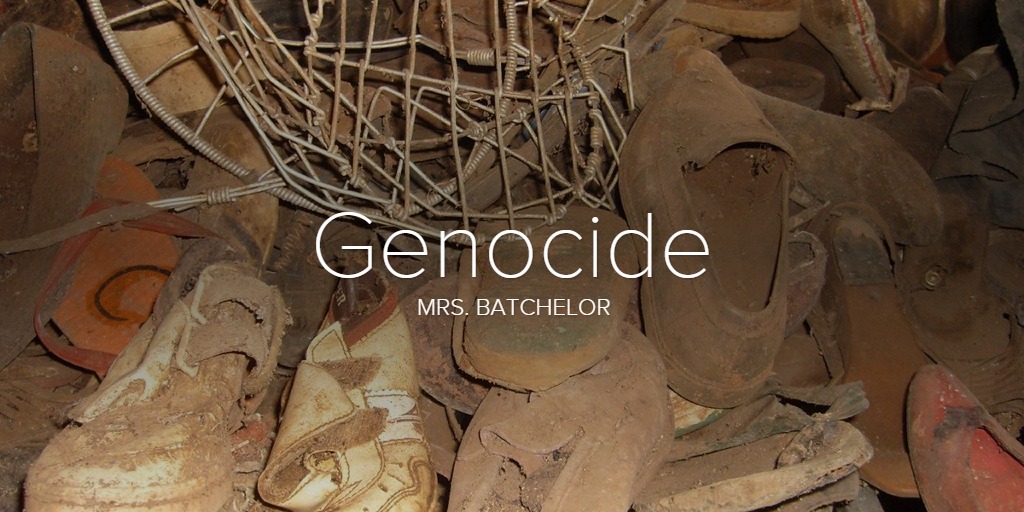
Here is the short story I created:
I hope you consider using
Adobe Slate with your students!
 Wednesday Web Tool: Use the New Adobe Slate Web Tool to Make Stunning Visual Stories
 Wednesday Web Tool: Create Simple and Amazing Presentations with emaze!