Turn Google Spreadsheets into online flashcards using Flippity.net. Quick to create and publish, and easy to share with just a link. Click here to check out a sample set of Water Cycle cards.
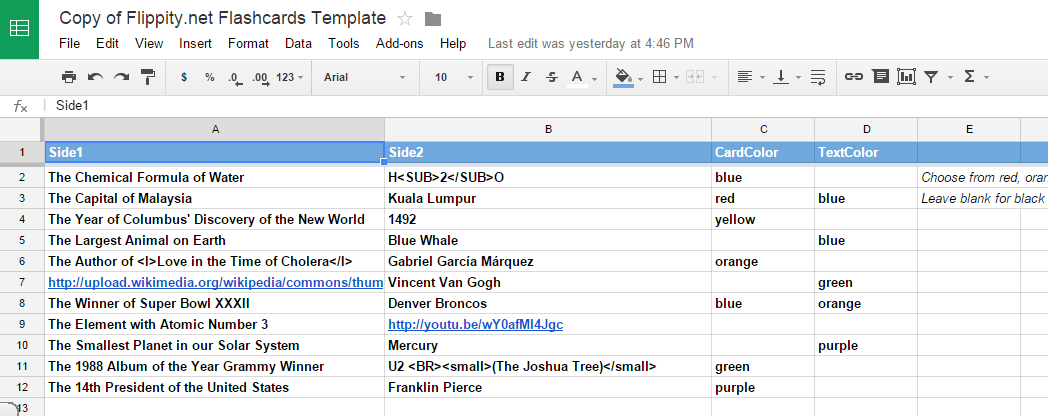
This template consists of two sheets: “Flashcards” and “Get the Link Here.” On the Flashcards sheet, delete the sample text in columns A and B, and add your own information for both sides of the flashcards. To “Name” or add a title to your flashcards, double click on the words “Flashcards” at the bottom of the sheet and enter the desired title.
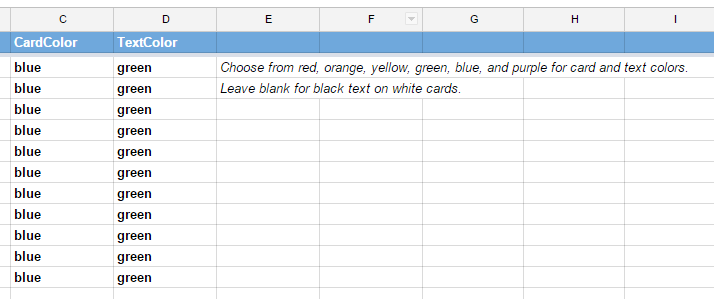
Set the desired color scheme by completing columns C and D. Choose from red, orange, yellow, green, blue, and purple OR leave these two columns blank for white cards with black text.
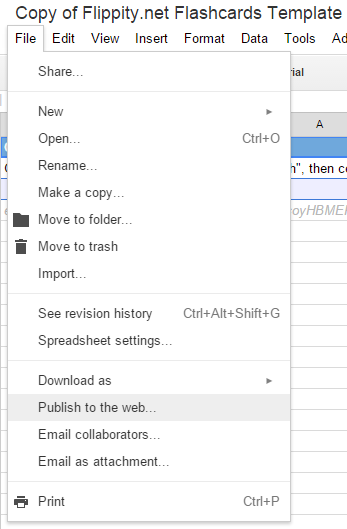
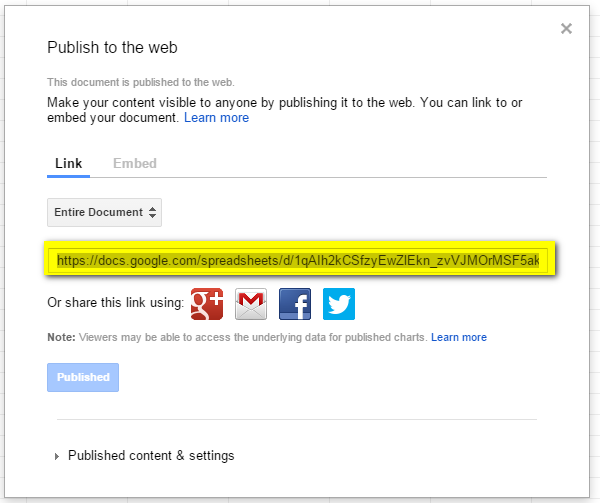
When the "Flashcards" sheet is complete, click on the “Get the Link Here” sheet. Click on File, Publish to the Web, and Publish. If prompted, allow the spreadsheet to be published. Before closing the "Publish to the web" box, copy the link.
Paste the link into A3 on the “Get the Link Here” sheet. The words “Click here to go to your Flippity.net flashcards” will appear below the pasted link.
Click on the link to go to the newly created flashcards.
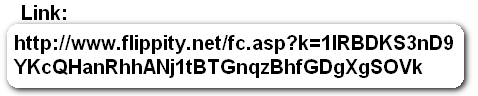
To share the flashcards, simply copy and share the link at the top of the flashcards webpage or click on the “share” link at the bottom of the page to copy the link or create a QR code.
 or
or
Link too long? URL shorteners, like bitly.com and goo.gl, are great for sharing links with others.
**Want to “Jazz” up your cards?**
Add pictures and/or YouTube videos by copying and pasting the URL of the picture or video into the Google Template cell. Click here to go to the Q&A section of Flippity.net for addtional options and information.
Questions or comments?
Email me at brandywhitley@johnston.k12.nc.us
 Update on Flocabulary Trial
 Wednesday Web Tool: Flippity