Wednesday Web Tool: New Collaborative Learning Game from Quizlet! Wednesday Web Tool: New Collaborative Learning Game from Quizlet!

Quizlet has just released a new collaborative learning game mode that allows teachers to quickly create a student group competition ga...

Wednesday Web Tool: Flippity Wednesday Web Tool: Flippity

Turn Google Spreadsheets into online flashcards using Flippity.net. Quick to create and publish, and easy to share with just a link. Cl...

Wednesday Web Tool: Study Stack-Free and Fun Review Tool! Wednesday Web Tool: Study Stack-Free and Fun Review Tool!

It is May and EOG and EOC review season is here!  This week we are featuring an easy Web 2.0 Tool that allows students to quickly study...

Wednesday Web Tool: Create Free and Simple Collaborative Flashcards with CardKiwi Wednesday Web Tool: Create Free and Simple Collaborative Flashcards with CardKiwi

Exam time is quickly approaching for the end of the first semester and this week's web tool is perfect for helping students prepare for...

Showing posts with label flashcards. Show all posts

Wednesday, April 13, 2016

Wednesday Web Tool: New Collaborative Learning Game from Quizlet!


Quizlet has just released a new collaborative learning game mode that allows teachers to quickly create a student group competition game based on any Quizlet study set.

Students do not need an account to join the game. Students go to quizlet.live and enter the unique code to join the live session.

Once all students have joined the live session, they are randomly placed in groups of 3-4 students. Teachers can reshuffle the groups as many times as needed.

Teams work together to solve questions quicker than other groups. Communication is essential to earning points for your team. If a team misses a question, their score resets. The first team to answer all questions correctly wins the game.

Ready to test it out? Look for the "Live" button on any Quizlet study set to launch the game mode.

Check out this Quizlet blog post for more detailed information and demo videos on how to use Quizlet Live.

Wednesday, January 7, 2015

Wednesday Web Tool: Flippity


Turn Google Spreadsheets into online flashcards using Flippity.net. Quick to create and publish, and easy to share with just a link. Click here to check out a sample set of Water Cycle cards.


To get started, log into your Google account and download the template from www.flippity.net or click here.


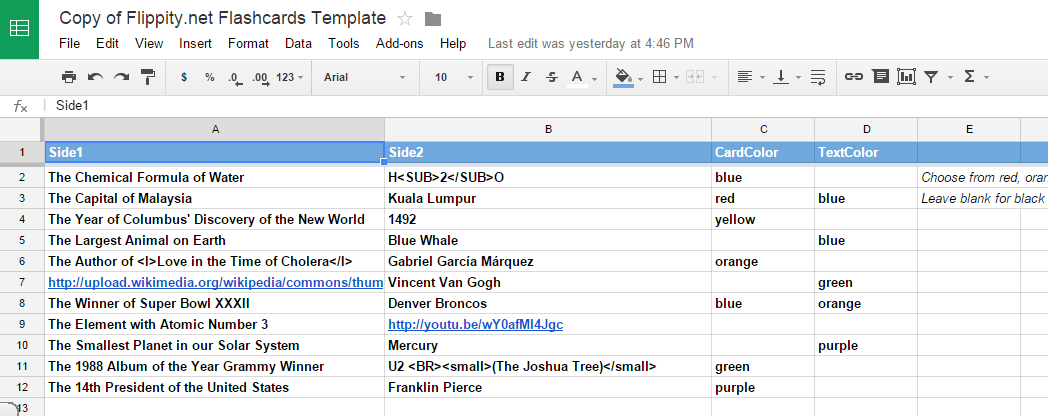
This template consists of two sheets: “Flashcards” and “Get the Link Here.” On the Flashcards sheet, delete the sample text in columns A and B, and add your own information for both sides of the flashcards. To “Name” or add a title to your flashcards, double click on the words “Flashcards” at the bottom of the sheet and enter the desired title.


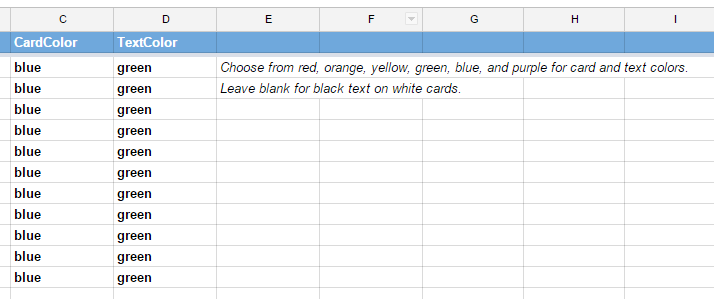
Set the desired color scheme by completing columns C and D. Choose from red, orange, yellow, green, blue, and purple OR leave these two columns blank for white cards with black text.


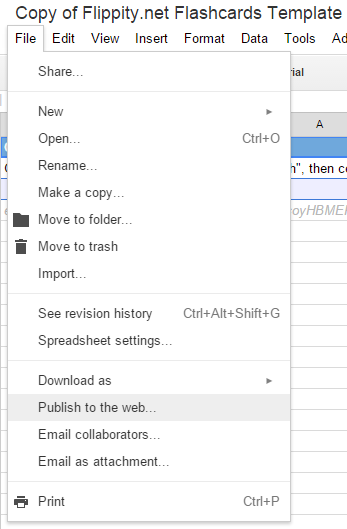
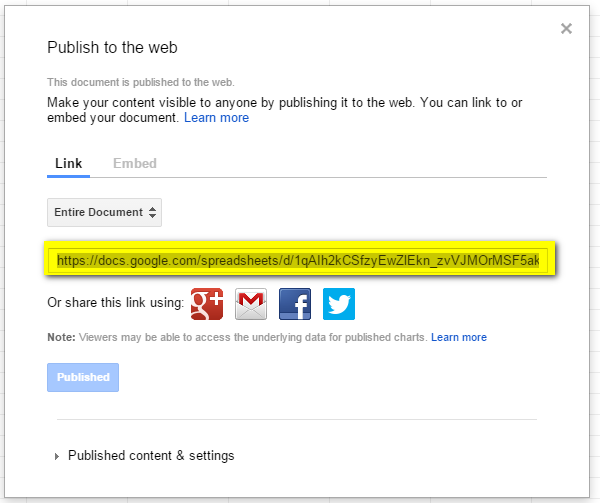
When the "Flashcards" sheet is complete, click on the “Get the Link Here” sheet. Click on File, Publish to the Web, and Publish. If prompted, allow the spreadsheet to be published. Before closing the "Publish to the web" box, copy the link.


Paste the link into A3 on the “Get the Link Here” sheet. The words “Click here to go to your Flippity.net flashcards” will appear below the pasted link.


Click on the link to go to the newly created flashcards. 

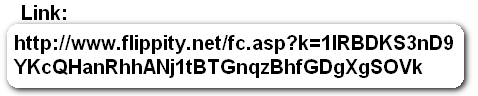
To share the flashcards, simply copy and share the link at the top of the flashcards webpage or click on the “share” link at the bottom of the page to copy the link or create a QR code.

or

Link too long? URL shorteners, like bitly.com and goo.gl, are great for sharing links with others.


**Want to “Jazz” up your cards?**
Add pictures and/or YouTube videos by copying and pasting the URL of the picture or video into the Google Template cell.  Click here to go to the Q&A section of Flippity.net for addtional options and information.


Questions or comments?
Email me at brandywhitley@johnston.k12.nc.us


Wednesday, May 14, 2014

Wednesday Web Tool: Study Stack-Free and Fun Review Tool!

It is May and EOG and EOC review season is here! 

This week we are featuring an easy Web 2.0 Tool that allows students to quickly study key facts and ideas in a variety of fun game formats. Study Stack does not require an individual account unless you wish to create your own study deck. Students can study traditional flash cards or choose one of thirteen different study formats and games with your content. There is also thousands of flash card sets organized by subject area and topic.

To get started, go to: www.studystack.com


From the homepage above, you can view study stacks by subject area, search by keyword, or create an account in the top right corner. You only need an account if you wish to create study stacks.

Once you find a study stack you would like to review, just click on it.


Stacks are shown by "stars" or how many people have reviewed that set of questions.


This is the traditional flash card view. Students can also choose one of the different formats by clicking on the blue buttons and the content will be converted to a new style.

This is the "Hungry Bug" game:


I hope this gives you a fun study resource for your exam review!!!

Questions? Comments?
Please email me at pamelabatchelor@johnston.k12.nc.us

Wednesday, January 8, 2014

Wednesday Web Tool: Create Free and Simple Collaborative Flashcards with CardKiwi

Exam time is quickly approaching for the end of the first semester and this week's web tool is perfect for helping students prepare for exams. CardKiwi is a new web tool that has a very simple interface and allows students to build flashcards quickly and collaboratively.

To get started, visit: http://cardkiwi.com


All users will need to sign-up for an account but the process is very simple.

Once you have your account, you will be directed to the start page where there are video tutorials available if needed.


Click on create a set now to start the process.  You will need to enter the book title and chapter for the set.


The flashcard user screen is extremely simple.  Students just click in the box and type.  They can choose to create more cards or start studying at anytime.  When they are finished they click on start studying.


Each card presents a simple visual system to indicate understanding of that card. If students choose the thumbs down, the card will be shown again two more times. If students choose the half-thumb, the card will be shown again one more time.  If students choose the thumbs up, the card will not be shown again. 

At anytime, the students can see all cards in a set.


The best feature about CardKiwi is how easy it is to collaborate.  Under the "my flashcards" section, each set of cards is given a link. Share that link with other students for them to be able to study the flashcards and edit the cards (if they have a CardKiwi account). You can also share your flashcard sets on social media.

I hope you consider sharing CardKiwi with your students to help them study.

Questions or Comments?
Please email me at: pamelabatchelor@johnston.k12.nc.us